
Products
Overview
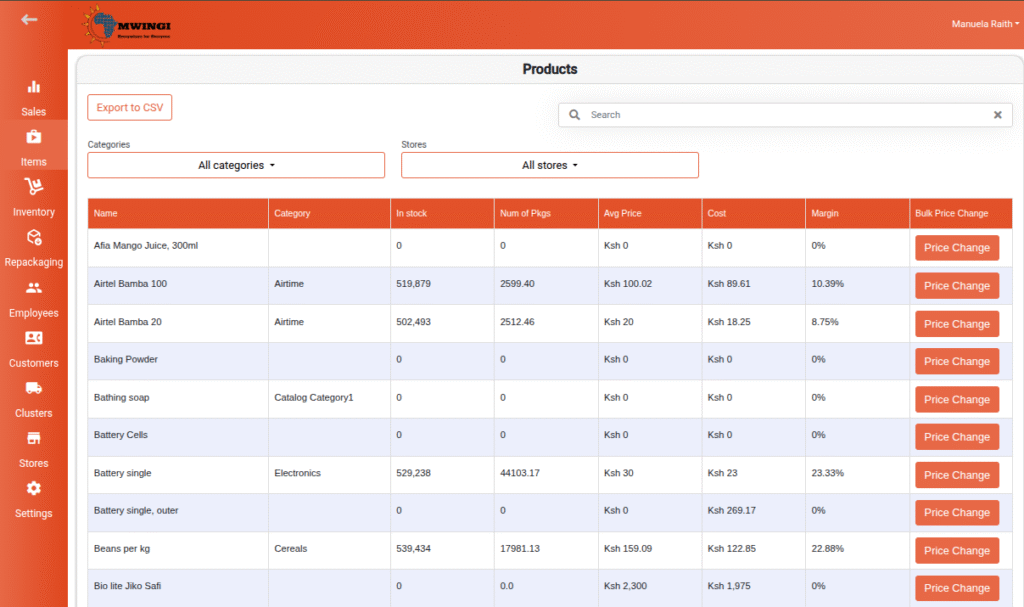
The Products Module empowers authorized users to manage and view all products within the Mwingi POS system. A comprehensive table displays key product information, including:
- Product Name
- Category
- In-Stock Count
- Number of Packages
- Average Price
- Cost
- Margin
The table dynamically updates based on selected store(s) and applied category filters. A built-in search function allows for quick product lookup, and users can export the full table via the “EXPORT TO CSV” button for reporting or analysis.
Store-Specific Table Features
When a single store is selected, additional functionality becomes available:
“Is Sellable” Edit Mode & Stock Type Filter
Authorized users can manage product visibility for sale in the selected store:

- Once a store is selected, a button labeled “Edit Sellable” appears on the top-left of the table.
- Clicking this button activates edit mode, converting the “Is Sellable” column into a checkbox selection interface.
- Users can check or uncheck products to mark them as sellable or not.
- Changes are updated immediately in the system, affecting both the Mwingi POS and SpotCheck apps in real-time.
- A “Mark All / Unmark All” toggle is also available for bulk actions.

Inline Price Change
Users can quickly update a product’s price directly from the table without opening the edit form:
- Click or tap on the price cell of a product to trigger a small dialog.
- The dialog contains:
- An input field for the new price.
- A red (x) icon to cancel.
- A green check icon to save changes.
- This feature streamlines price management within the context of a specific store.

Bulk Price Change Across Stores
Users can update product prices for multiple stores simultaneously via the “Bulk Price” column, which remains visible regardless of the number of stores selected.
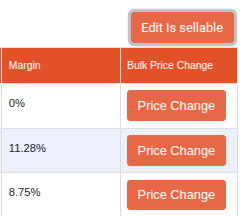
- Each product row in the “Bulk Price” column includes a “Price Change” button.
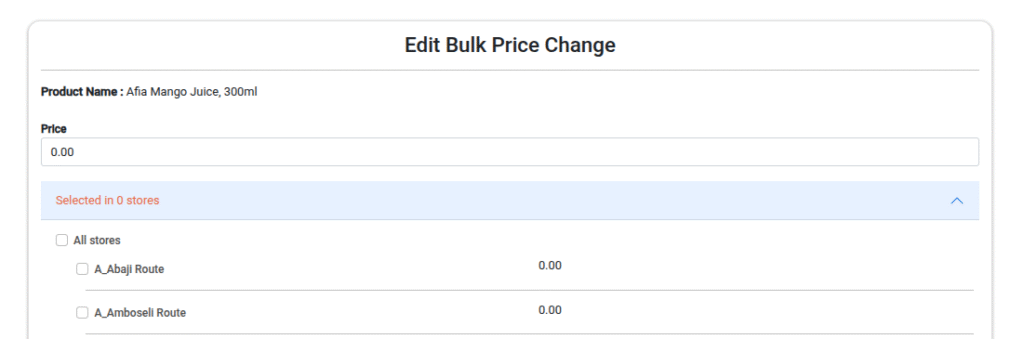
- Clicking this opens a detailed view with the following:
- Product Name
- Input field for new price
- List of store checkboxes with current prices displayed
- Users may select all or specific stores to apply the new price.
- Save and Exit buttons to apply or discard changes.

Stock Type Filter
Authorized users can refine their view of products by using the “Stock Type Filter”, available when a single store is selected. This filter offers the following options:
- All Products – All Products currently synced and available in the app.
- Sellable – Products marked as available for sale.
- Non-sellable – Products not available for sale.
- Negative Stock – Products whose in-stock quantity has dropped below zero.
- Out of Stock – Products with zero available quantity.
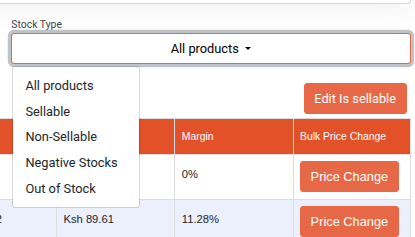
This filter improves visibility and management by allowing users to focus on specific inventory conditions.
Viewing and Editing Product Details
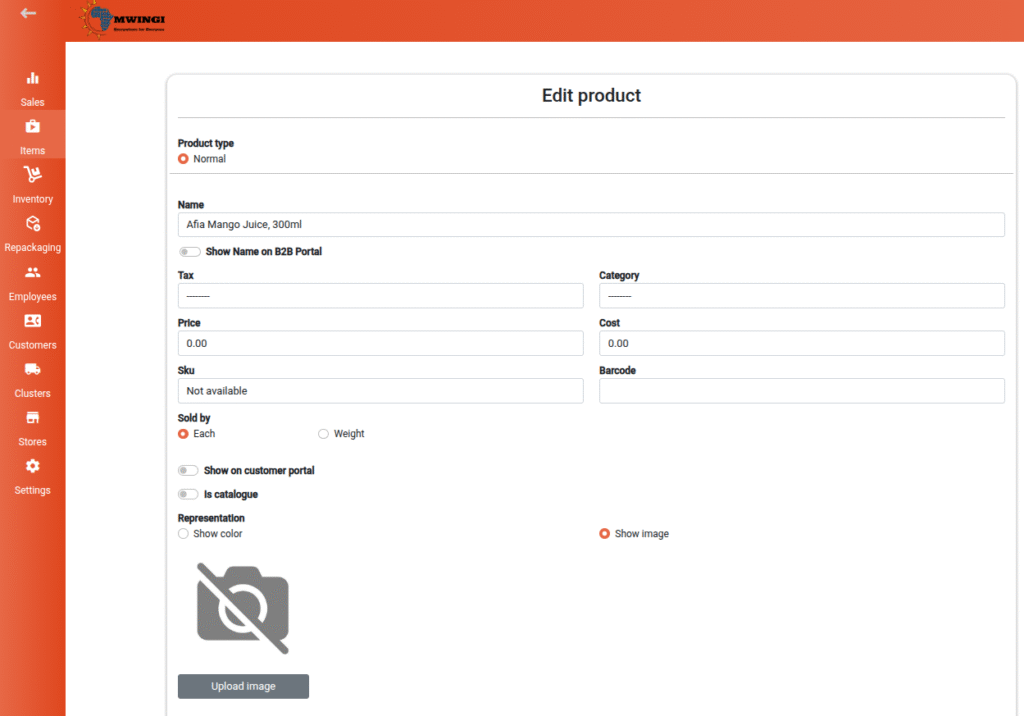
Authorized users can view and edit product details by selecting a specific product row from the table. This opens an editable product form containing the following fields:
- Product Type – Select between Normal or Bundle using radio buttons.
- Product Name – The official name of the product.
- B2B Portal Product Name – (Optional) A distinct product name for display on the Mwingi B2B Portal. The input field is hidden by default and can be toggled using the “Show/Hide Name on B2B Portal” switch.
- Tax – Applicable tax settings for the product.
- Category – The product’s assigned category.
- Price – Retail price of the product.
- Cost – Cost price of the product.
- SKU – Stock Keeping Unit identifier.
- Barcode – Barcode value for scanning and tracking.
- Sold By – Choose between Each or Weight using radio buttons.
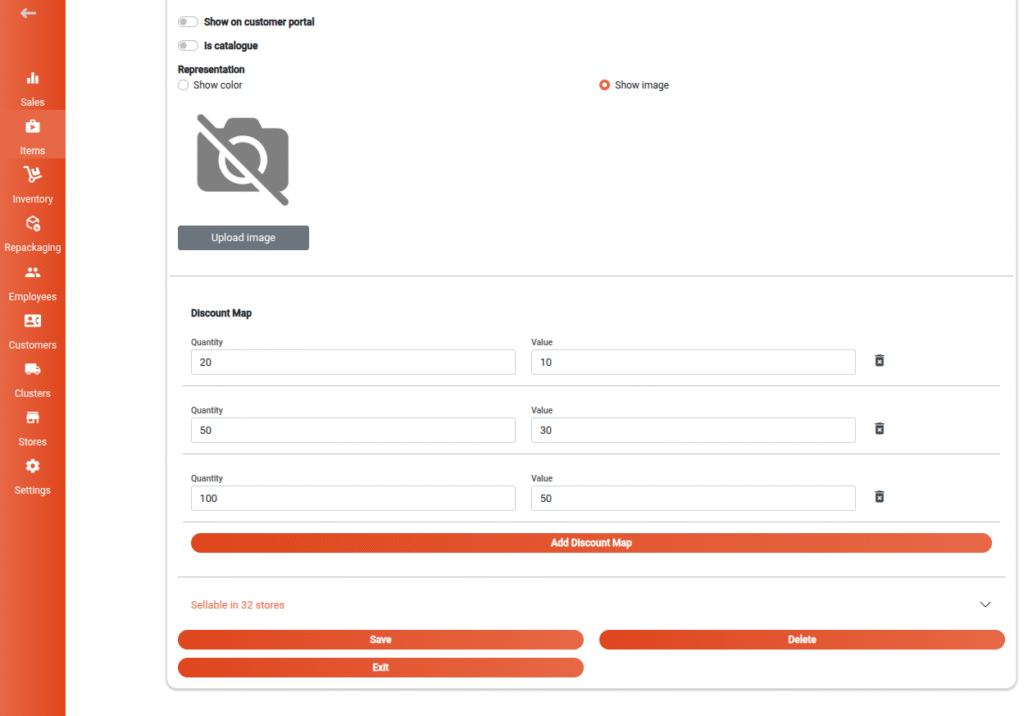
- Representation – Defines how the product is visually displayed:
- Color: Select a color from a predefined grid.
- Image: View the default image and optionally upload a custom image.
- Discount Map – Enables discounting based on quantity sold. For example, if a customer purchases 20 units, a discount (e.g., 10 per unit) can be applied. Multiple discount tiers can be added.
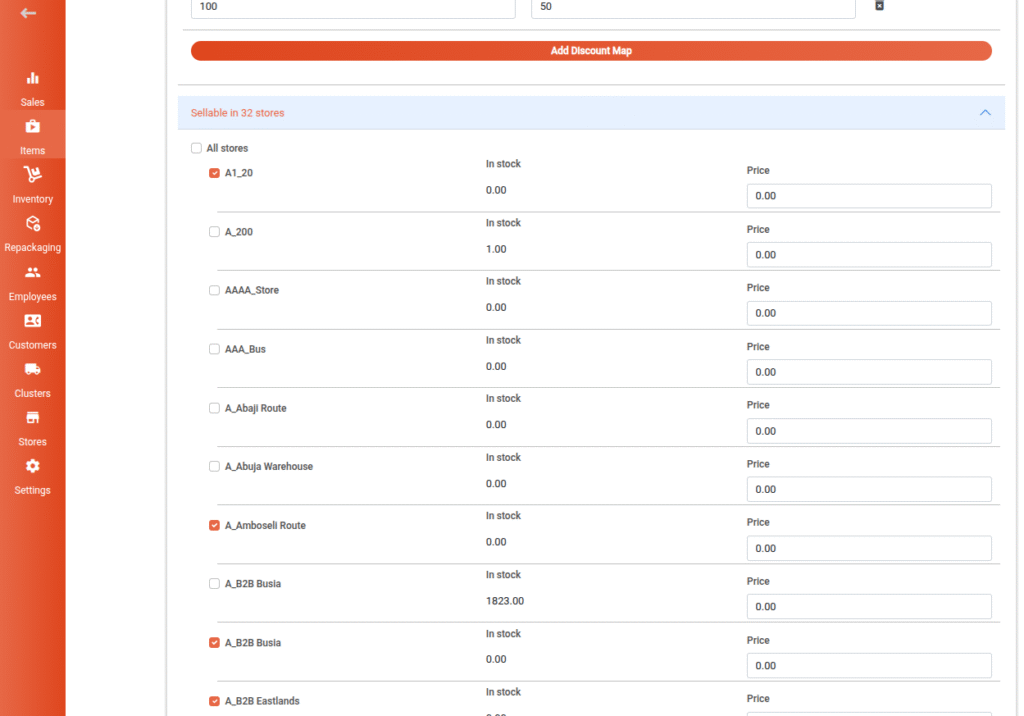
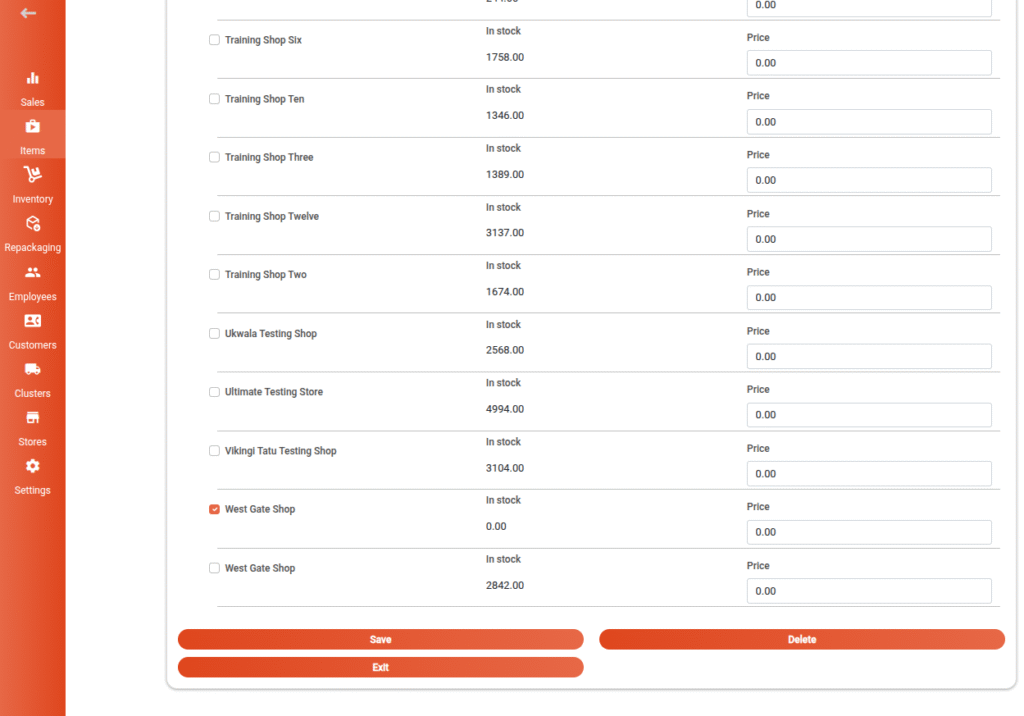
- Store Selection – A list of checkboxes for selecting which store(s) the product should be available in. The user can:
- Select all or specific stores.
- View current in-stock count and pricing per selected store.
Action Buttons in Edit View
- Save – Saves any changes made to the product.
- Delete – Permanently removes the product from the system.
- Exit – Closes the form and returns the user to the main product table.
Creating a New Product
To add a new product, authorized users can click or tap the floating ( + ) button located at the bottom left corner of the screen. This opens a product creation form similar to the edit view, with the following notes:
- The Discount Map section is omitted during creation.
- An additional toggle, “Show/Hide on Customer Portal”, is available. This determines whether the product should be visible on the customer-facing portal.
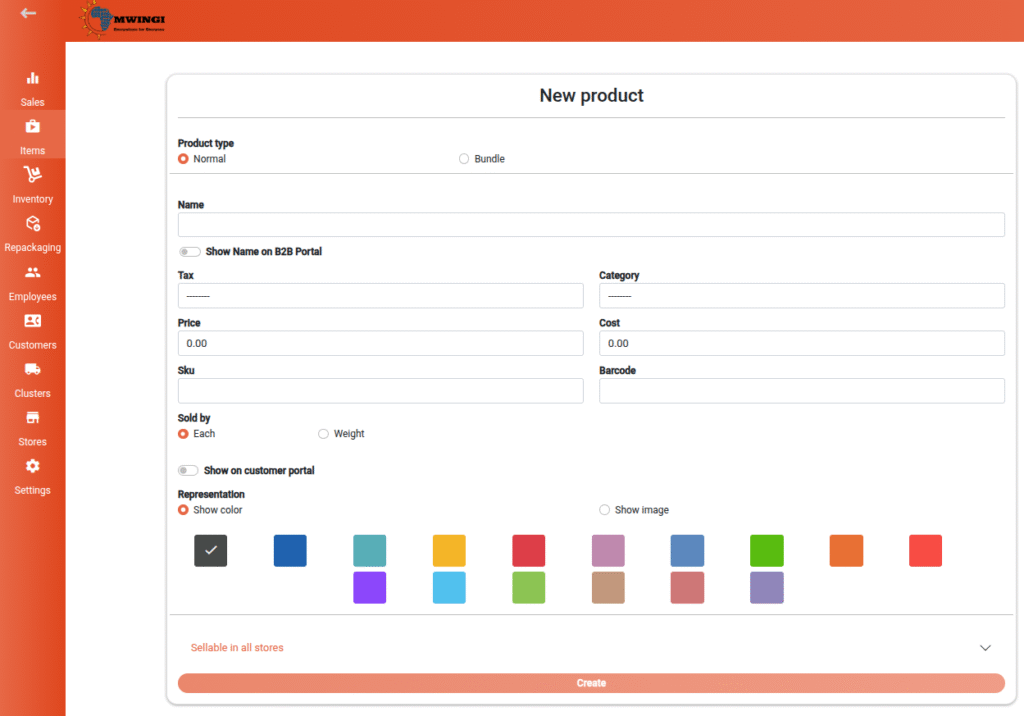
The user is provided with a “Create” button to finalize and save the new product.