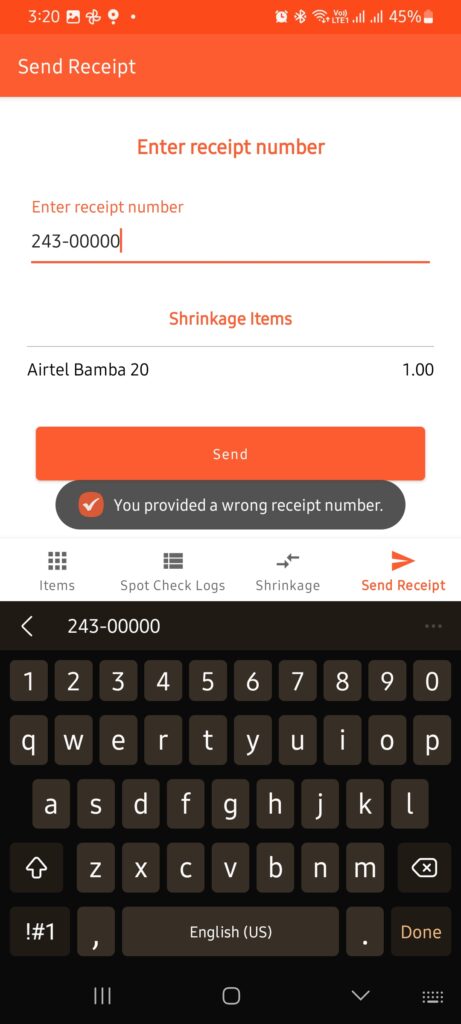
SpotCheck App – Clear Shrinkage Process
During the stock counting process using the Mwingi SpotCheck App, discrepancies may occur between the physical stock count and the expected system stock. These discrepancies are referred to as shrinkage.
Common Causes of Shrinkage
- Items sold on credit without system updates.
- Incorrect physical stock count.
- Unrecorded stock movements or adjustments.
To maintain accurate inventory records, all shrinkages must be cleared. The Send Receipts section of the SpotCheck App facilitates this process.
Important Precondition: Ensure all items have been fully counted before proceeding to clear shrinkages. Incomplete counts may lead to inaccurate reconciliation.
Shrinkage Visibility:
When a shrinkage is detected:
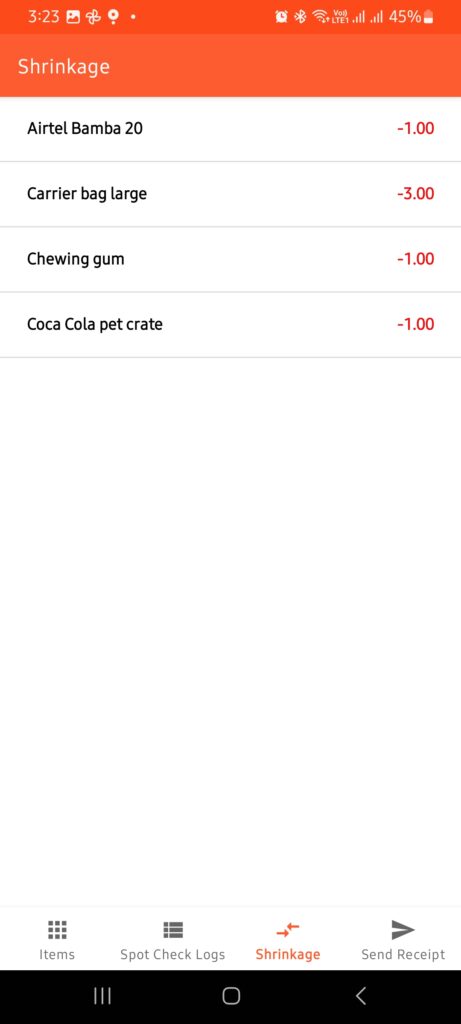
- The Spot Check Logs will mark the status as Shrinkage.
- The Shrinkage page will list affected items and the quantity variance.
- The Send Receipts page will automatically populate with the shrinkage items and the amount that needs to be cleared.
Note: Ensure all items are counted before you proceed to clear shrinkage.


Clear Shrinkage Process: Step-by-Step Guide
Step One: Review Shrinkage Details
- Open the Send Receipts page on the SpotCheck App.
- Review the list of items with shrinkage and their corresponding quantities.
Step Two: Process Sale via POS App
- Open the Mwingi POS App.
- Add the shrinkage items to a new sale ticket using the exact shrinkage quantities listed.
- Complete the sale transaction.


Step Three: Record Receipt Number
- Once the sale is completed, navigate to the Receipts section of the POS App.
- Locate the relevant receipt and note the receipt number (omit the “#” symbol).


Step Four: Submit Receipt in SpotCheck App
- Return to the SpotCheck App > Send Receipts page.
- Enter the receipt number exactly as shown (without the “#”).
- Tap “Send” to submit and complete the shrinkage clearing process.

Step Five: Confirmation
- Upon successful submission, you will receive a confirmation message indicating that the shrinkage has been cleared.

Troubleshooting Notes:
- ❌ If the sale has not yet been completed, you will not have a receipt number, and the shrinkage cannot be cleared.
- ⚠️ If the entered receipt number is invalid or does not exist, the system will notify you to correct the input.