
SpotCheck App – Login and Logout Process
This section provides a clear guide on how to securely log in and log out of the Mwingi SpotCheck App. Proper login and logout practices ensure data accuracy and user accountability.
Login Process
Step 1: Enter Credentials
- Open the SpotCheck App.
- Enter your assigned Store Number and Password in the provided fields.
- Tap the “Login” button.
Note:
If you are unable to log in, please contact your Field Retail Officer (FRO) to verify or reset your login credentials.

Step 2: Load Items Page
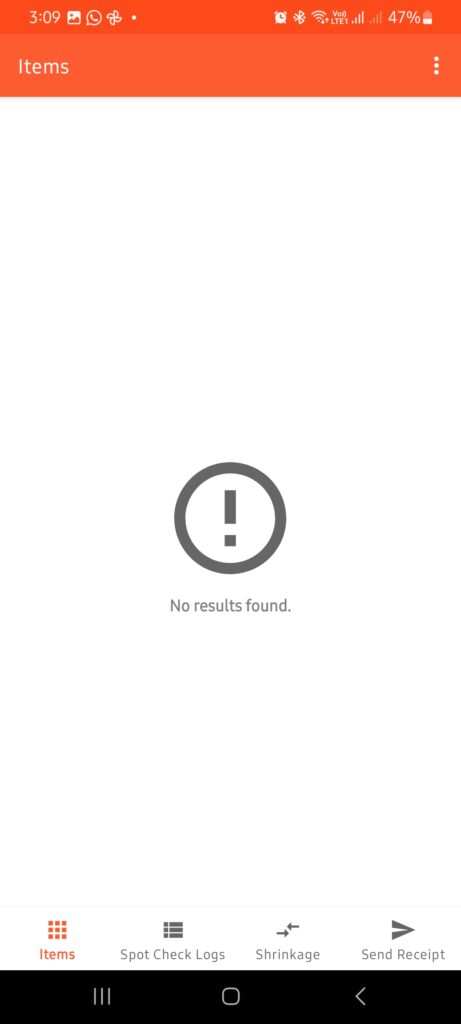
- Upon successful login, the app will load and direct you to the Items Page.
- If no items are displayed, contact your FRO to upload the store’s product list.
Once updated, the items will appear automatically.


LogOut Process
Step 1: Open Logout Option
While on the Items Page, tap the three vertical dots in the top-right corner of the screen to open the options menu.

Step 2: Select Logout
From the dropdown menu, tap on “Logout”.

Step 3: Confirm Password
- You will be prompted to re-enter your password to confirm the logout action.
- After entering your password, tap “Logout” again to complete the process.
