
SpotCheck App – Counting and Recounting Process
The core function of the Mwingi SpotCheck App is to facilitate accurate stock counting across all items listed for a store. The process begins on the Items page and may occasionally involve recounting, depending on specific circumstances.
Counting Process
The counting process involves verifying the physical stock quantities and logging them within the SpotCheck App. Each counted item is automatically validated against the expected quantity in the system.
Step-by-Step Guide:
Step 1:
- Conduct a physical count of stock on your shelves.
- On the Items page, tap on the item you’ve counted.
- Enter the counted quantity in the “Amount” field on the next screen and tap “Save.”


Step 2:
- Once saved, the app will redirect to the Spot Check Logs, where the item’s count status will be displayed.
- Return to the Items page to see a checkmark next to the item, indicating that it has been counted.


Status Indicators:
- Shrinkage – Counted stock is less than the expected quantity. This will be flagged in red.
- OK – Counted stock matches the expected system stock.


Note: All listed items must be counted. If shrinkage is detected, it must be cleared through the appropriate shrinkage resolution process.
Recounting Process
A recount allows a user to re-enter the stock count for an item or an entire list when the initial count was incorrect. Recounts can only be triggered upon request and are managed by the Field Retail Officer (FRO) via the Mwingi Dashboard.
Common Reasons for Recount Requests:
- Human error during counting.
- System synchronization issues.
- Miscounted or unrecorded stock.
Types of Recount Requests
- Send Short List
- Send Full List
- Resend List : This is to send a recount to an entire list to start afreash on that day.
- Item reset: this is to send a recount to a specific item counted wrongly on a day.
How Recounts Appear in the App
- When a Send Full List or Send Short List is sent, the Items page will populate with the relevant products ready to be recounted.
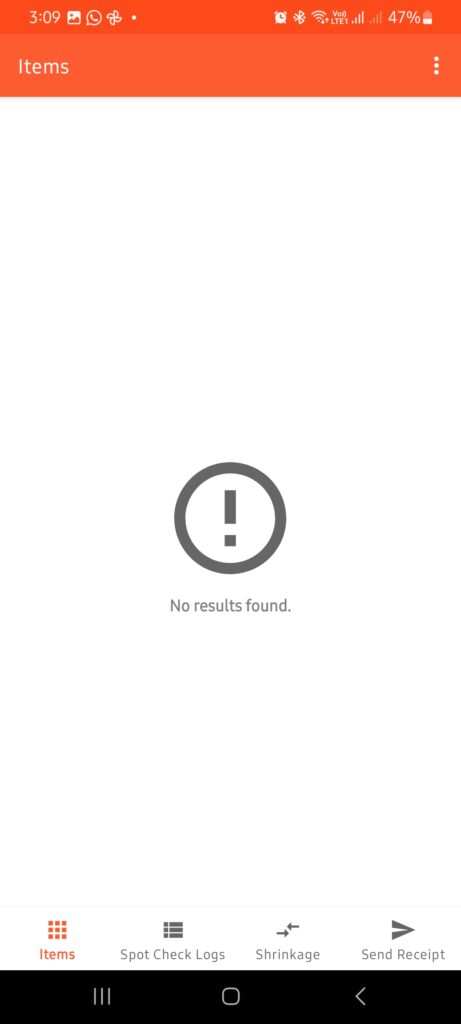
- A Resend List request will clear all previously counted items for that day, allowing the user to start afresh.
- An Item Reset request will remove the count for a single item (e.g., “Airtel Bamba 100”) and return it to the uncategorized list for re-entry.

Note: These recount request are done by the FRO from another platform called “Mwingi Dashboard”. This means that the user must ask for a permission or a recount request before they can count anything incase of a recount case.