
Customers
Overview
The Customers module in the Mwingi POS Back Office provides a centralized system for managing customer records. This functionality is essential for:
- Tracking individual sales activity and engagement per customer, including by cluster
- Mapping customer locations
- Generating invoices that include detailed customer information
Access to this module is available via the Customers menu and is restricted to authorized users.

Customer Table View
Authorized users are presented with a comprehensive table listing all customer records. Each entry includes key information such as:
- Name – Customer’s full name
- Phone – Contact phone number
- Last Cashier Name – Last employee who served the customer
- Clusters – Clusters the customer is associated with
- Village – Customer’s village of residence
- Send SMS – Indicates whether SMS notifications are enabled
- Has Location Data – Indicates availability of location information
- First Visit – Date of the customer’s first recorded transaction
- Last Visit – Date of the most recent transaction
- Total Visits – Total number of store visits
- Total Spent – Cumulative amount spent by the customer

Filtering and Search
To locate customer records efficiently, the following filters and tools are available:
- Cluster Dropdown – Filter by associated clusters
- Send SMS Filter – Filter by SMS eligibility (All / Send SMS Only)
- Has Location Data Filter – Filter by availability of location data (All / Has Location / No Location)
- Search Field – Search by name, phone number, or related details
- Filter Last Sale – Checkbox to filter based on recent customer activity


Export Options
Customer data can be exported in the following formats:
- Export to CSV – Downloads the current table view as a CSV file
- Export to SMS Upload – Downloads only customer records enabled for SMS notifications (independent of filters)
Creating a New Customer
To add a new customer:
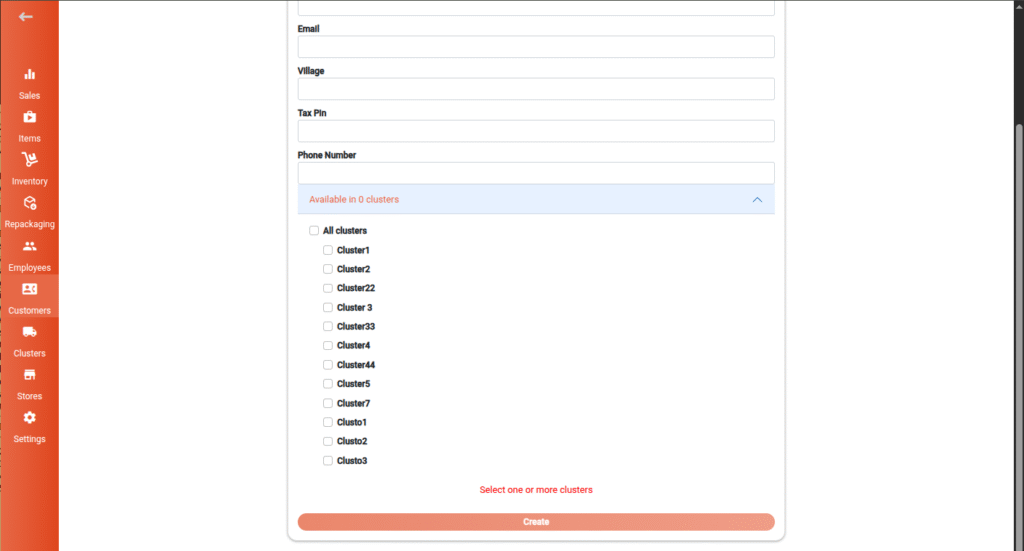
- Tap or click the floating “+” button at the bottom of the table view.
- The Create Customer Form will open.

Required Fields:
- Name
- Village
- Tax PIN
- Phone Number (must be unique and contain at least 10 digits)
- Clusters – Select one or more from the checkbox list

Click Create to save the customer record.
Viewing and Managing Customer Details
To view or update an existing customer:
- Tap or click on the desired customer’s row in the table.
- A Customer Details View will appear, displaying:
- Name
- Village
- Tax PIN
- Send SMS status
- Has Location status
- Phone number
- Address
- Associated clusters
Actions available:
- Edit Customer – Opens the Edit Customer Form
- Delete Customer – Permanently removes the customer from the system

Editing a Customer
To modify an existing customer’s details:
- In the Customer Details View, click Edit Customer.
- The Edit Customer Form will open. This form mirrors the Create Customer Form but includes an additional Send SMS toggle.

After editing, click Save to apply the updates.
Important Note:
- Duplicate phone numbers are not allowed.
- Phone numbers must contain at least 10 digits.