Taxes
Overview
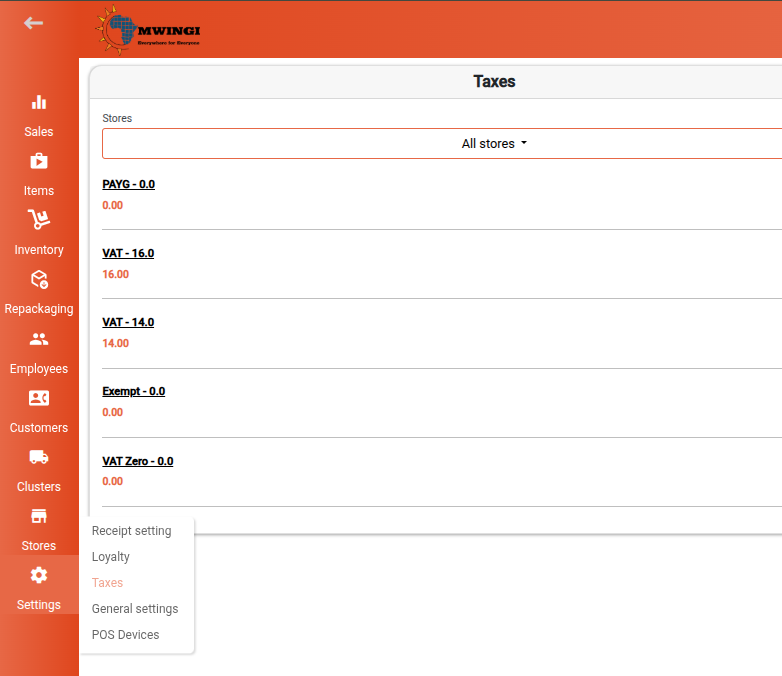
The Taxes module manages all tax configurations applied to sales transactions, store operations, and product records within the system. Effective tax management ensures compliance with regulatory requirements and supports accurate financial reporting.
This feature is primarily intended for Super Admins and Admin Managers, who have the authority to create, edit, and delete tax records as needed.
Taxes List View
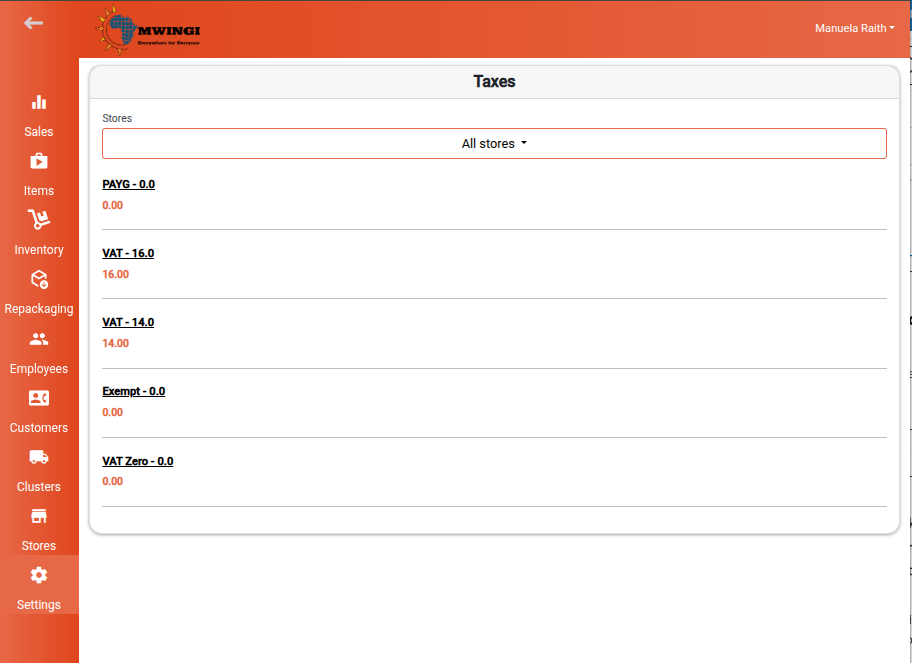
The system displays a comprehensive list of all existing tax configurations. Each entry includes:
- Tax Name
- Tax Rate – Displayed directly below the tax name as a percentage
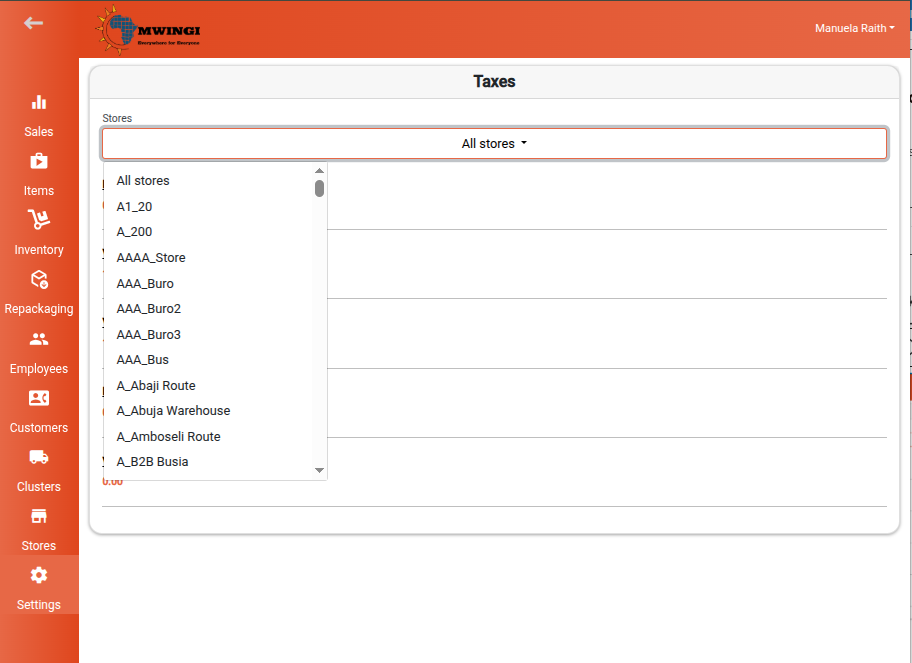
To streamline navigation, users can apply the Store Dropdown Filter to view tax records relevant to a specific store.
Creating a New Tax
To add a new tax configuration:
- Tap or click the “+” circle button at the bottom of the view.
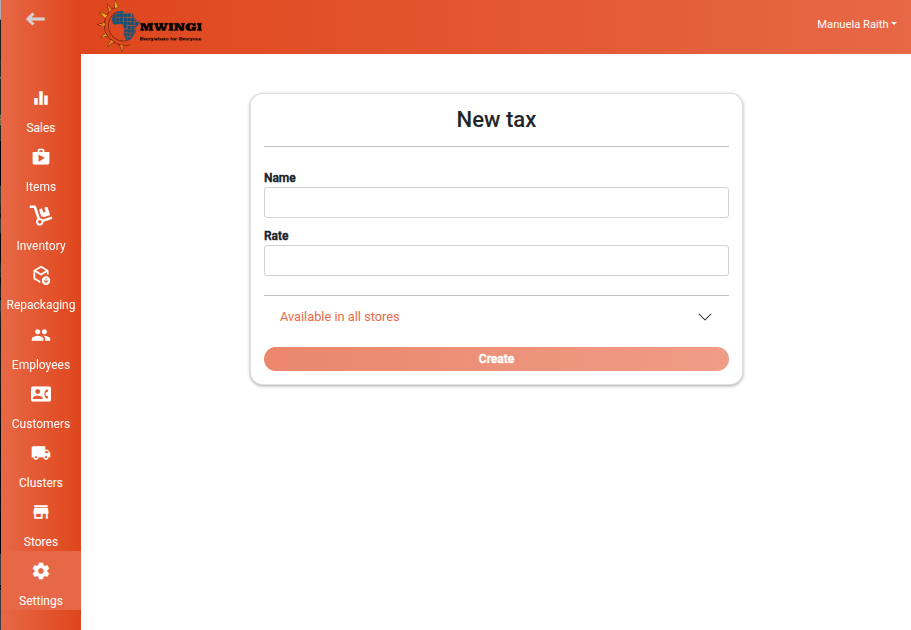
- The Create Tax Form will open.
Complete the following fields:
- Name – Enter the name of the tax.
- Rate – Specify the tax rate as a percentage.
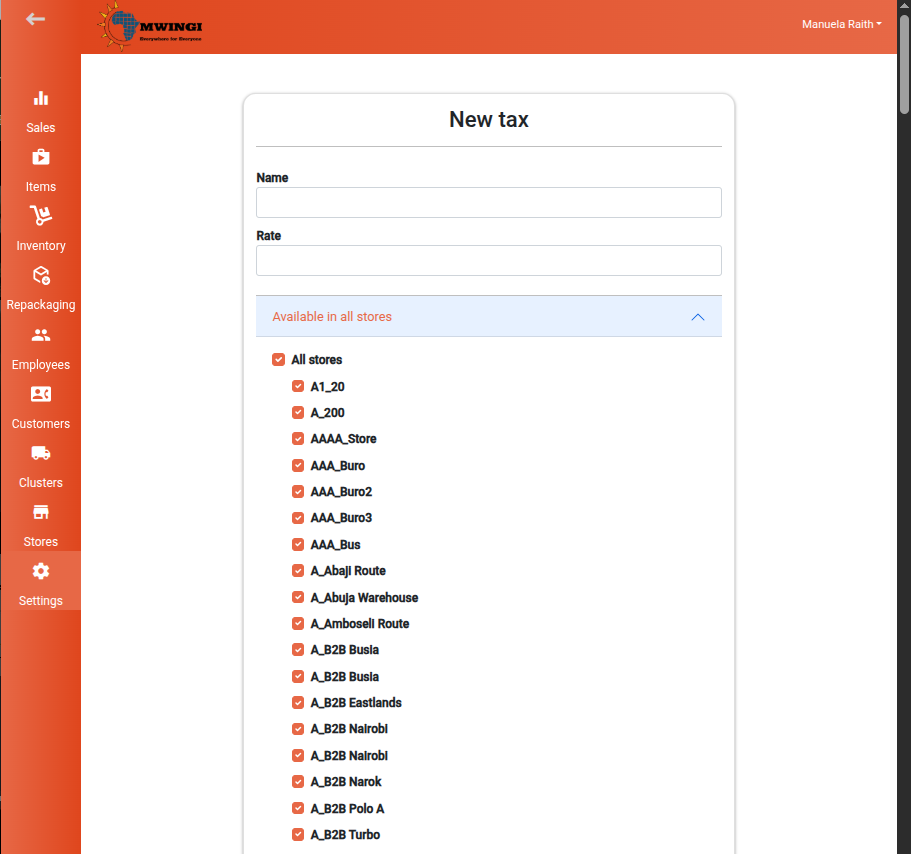
- Stores – Select the stores where this tax will be applied.
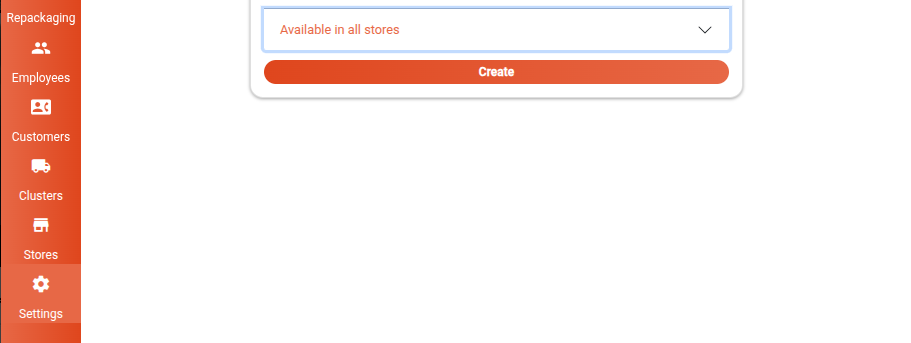
Click or tap Save to finalize and create the tax record.
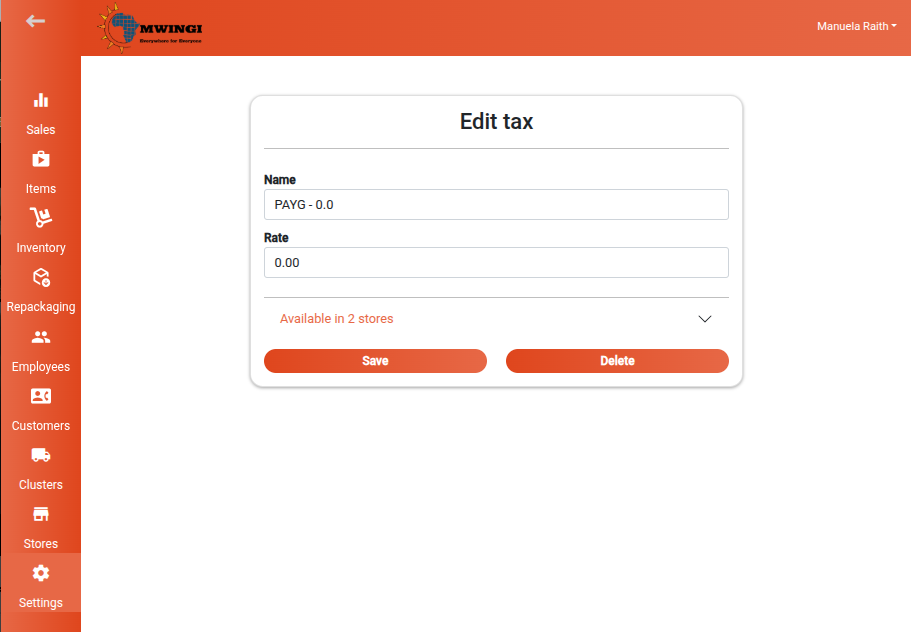
Editing or Deleting a Tax
To modify or delete an existing tax record:
- Click or tap the desired tax entry from the list to open the Edit Tax Form.
- Within the form, you can:
- Update the tax name, rate, or assigned stores
- Click Save to apply any changes
- Click Delete to permanently remove the tax from the system