Sales
Overview
The Sales Module in Mwingi POS Back Office allows authorized users to view and analyze sales data generated through the Mwingi POS App. Sales reports are accessible via the Sales menu and are categorized into the following views:
- Sales Summary
- Sales by Products
- Sales by Stores
- Sales by Categories
- Sales by Taxes
- Sales by Margin
- Sales by Profits
- Sales by Customers
- Sales by Payments
- Cluster Reports
- Store Last Sales
- Receipts

Sales Summary
The Sales Summary provides an overview of overall performance within a specified period, including:
- Total Gross Sales
- Total Refunds
- Total Discounts
- Total Net Sales
- Cost of Goods Sold (COGS)
- Margin
- Total Gross Profits (Excl. Tax)
- Total Net Sales (Excl. Tax)
- Total Taxes
The summary includes a bar chart for visual analysis and a detailed data table. Users can export the table in CSV format via the “Export to CSV” button below the chart.

Note: The user can export the tabled showing detailed general sales summary infomation in CSV using the button below the bar chart labeled “Export to CSV”.
Sales summary filters
The user can implement filters like date range filter, store filter, chart type filter and duration filter. The filters results affects the data displayed except for thr chart type filter.
With date filter, the user can filter from start date and end date of the data accuired. The POS will retrieve the data and display the sales summary report. The user can also filter for Today, Yesterday, This week, Last week, This Month, Last Month, Last 7 days and Last 30 days.

The user can get data depending on the stores selected on the store filter. It could also be All stores, All Franchise shops, All Routes, ALl B2Bs, All Trucks and Only warehouse.

Note: The user can also view the target of each store if the user filters only one store at a time at the chart view. This target is an underlined blue line across the chart.

The user can change the bar chart to line chart with the chart type filter depending on the users choosing.


The user can also filter with duration: Days, Weeks and Months.

Sales Categories
This report provides a detailed breakdown of sales performance by product categories, including:
- Top 10 Net Sales (with percentages)
- Aggregate “Others” Net Sales (with percentage)
- Pie Chart visualization
- Data Table showing:
- Category
- Items Sold
- Gross Sales
- Refunded Items
- Refunds
- Discounts
- Net Sales
- Net Sales (Excl. Tax)
- Cost of Goods
- Gross Profit
- Margin
- Taxes
Users can filter data by Date Range and Selected Stores. The data table is exportable via the “Export to CSV” button.
Sales by products
This section presents product-level sales data, allowing users to analyze individual product performance over time.

Sales by stores
Enables performance comparison between stores by providing store-specific sales data and KPIs.

Sales by categories
The user can view detailed sales information report by each category in the system.

Sales by taxes
Displays sales performance categorized by applicable tax types.

Sales by margin
Allows users to analyze product or category sales based on profit margins. No chart is available in this section. The top 10 entries are ranked by highest margin.

Sales by profits
This view ranks sales performance by profit amount, highlighting the top-performing products or categories.

Sales by customers
Enables users to view sales per customer. If a customer is not identified at the time of sale, they will appear as “Not Provided”.

Sales by payments
Presents sales information broken down by payment method.

Cluster Reports
This report aggregates sales data from clusters of trucks and shops, offering insights into:
- Cluster Net Sales
- Cluster Gross Profit
- Cluster Margin
Detailed tables show individual performance for each truck and shop within selected clusters. Total sales and margin figures are displayed below the tables. Data can be exported using the “Export to CSV” button.

Stores Last Sales
This view shows the last recorded sale for each store, helping monitor sales activity and inactivity.

The user can filter data using Duration type filter and Store Type filter. With the Duration type filter, the user can filter last sales made 48 hours ago, 3 days ago, 7 days ago, 14 days ago, 21 days ago, 30 days ago and 30 days and above ago.

The user can use store type to filter all trucks or all stores.

Receipts
Every sale made through the Mwingi POS App generates a receipt, which is recorded and accessible in the Back Office.
The user can view a table of receipts generated in record of the date range, stores, products, sales type(Sale or Refund) and whether the receipt is within the customer GEO Fence or outside filters. Each table row represents a receipt showing receipt numbers, created date, sych date, store which it was generated, if the receipt is refundable, if the receipt is within customer geo fence, payment made, type of sale, total, the customer attached to receipt , the customer cluster and village name.
Summary statistics include:
- Total Receipts
- Total Sales
- Total Refunds

Clicking on a receipt row opens a detailed view of the selected transaction.

Edit Refundable
The user can allow refunding on receipt using this feature “Is Refundable” to give permisson for refunding. initially the status of “is refundable” status are represented in form os an (x) icon if its not refundable or a check icon is its refundable. To change the status of the “is refundable”:
Step One : Tap or click on “Edit Is Refundable” button on the top end side of the receipt report table.

When tapped, the is refundable button changes to a checkbox row and the Edit refundable button label changes to “Exit”. The user can change the status of if the receipt should be refundable or not.

Step Two: The user can tap or click on “Exit” button to return from the edit.
Customer GEO Fence
To access a customer’s location , log in to this Mwingi POS Back Office.
- If the customer’s location was attached to the receipt, it can be viewed in the Mwingi POS Back Office.
- If the location is not present on the receipt, the “In Geo Fence” column will display a red cancel (✖) icon.

If the location is present, the “In Geo Fence” column will display a green check (✔) icon, along with a blue map icon.

STEP 2: Click on the blue map icon to view the customer’s location.
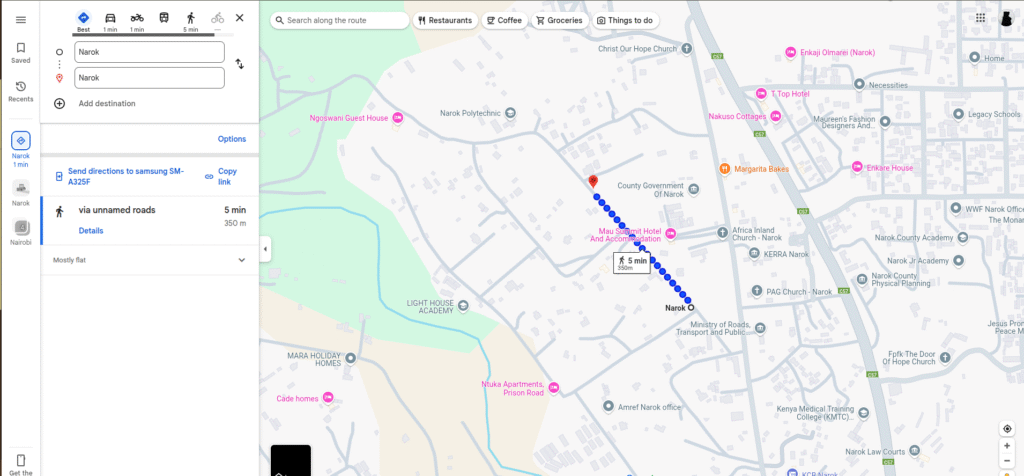
- This will open a new browser tab showing the customer’s location on a map.