Transfer Orders
Overview
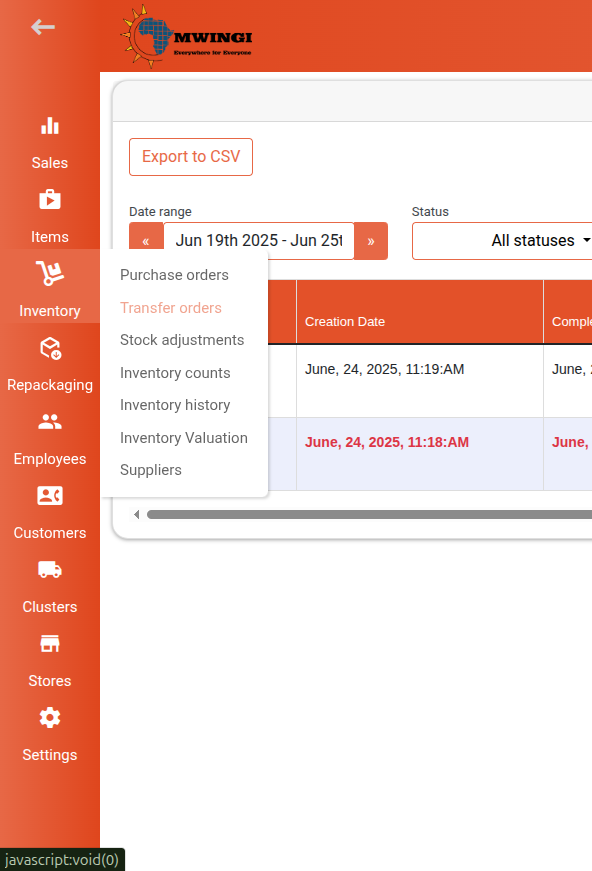
The Transfer Order module is a key component of Mwingi’s advanced inventory management system. It allows users to efficiently move inventory items between stores by facilitating structured transfers from a Source Store to a Destination Store. This module is accessible under the Inventory section in the Mwingi POS Back Office.
Main Transfer Order Table
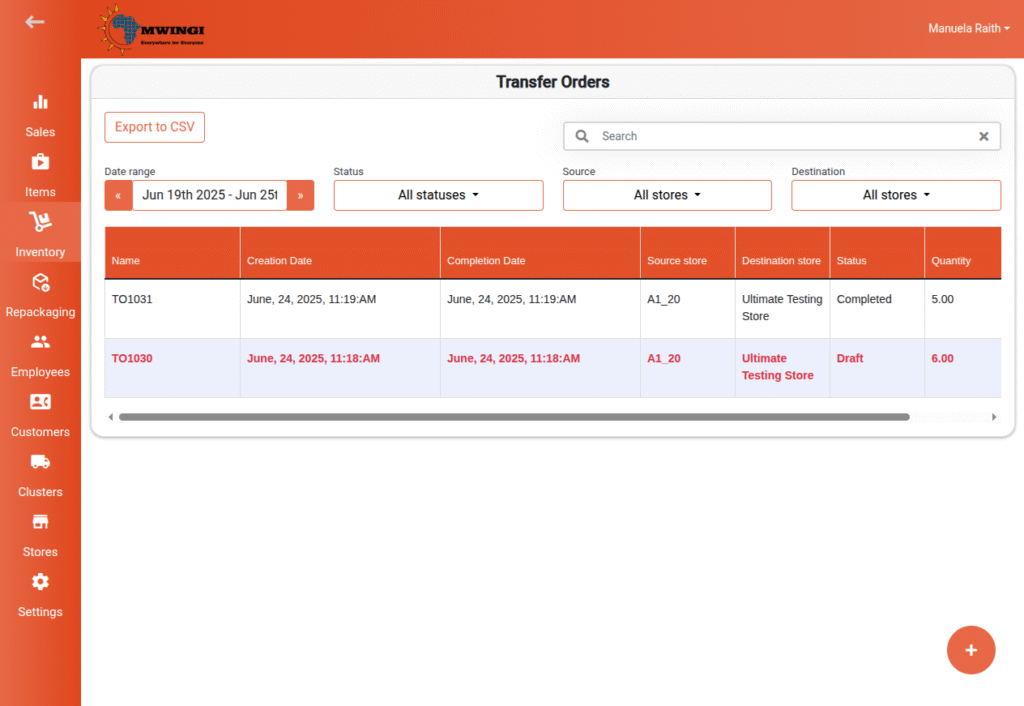
Users are presented with a comprehensive table view displaying all transfer orders. Each entry includes the following information:
- Transfer Order Name – Serial number format:
TOxxx - Completion Date
- Source Store Name
- Destination Store Name
- Status
- Draft – Order has not been finalized
- Completed – Order has been finalized
- Creation Date
- Total Quantity – Quantity of all items transferred
- Auto-Created Status – Indicates whether the transfer order was automatically generated from a delivery note on the Mwingi Portal
- Displays a check mark (✓) if auto-created
- Displays an (X) if manually created
Filter Options
To quickly locate specific transfer orders, users can filter the table by:
- Date Range
- Status (Draft or Completed)
- Source Store
- Destination Store
Detailed Transfer Order View
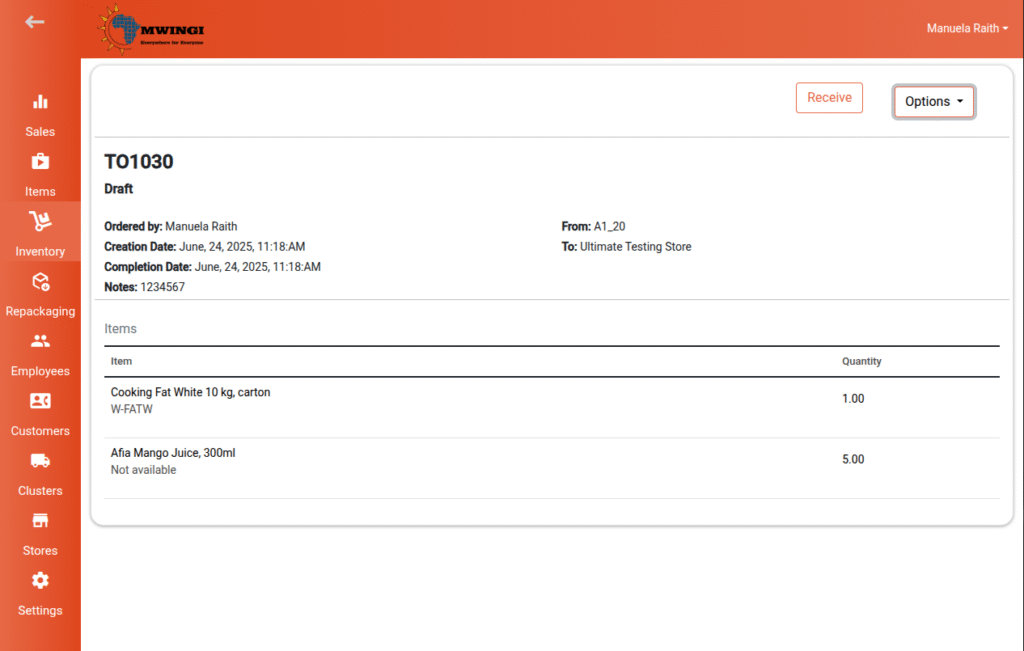
Clicking or tapping on a specific transfer order opens a detailed view containing the following information:
- Transfer Order Number
- Status
- Total Amount of all transferred items
- Additional Costs Table (if applicable) – Includes cost name and amount
- Created By – The user who created the transfer order
- Creation Date
- Completion Date
- Notes
- Source Store
- Destination Store
- Items Table – Lists items transferred and their respective quantities
Action Buttons
- Receive – Finalizes the transfer order by marking it as completed
- Options Dropdown Menu:
- If Draft:
- Save as PDF
- Edit Transfer Order
- If Completed:
- Save as PDF only
- If Draft:
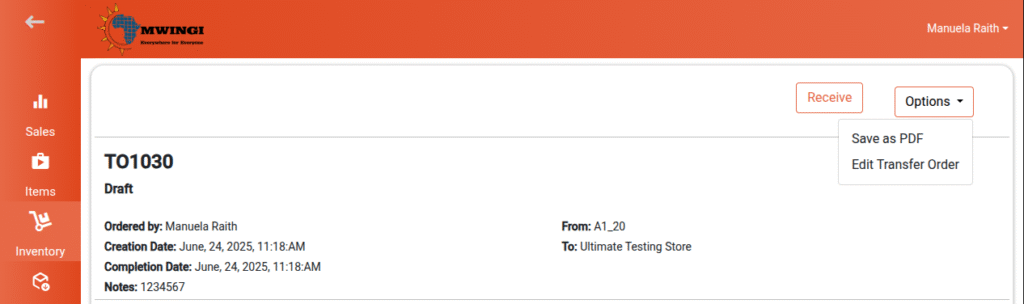
Editing a Draft Transfer Order
Draft transfer orders can be updated before finalization:
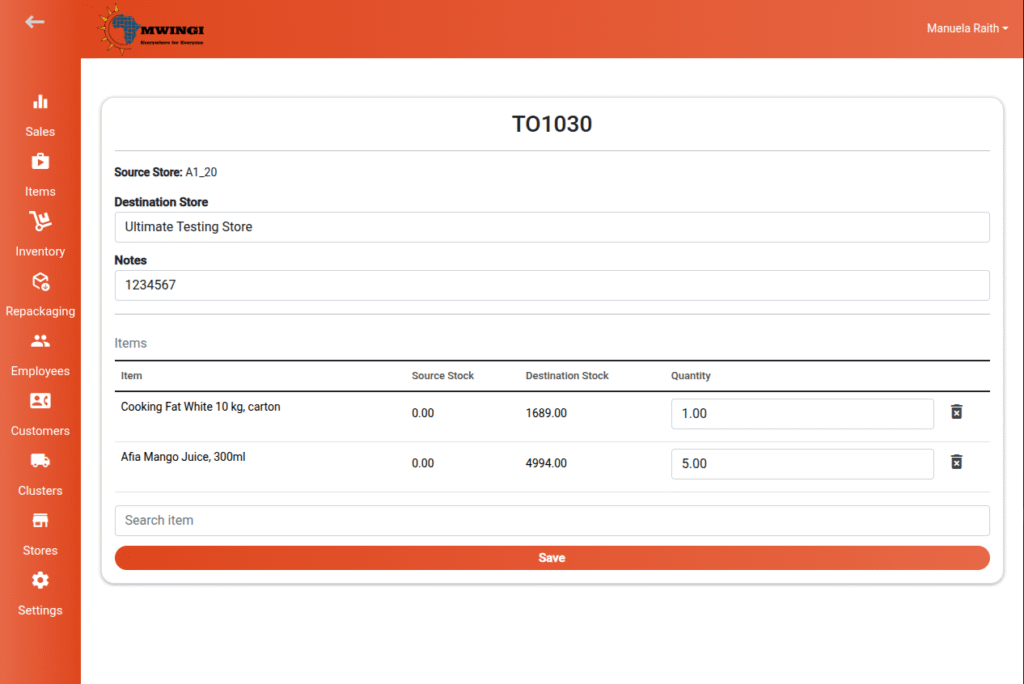
- Click the Options dropdown.
- Select Edit Transfer Order.
- In the form, users can:
- Change the Destination Store
- Add or update Notes
- Add, modify, or delete Items
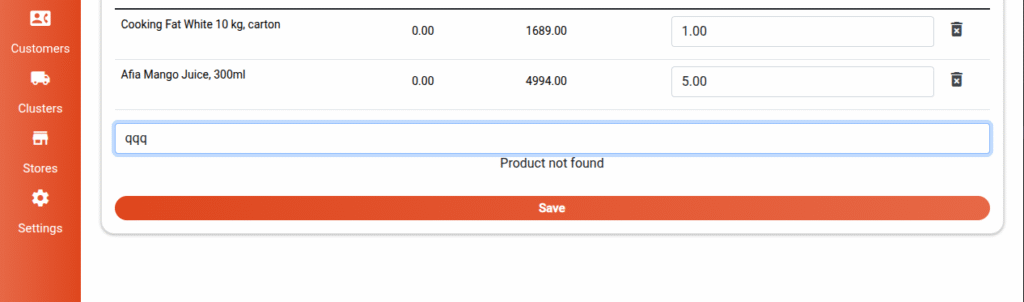
Item Search Function
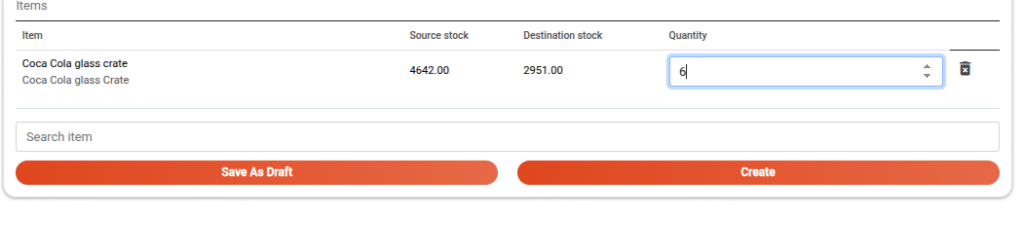
- Input field with placeholder text: “Search item”
- Typing triggers real-time suggestions
- Selecting a suggestion adds it to the list
- If the item is not found: “Product not found” will appear
Click Save to update the transfer order and return to the main table.
Creating a New Transfer Order
To initiate a new transfer:
- A form appears, similar to the edit view.
- Click or tap the floating “+” button.

Form Requirements:
- The Source Store and Destination Store must be selected
- A Quantity must be specified for each item to proceed
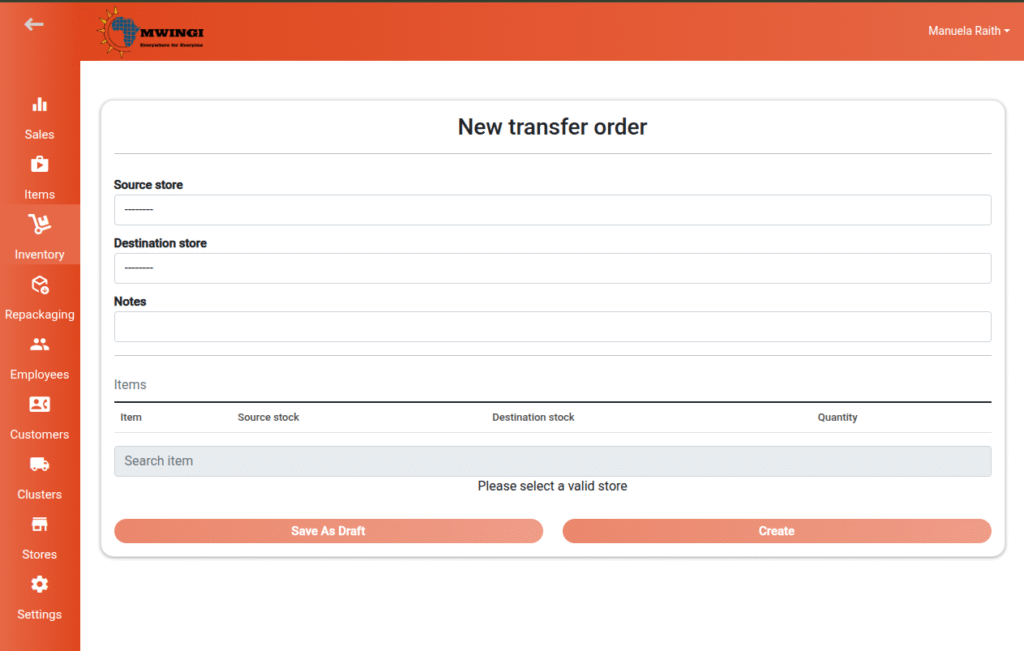
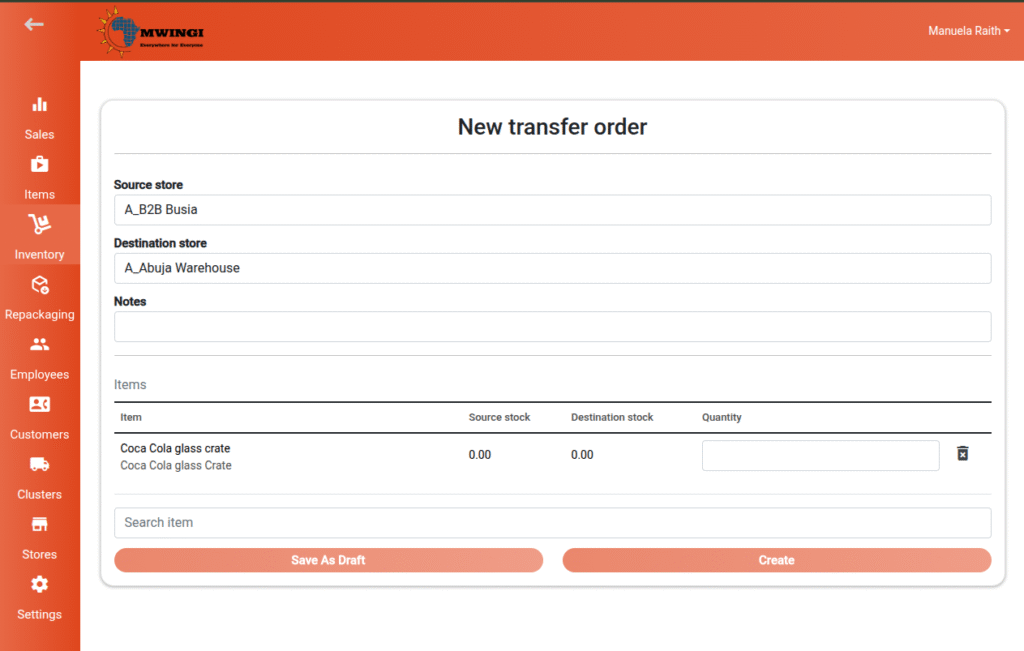
Buttons:
- Save as Draft – Saves the order in draft mode
- Create – Finalizes and submits the transfer order
(Note: Both buttons remain disabled until all required fields are completed)