Suppliers
Overview
The Suppliers module in the Mwingi POS Back Office enables users to efficiently manage supplier records. Users can add new suppliers, update existing details, or delete suppliers when necessary. This functionality ensures accurate supplier data to support effective procurement and inventory management.
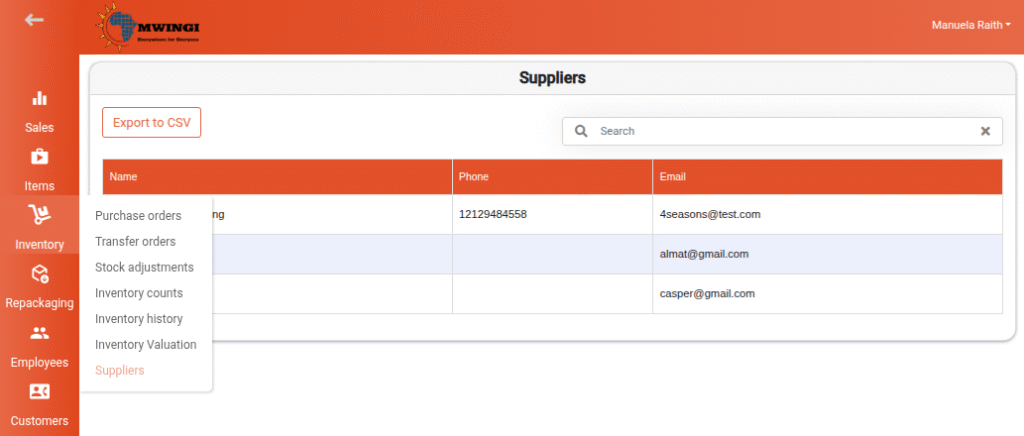
The module is accessible via the Inventory menu in the Mwingi POS Back Office.
Suppliers Table View
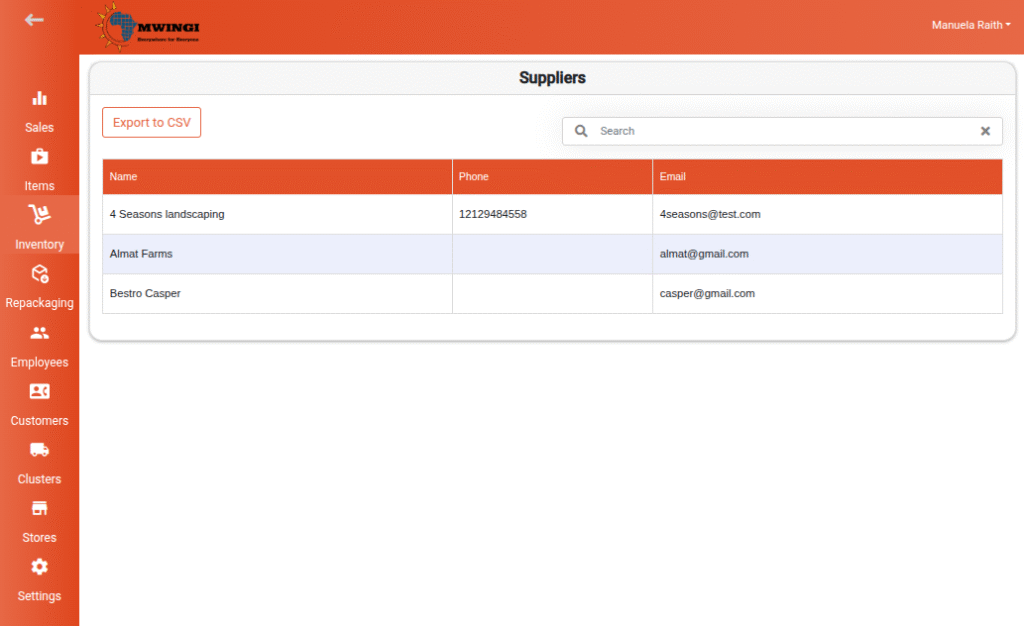
A structured table provides an overview of all registered suppliers. The table includes the following columns:
- Supplier Name – The name of the supplier
- Phone – Supplier contact phone number
- Email – Supplier email address
Search and Export Features
- Search – Use the search bar above the table to quickly find suppliers using keywords.
- Export to CSV – Click the Export to CSV button to download the full list of suppliers as a CSV file.

Creating a New Supplier
To add a new supplier, the user taps or clicks the floating “+” button at the bottom of the page.

Fill out the New Supplier Form, providing the following information:
- Name – Supplier’s name (required)
- Email – Supplier’s email address
- Phone – Supplier’s phone number
- Address – Street address
- City
- Region
- Postal Code
- Country
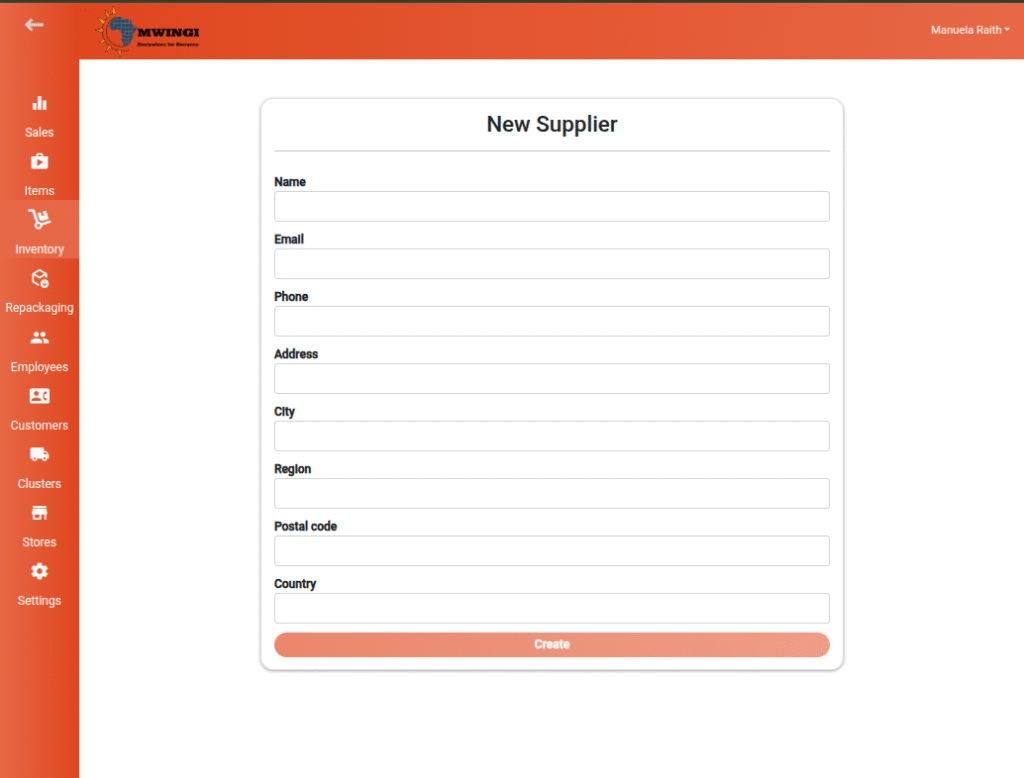
Once all required details are entered, click Create to save the new supplier record.
Editing or Deleting a Supplier
To update or remove an existing supplier:
- Click or tap on the supplier entry in the table.
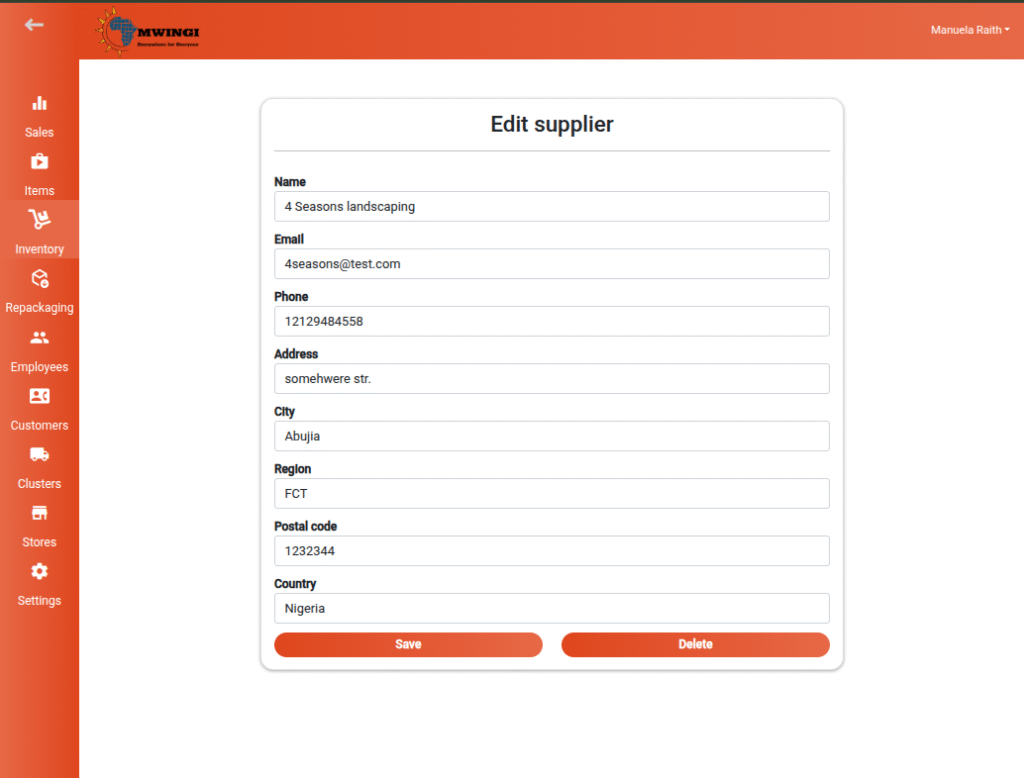
- This opens the Edit Supplier Form, which is similar in layout to the create form.
- Update any necessary fields.
- To save changes, click Save.
- To permanently delete the supplier, click Delete.