Stock Adjustments
Overview
he Stock Adjustment module in Mwingi POS Back Office allows authorized users to update item quantities in inventory based on specific scenarios such as receiving new stock, recording losses, managing damage, or removing expired items. Each adjustment must include a documented reason and is associated with a specific store.
This module is accessible via the Inventory menu in the Mwingi POS Back Office.

Stock Adjustment Table View
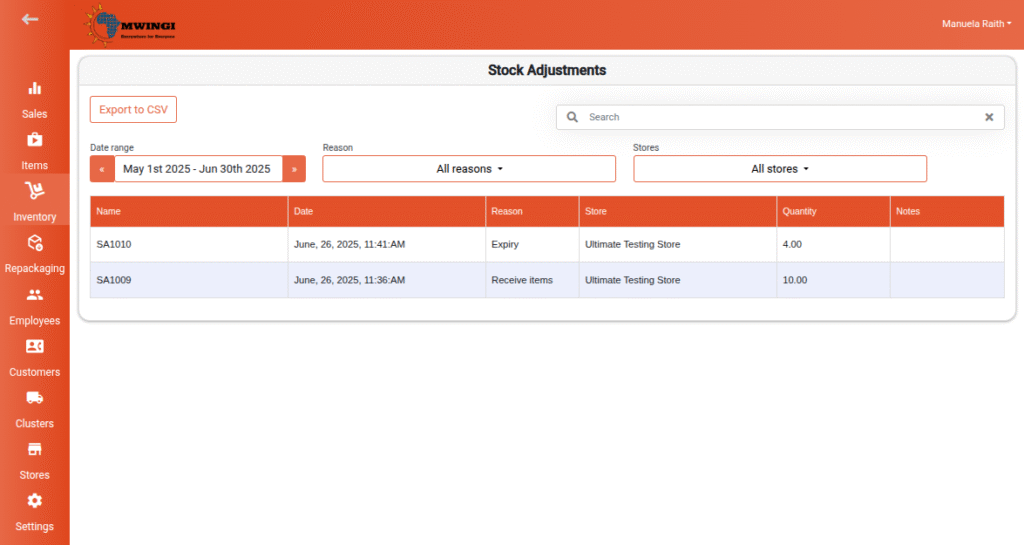
A summary table displays all stock adjustments recorded in the system, including the following details:
- Stock Adjustment Name – Formatted as SAxxx
- Date Created – The date the adjustment was recorded
- Reason for Adjustment – One of:
- Received Items
- Loss
- Damage
- Expired
- Store – The location where the adjustment occurred
- Quantity – Total number of items adjusted
- Notes – Any additional context or remarks
Filter Options
To quickly locate specific adjustments, users can apply filters by:
- Date Range
- Reason – Filter by all or specific reasons (Received Items, Loss, Damage, Expired)
- Store – Select a specific store from the dropdown

Creating a New Stock Adjustment
To create a new stock adjustment:
- Click the floating “+” button at the bottom of the page.
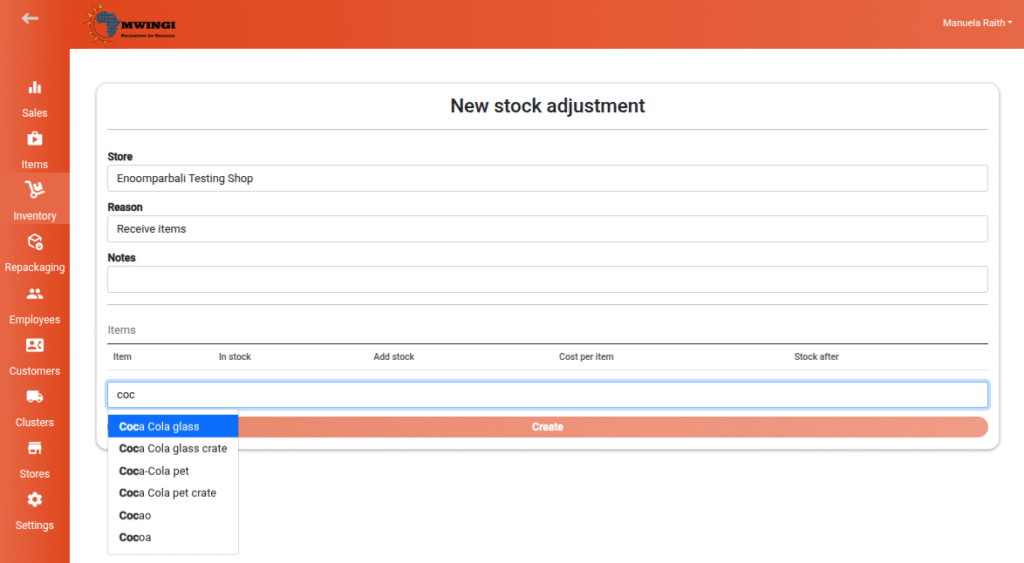
- The Stock Adjustment Form will open.

Stock Adjustment Form Requirements
- Select Store (required) – Choose the store where the adjustment will be applied
- Select Reason for Adjustment – Determines whether items are added or removed
- Notes (optional) – Provide any relevant comments
- Add Items for Adjustment – Use the search bar to add items

Note:
- The item search bar is disabled until a store is selected.
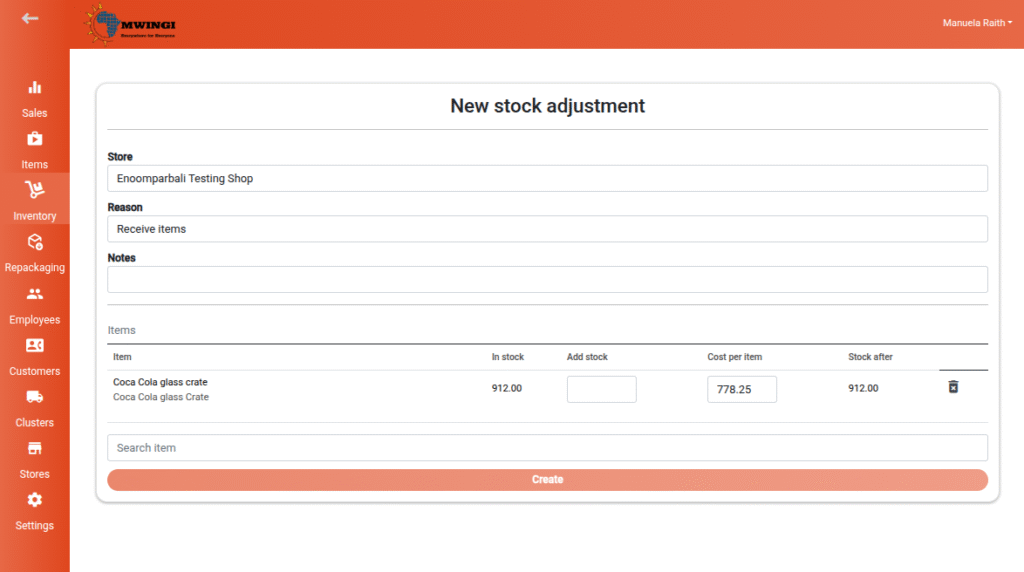
- To enable the Create button, users must enter a valid value in either the Add Stock or Remove Stock field for each item.
Item Form Structure Based on Reason
- If the reason is “Received Items”
The item table will include- Item Name
- In Stock – Current stock quantity
- Add Stock – Quantity to be added (input field)
- Cost Per Item
- Stock After – Projected quantity after the addition

- If the reason is Loss, Damage, or Expired
The item table will display:- Item Name
- In Stock
- Remove Stock – Quantity to deduct (input field)
- Stock After

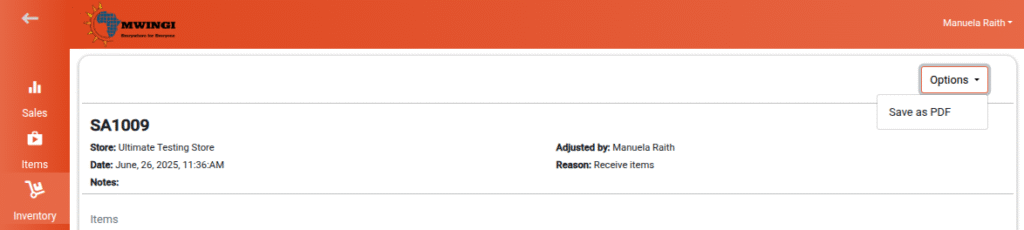
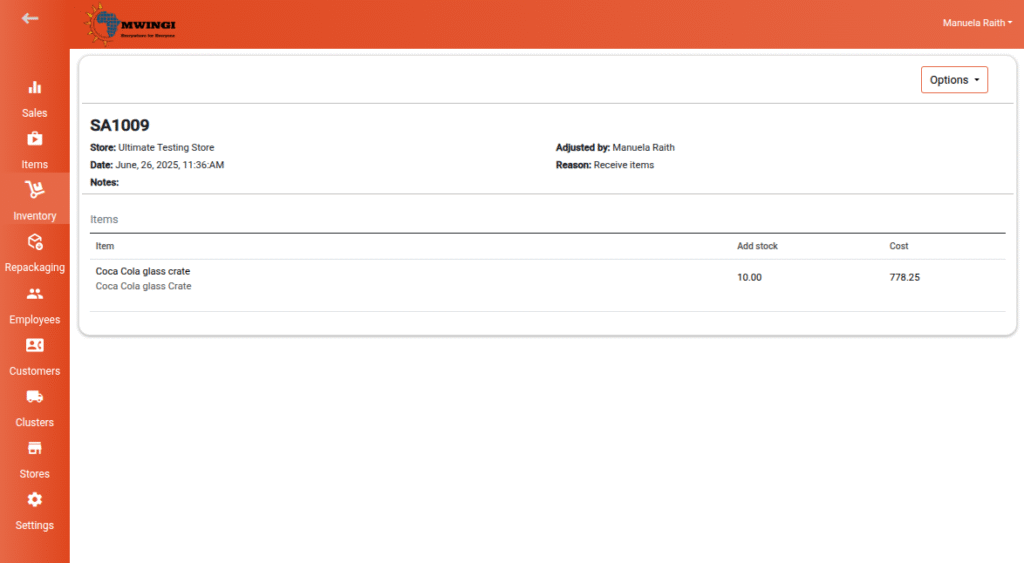
Viewing Stock Adjustment Details
To view the full details of an adjustment:
- Click an entry in the Stock Adjustment Table.
- A detailed view will open showing:
- Stock Adjustment Name (SAxxx)
- Store Name
- Date of Adjustment
- Notes
- Adjusted By – The user who performed the adjustment
- Reason for Adjustment
- List of Adjusted Items
Exporting Stock Adjustments as PDF
Users can export the stock adjustment details as a PDF:
- Click the Dropdown Options button above the data.
- Select “Save as PDF”.
- The system will generate and download a PDF version of the adjustment.