Purchase Order
Overview
The Purchase Order feature is an integral part of Mwingi’s inventory management system. It enables users to create, manage, and finalize product supply orders. Users can capture supplier details, monitor order statuses, and track item costs with ease. This feature is accessible via the Inventory menu in the Mwingi POS Back Office.
Main Purchase Order Table
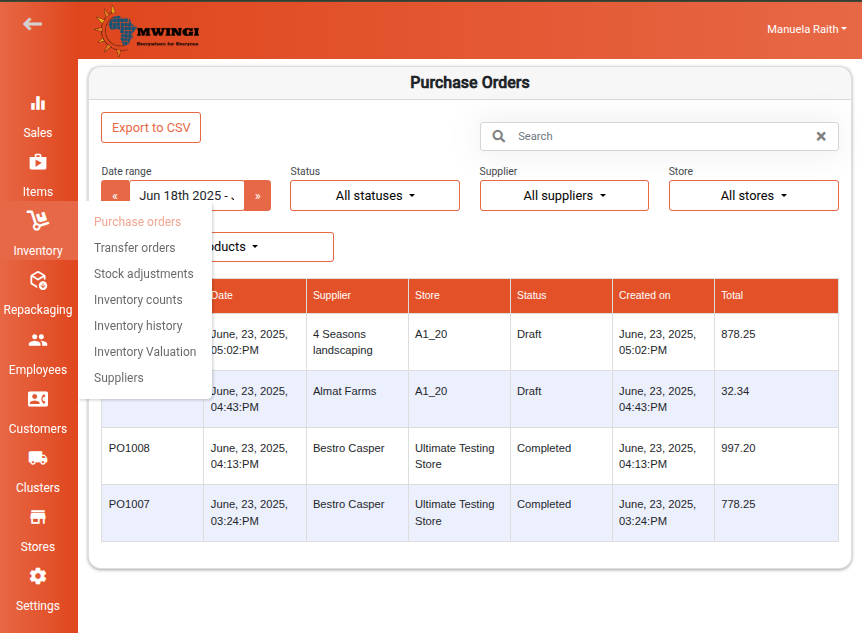
Users are presented with a comprehensive table displaying all purchase orders. Each record includes the following details:
- Purchase Order Name – Presented as a serial number format:
POxxx - Expected Date – When the order is expected to be fulfilled
- Supplier Name
- Store Name
- Status
- Draft – Order not yet finalized
- Completed – Order finalized and received
- Creation Date – The date the purchase order was created
- Total Amount – Total cost of all ordered products
Filter Options
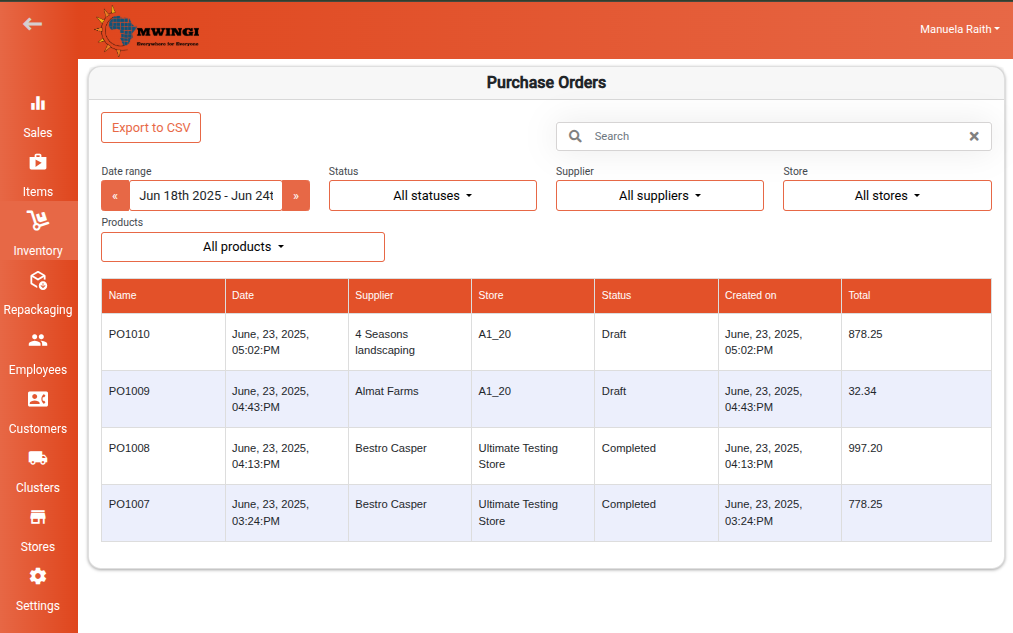
To enhance navigation and data retrieval, the following filters are available:
- Date Range
- Status (Draft or Completed)
- Supplier Name
- Store Name
- Product Name
Detailed Purchase Order View
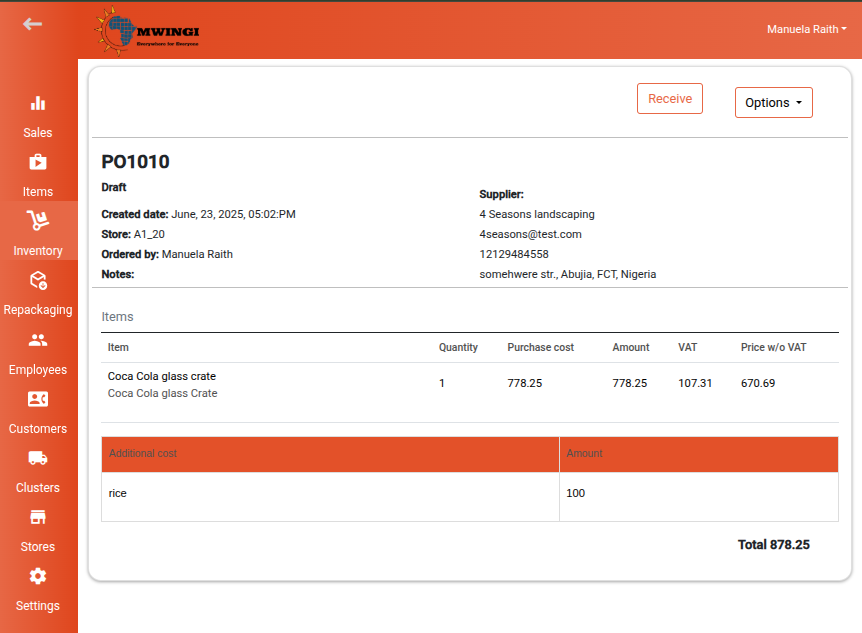
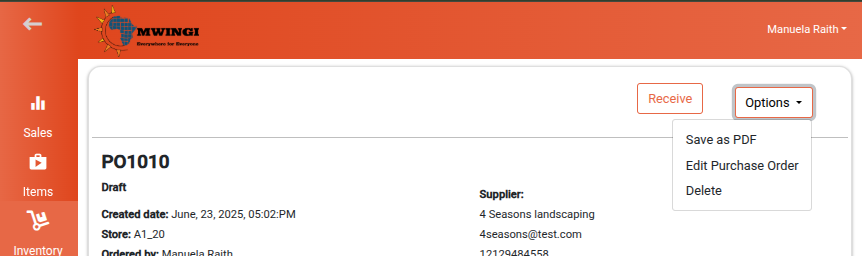
Clicking or tapping a purchase order opens a detailed view displaying:
- Purchase Order Number
- Status
- Store – The store that made the order
- Supplier Details – Name, email, and address
- Notes – Any additional remarks or comments
- Items Table, including:
- Product Name
- Quantity
- Purchase Cost
- Amount
- VAT
- Price (Excluding VAT)
- Total Order Amount – Sum of all listed item costs
- Additional Costs Table – If applicable, lists name and amount of each added cost
Action Buttons
- Receive – Marks the order as completed
- Options (Dropdown Menu):
- If Draft: Save as PDF, Edit Purchase Order, Delete
- If Completed: Save as PDF only
- Delete completely removes the draft purchase order from records
Editing a Drafted Purchase Order
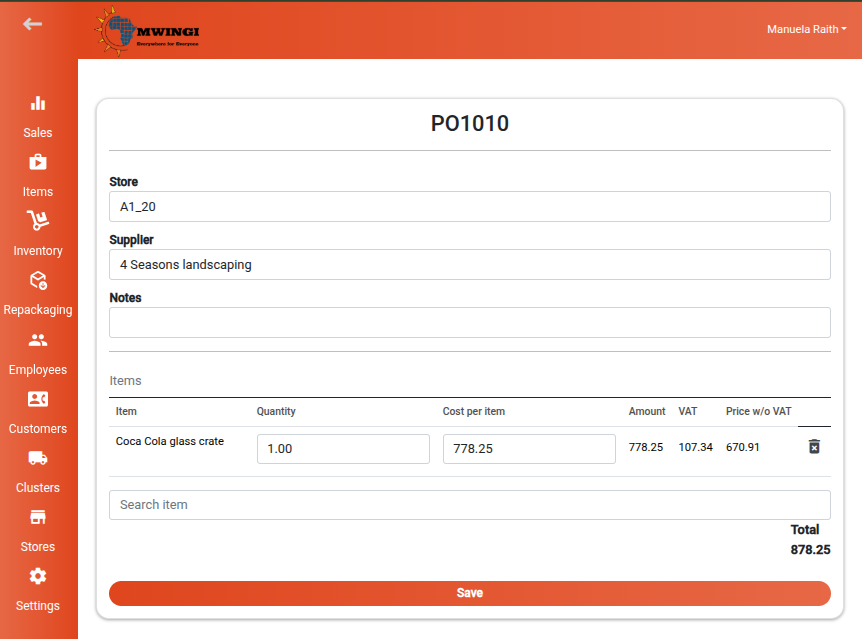
Users can modify draft orders before finalizing. Click on the Options dropdown and select Edit Purchase Order. The editable form allows the user to:
- Change the store or supplier
- Add or remove notes
- Add, edit, or delete items in the order
As items are modified, the total amount is recalculated and displayed at the bottom of the form.
Item Search Function
- Input field with placeholder:
"Search item" - Typing reveals suggestions with matching item names
- Clicking on a suggested item adds it to the item list
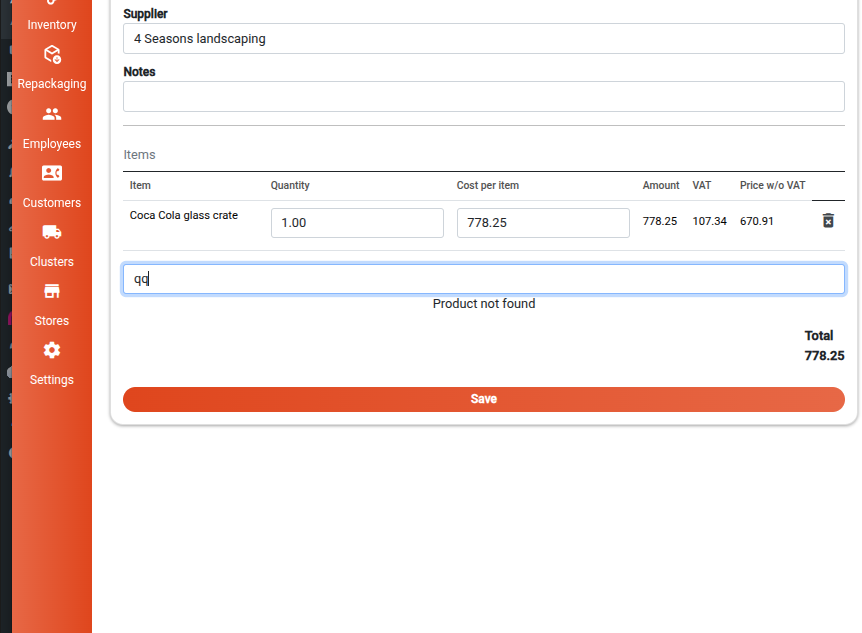
- If no match is found, a message displays:
"Product not found"
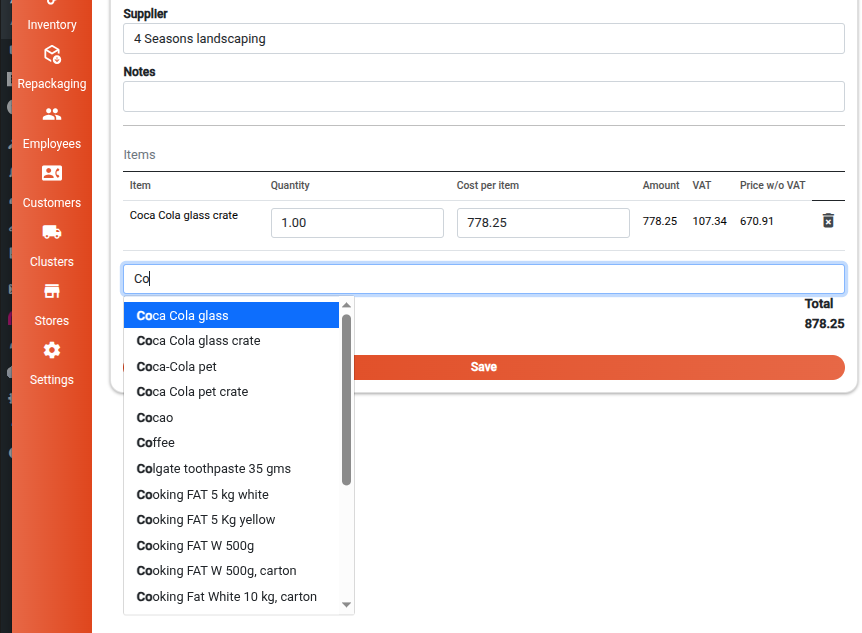
After the item is clicked or tapped to be added, the user has to provide the quantity.
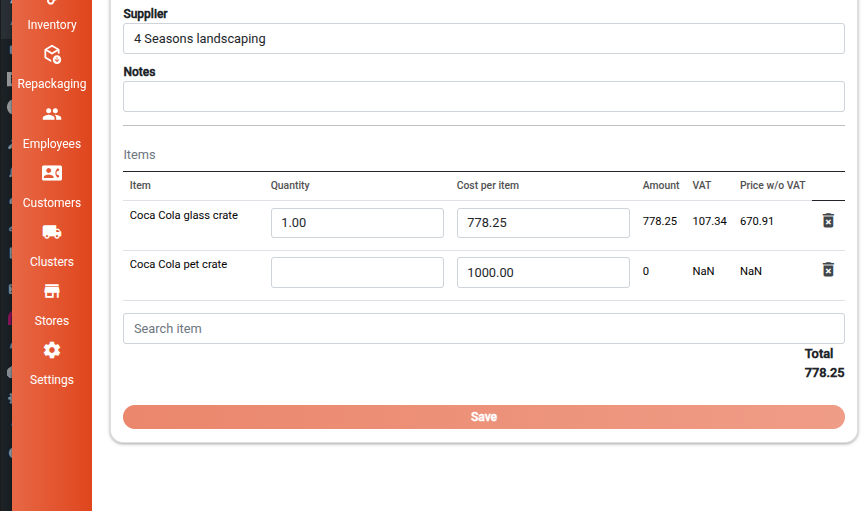
A Save button is provided to store changes and return to the main purchase order table.
Creating a New Purchase Order
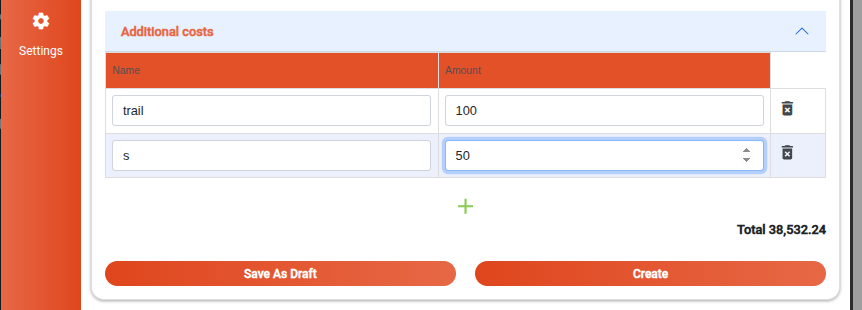
To create a new purchase order, click or tap on the floating “+” button. This opens a purchase order form similar to the edit view.

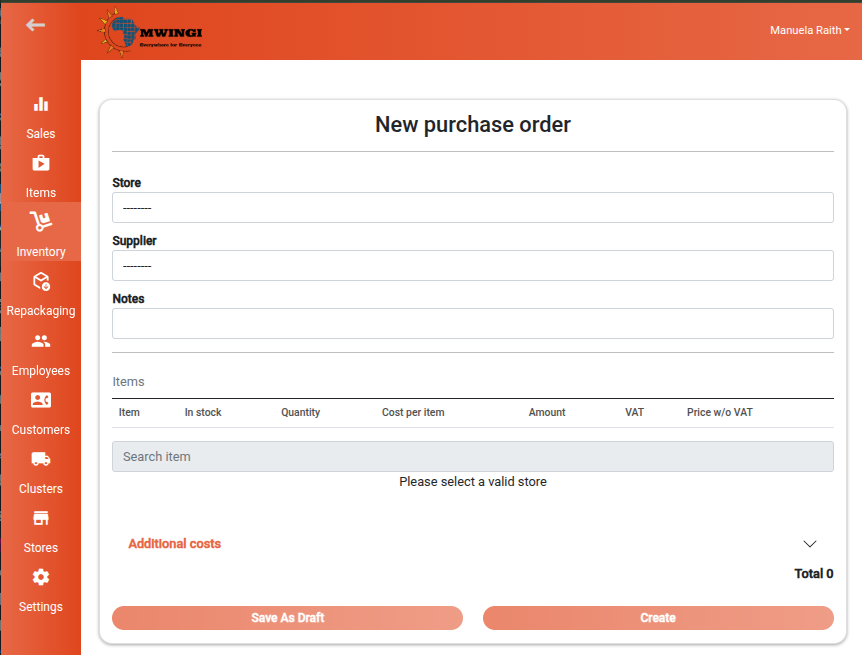
Form Requirements:
- Store and Supplier must be selected before adding items
- Each item must have a quantity entered to proceed
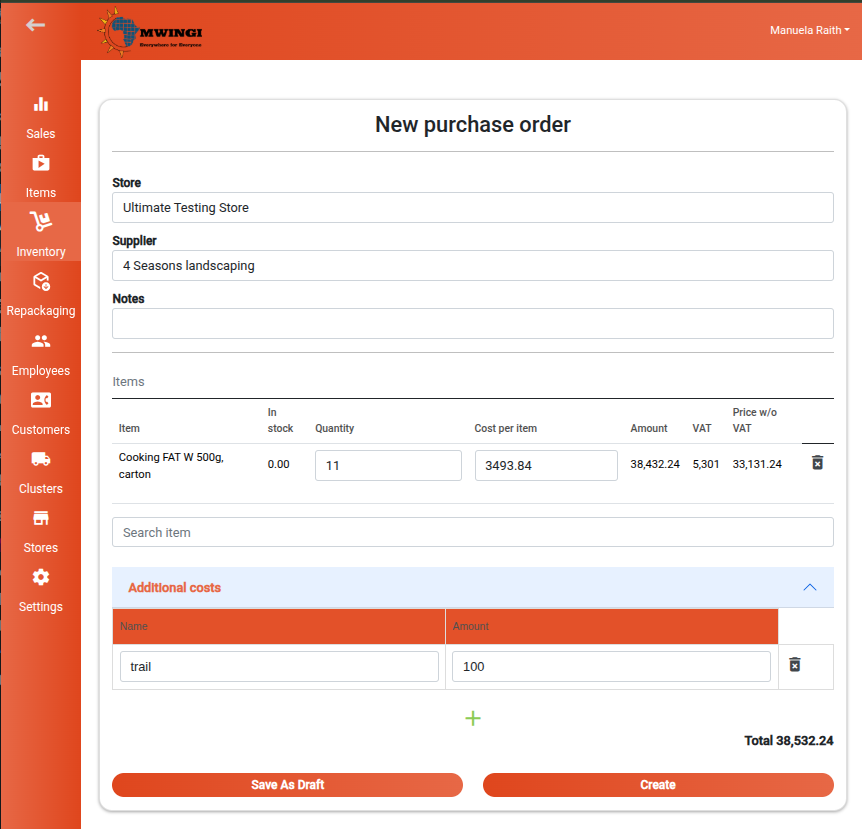
Buttons:
- Save as Draft – Saves the current state of the order without finalizing
- Create – Finalizes and submits the new order
(Note: These buttons remain disabled until all required fields are filled)
Users can also add Additional Costs by providing a name and amount. These will be included in the total order amount.