Inventory History
Overview
The Inventory History module offers users a comprehensive log of all inventory changes across the system. This includes updates resulting from stock adjustments, purchase orders, sales, transfers, and other related activities. It ensures transparent, traceable stock movement records for every store, supporting accountability and inventory accuracy.
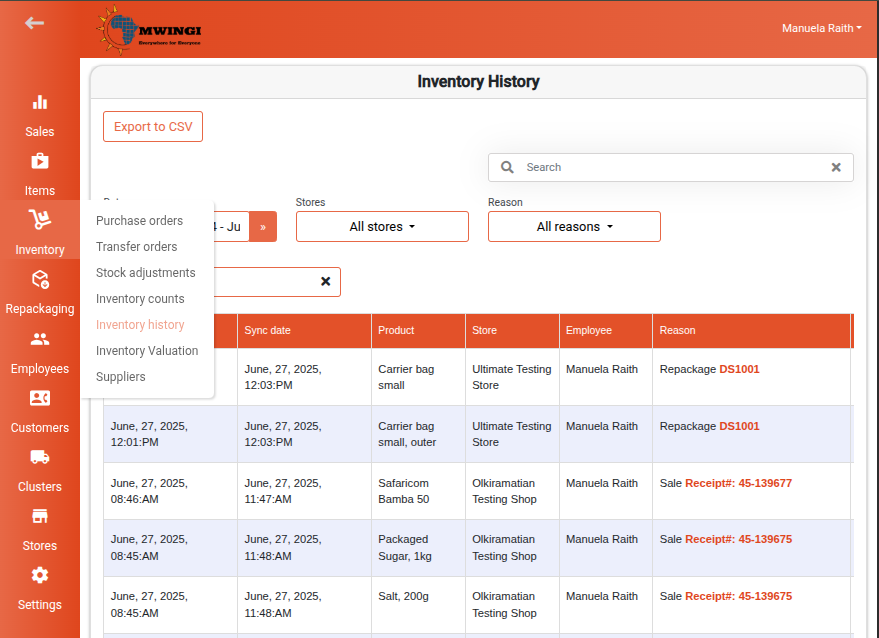
This module is accessible via the Inventory menu in the Mwingi POS Back Office.
Inventory History Table View
A detailed table view summarizes all recorded inventory changes. Each entry contains the following information:
- Change Date – The date the inventory change occurred
- Sync Date – The date the change was synchronized into the system
- Product Name
- Store Name – The store where the inventory was affected
- Employee – The staff member responsible for the change
- Reason and Record Number – Provides context and reference for the change, for example:
- Sale Receipt #: xx-xxxxxx
- Refund Receipt #: xx-xxxxxx
- Transfer TOxxxx
- Receive POxxxx
- Receive SAxxxx
- Damage SAxxxx
- Loss SAxxxx
- Expired SAxxxx
- Repackage DSxxxx
- Adjustment – Quantity of stock added or removed
- Stock Before – Inventory level prior to the adjustment
- Stock After – Inventory level after the adjustment
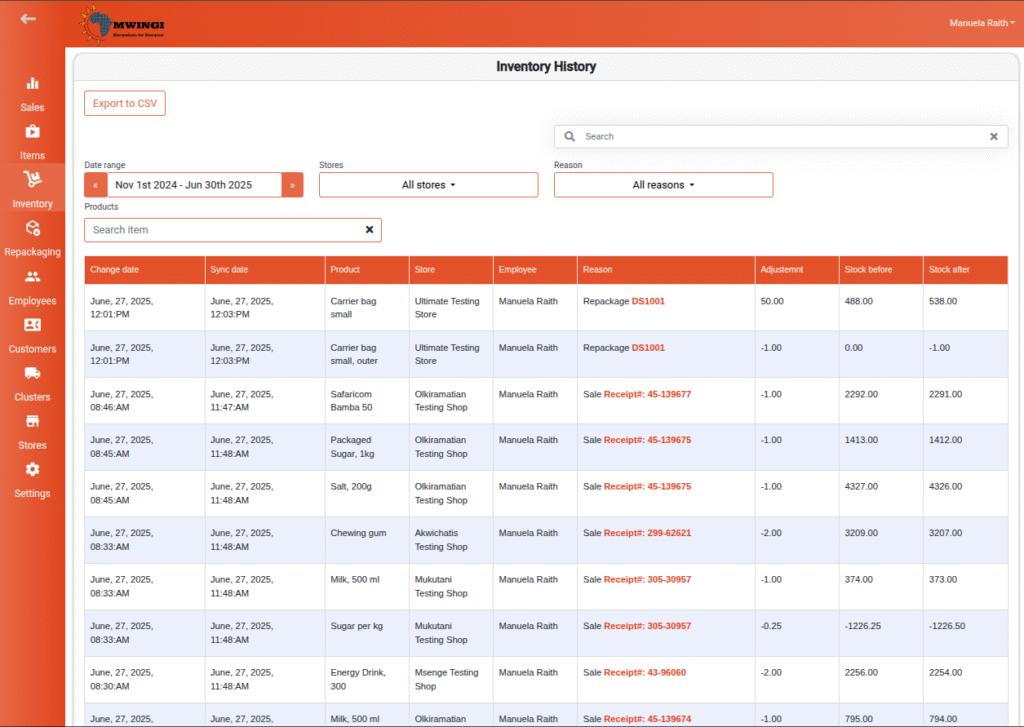
Filter Options
To streamline the retrieval of specific records, the following filters are available:
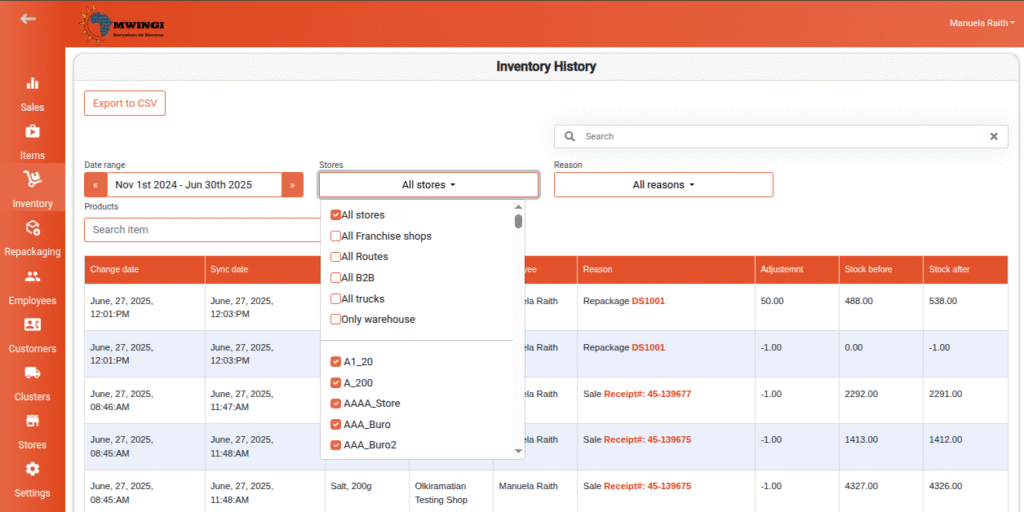
- Date Range – Filter inventory records within a selected date range
- Store Selection – Filter by one or multiple stores
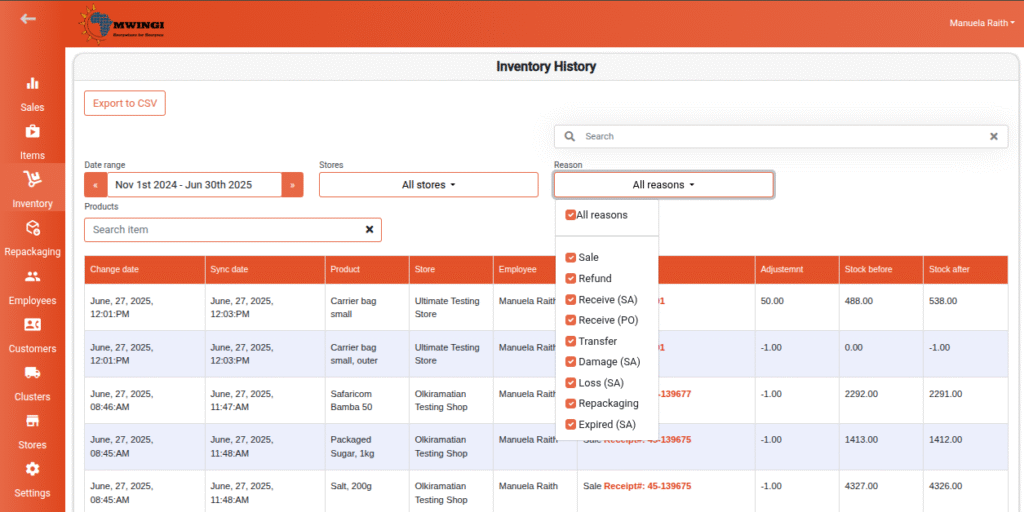
- Reason Dropdown Filter – Narrow results based on the type of inventory activity:
- Sale
- Refund
- Receive (SA) – Stock adjustments
- Receive (PO) – Purchase orders
- Transfer
- Damage (SA)
- Loss (SA)
- Repackaging
- Expired (SA)
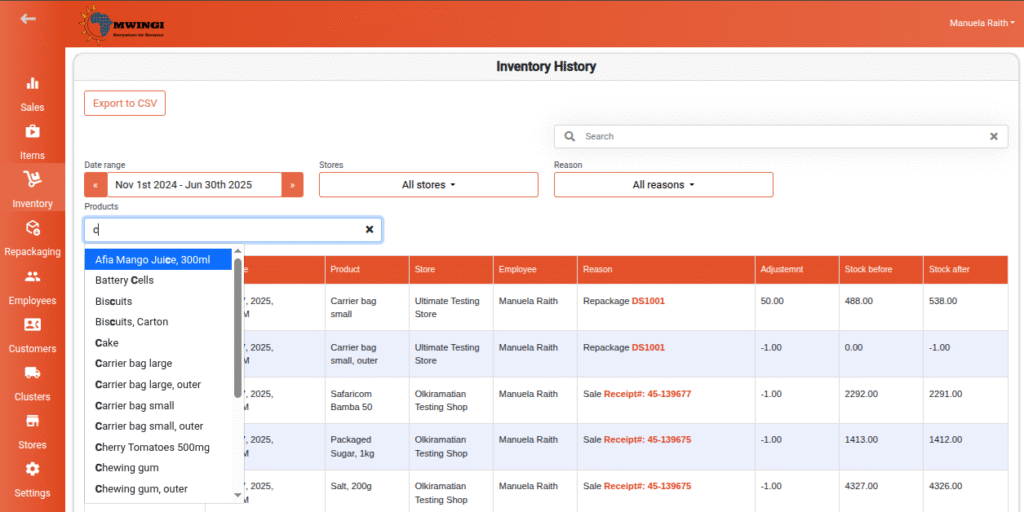
- Product Search Filter – Search by product name to quickly locate relevant entries