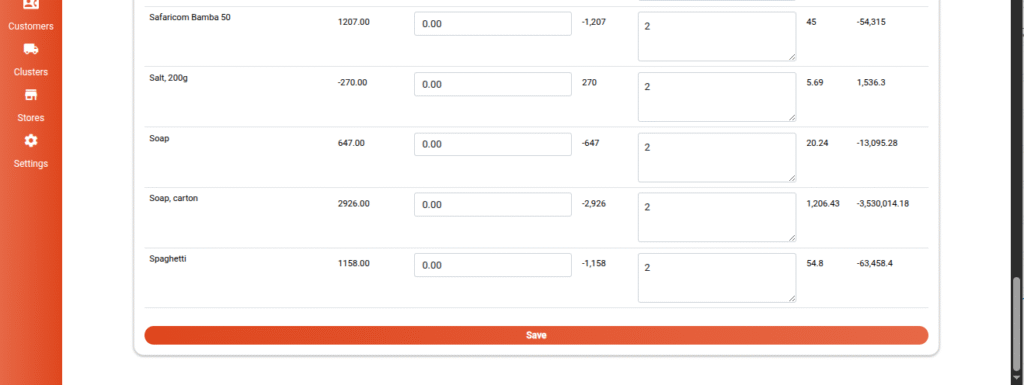
Inventory Counts
Overview
The Inventory Count feature in Mwingi POS Back Office allows users to reconcile system-expected stock levels with the actual physical inventory available at a specific store. This process ensures inventory accuracy, supports stock accountability, and provides a verifiable audit trail. The module is accessible through the Inventory menu.

Inventory Count Table View
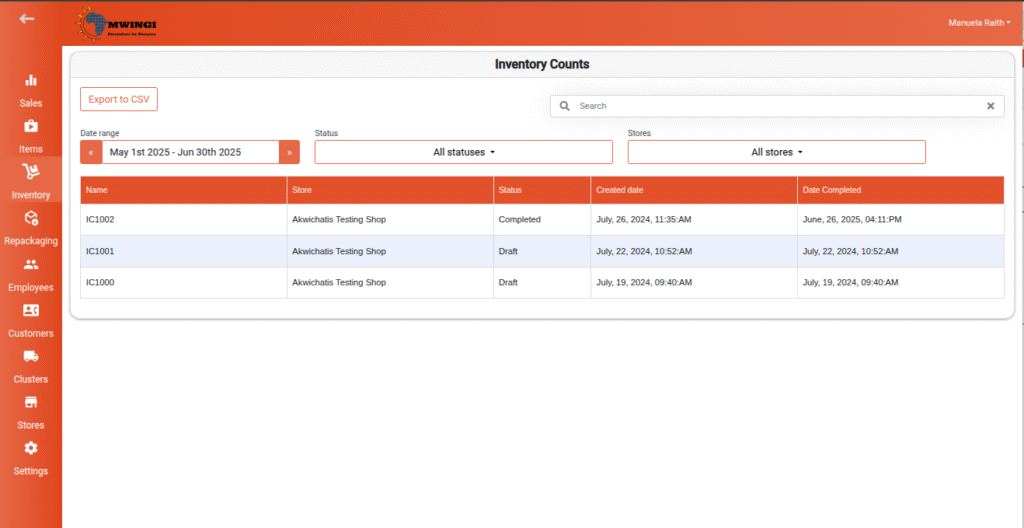
A summary table displays all inventory count records within a selected time range. Each entry includes the following details:
- Inventory Count Name – Unique identifier (e.g., ICxxx)
- Store – The store where the count was performed
- Status:
- Draft – Count is in progress and not yet finalized
- Completed – Count has been finalized
- Created Date – Date the count was initiated
- Completed Date – Date the count was finalized (if applicable)
Filter Options
To simplify record navigation, users can filter inventory counts using:
- Date Range – Filter by creation or completion dates
- Status – Draft or Completed
- Store – Dropdown to select from available stores

Detailed Inventory Count View
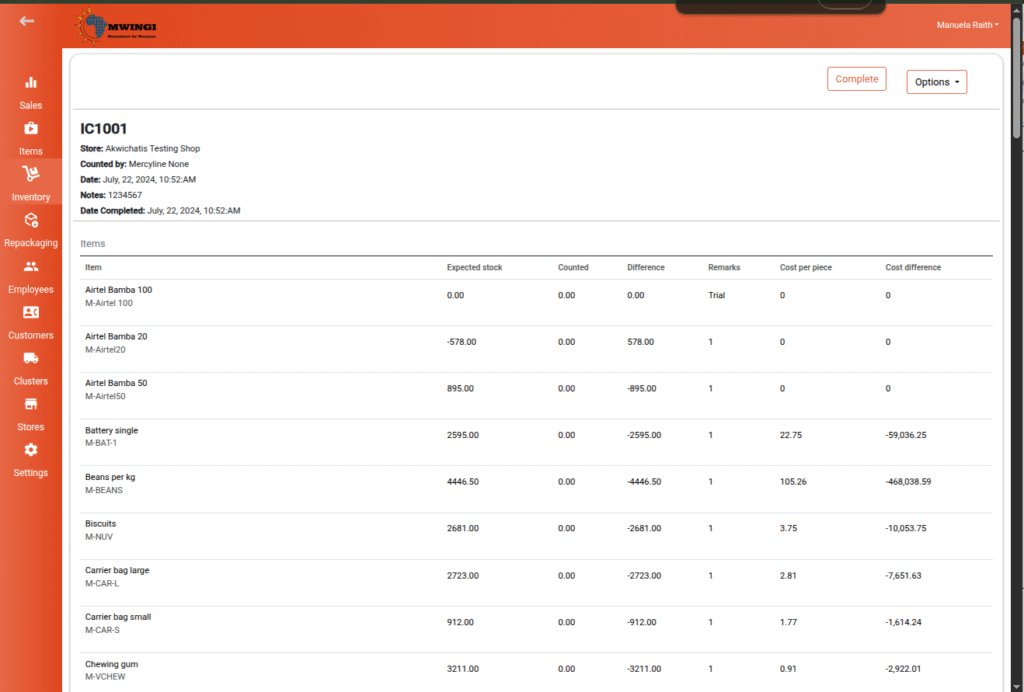
By clicking or tapping on a specific inventory count from the table, users are taken to a detailed view containing:
- Inventory Count Number
- Status – Draft or Completed
- Store Name
- Inventory Count Date
- Date Created
- Notes
- Item List Table displaying:
- Item Name
- Expected Stock – System-recorded stock quantity
- Counted – Actual quantity physically counted (input field in draft)
- Difference – Calculated variance between expected and counted
- Remarks – Comments or explanation for variances
- Cost Difference
- Cost Per Piece
Action Buttons
- Complete (Receive) – Finalizes the inventory count and locks further editing
- Options Dropdown Menu:
- If Draft:
- Save as PDF
- Edit Inventory Count
- Delete – Permanently removes the count
- If Completed:
- Save as PDF only
- If Draft:

Creating a New Inventory Count
To initiate a new inventory count:
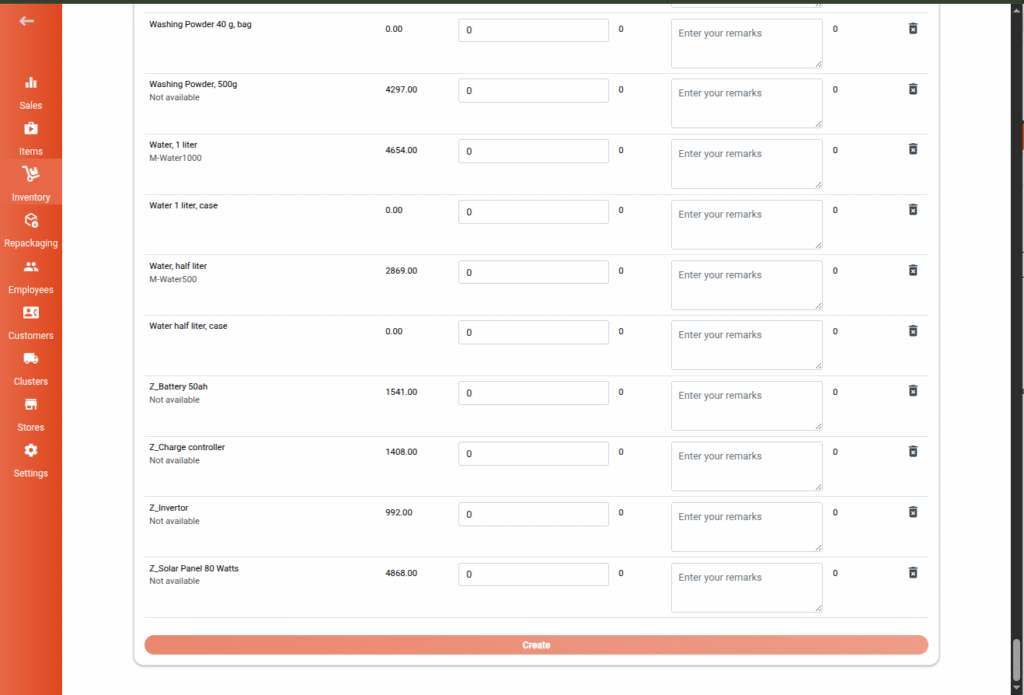
- Click or tap the floating “+” button at the bottom of the page.
- The Inventory Count Form will appear.
Form Requirements
- Select Store – Mandatory selection before proceeding
- Notes (Optional) – Optional remarks or context
- Items Table – Automatically populated with items from the selected store:
- Item Name
- Expected Stock
- Counted – Input field for the actual quantity counted
- Difference – Auto-calculated
- Remarks – Input field for explanation
- Cost Difference
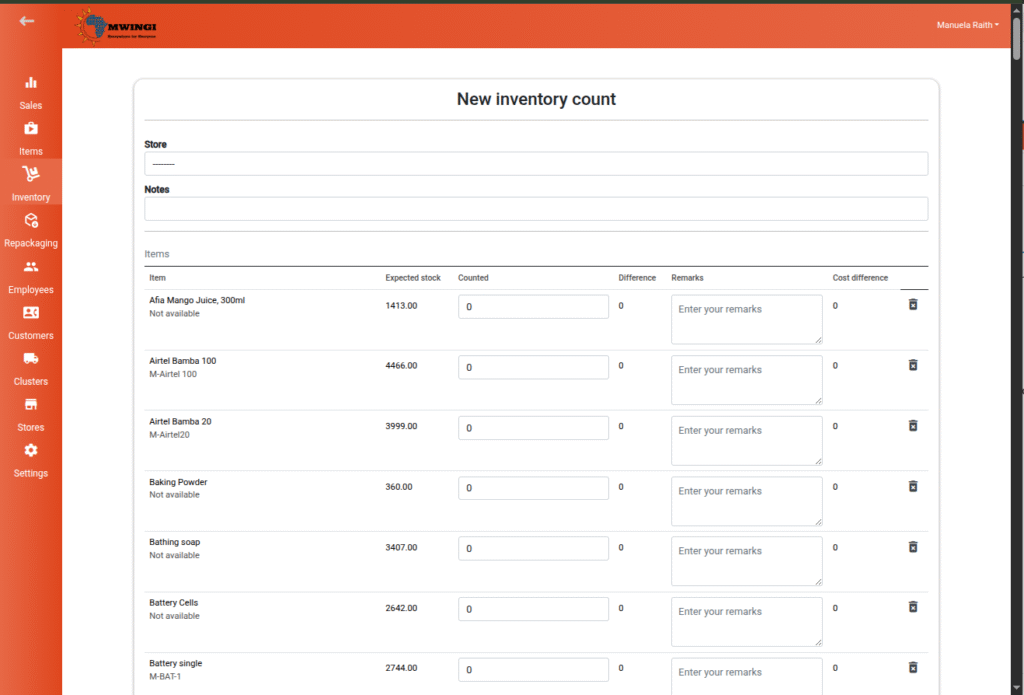
Users may remove items from the list as needed.
The Create button is enabled once all required fields (including counted quantities) are completed.
Editing a Draft Inventory Count
Draft inventory counts can be modified before completion:
- Open the Options Menu for the selected draft record.
- Choose Edit Inventory Count.
In the editable form, users can:
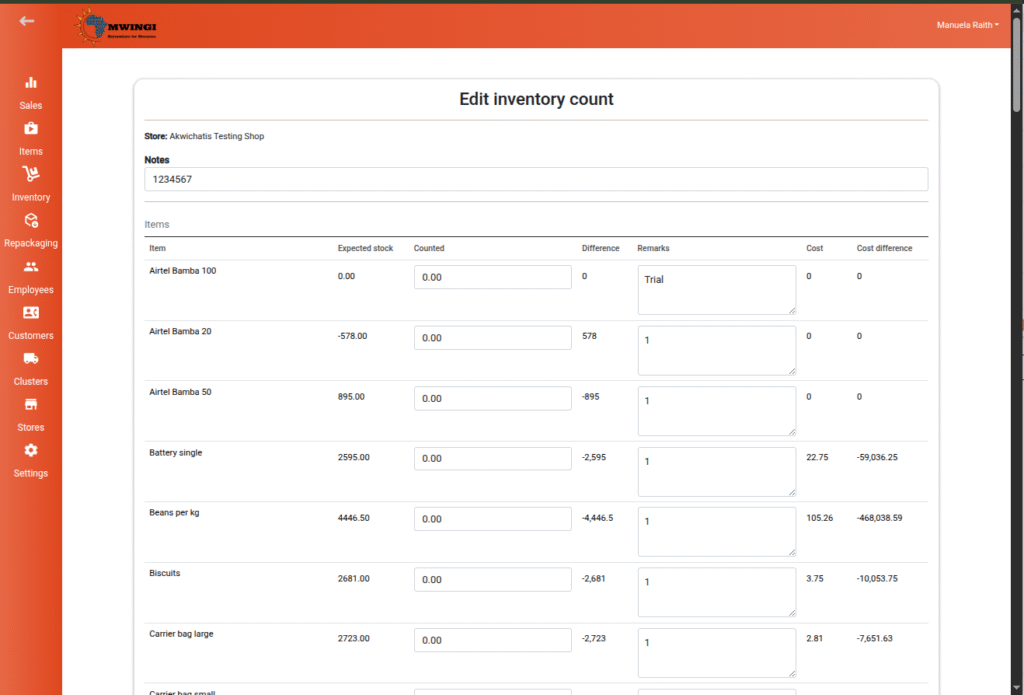
- Update notes
- Modify counted values
- Add or remove items
- Update remarks
Click Save to apply changes and return to the main table view.