
Mwingi POS App: Navigation, Synchronization & Filters Guide
To effectively use the Mwingi POS App, it’s essential to understand the interface layout, how to navigate the app, and how to use features such as synchronization and filters to enhance efficiency and accuracy in daily operations.
App Navigation
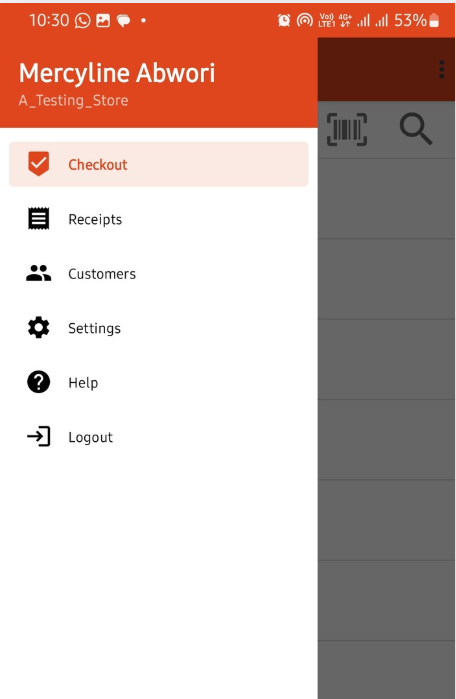
Navigating the Mwingi POS App is intuitive and user-friendly. Key navigation features include:
Menu Bar: Access important sections such as:
- Receipts – View and manage past transactions.
- Customer List – View, search, and manage customers.
- Checkout Page – Process sales and view products.
- Printer Setup – Configure printer settings for receipts.
Search Icon: Located at the top of lists, it allows users to quickly find products, customers, or receipts.
Scrolling: Simply scroll up or down to browse the list of available products.
Sychronization & Updating
Purpose of Synchronization
Synchronization ensures that data captured in the field aligns with the central system at headquarters. This includes:
- Product list and prices
- Receipt records
- Customer records
Purpose of Updating
Updating ensures that the application includes the latest features, security patches, and performance improvements. The current app version is 8.0.4 and continues to receive enhancements.
Importance of Sychronization and Updating
- Ensures all receipts are properly recorded and accessible in the system.
- Prevents pricing errors by syncing the latest product prices.
- Avoids duplicate customer records by updating the customer list.
- Ensures accurate product availability for smooth checkout operations.
- Keeps the user informed of the current app version.
How to Access Synchronization Features
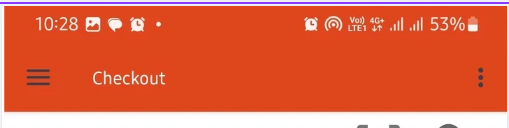
Navigate to the Checkout Page, then tap the three vertically aligned black dots (more options menu) at the top-right corner. The following options are available:

- Refresh Prices: Updates product prices to match the system, including recent changes.
- Refresh Receipts: Syncs recent sales to ensure they are captured in the system.
- Refresh Customers: Updates the customer list with the latest entries to avoid duplication.
- Play Store Update: Opens a direct link to the app’s listing on Google Play Store for easy updates.
- Version x.x.x: Displays the current version of the app to help determine if an update is required.
Filters
Filters are designed to make product, receipt, and customer searches faster and more efficient. There are two main types of filters:

Category Filter
Used to display products based on predefined categories (e.g., Drinks, Snacks).
- How to Use: Tap “All Products” on the checkout page to view the category dropdown. Select a category to view only products under that category.
- To Remove Filter: Tap “All Products” again or tap outside the dropdown area to reset the view.

Search filter
Used to search through products, receipts, or customers by name or keyword.
- How to Use: Tap the Search icon above the relevant list and type the name or keyword to filter the results.
- To Cancel Search: Tap the “X” icon to close the search bar and return to the full list.
