
Stores
The Stores module in the Mwingi Dashboard enables authorized users to efficiently manage and monitor store-related parameters and activities. It is particularly essential for Franchisee Officers (FROs), providing them with oversight of their assigned shops and operational performance.
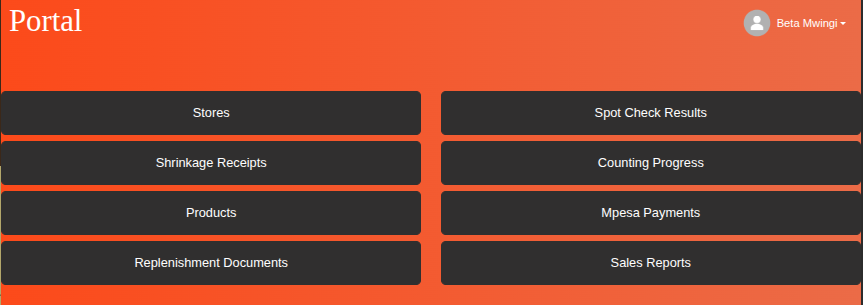
Key Features and Functionalities
1. Store Overview Table
The main interface features a comprehensive table listing all configured stores, with the following columns:
| Column | Description |
|---|---|
| Store Name (with Checkbox) | Enables selection of one or more stores for bulk actions such as spotchecks. |
| First Sale (Today) | Shows the date and time of the first sale recorded today. |
| Store Number | A unique identifier assigned to each store. |
| Send Short List Button | Sends a spotcheck report for all items sold the previous day with a sale value above 100 to the selected store. |
| Send Full List Button | Sends a comprehensive spotcheck report of all sellable items in the selected store. |
| Short List Auto Spotcheck (Checkbox) | Enables automatic daily sending of the Short List spotcheck. |
| Full List Auto Spotcheck (Checkbox) | Enables automatic daily sending of the Full List spotcheck. |
| MPESA Status | Indicates the MPESA integration status: ✅ Green Check = Active ❌ Red X = Inactive |
| Minimum Sale Value | Defines the sales threshold used for filtering in reports. |
| Days to Go Back | Specifies how many days back the system should pull data when generating reports. |

2. Filters and Export Options
To streamline data access and navigation, the module includes:
- Search Filter: Allows users to search for stores by name.
- Store Type Filter: Filters the list by store type (e.g., Shops or Trucks/Routes).
- Export Button: Located above the store filters, it enables exporting table data for reporting or analysis.

3. Store Detail Editing
Users can modify store-specific settings by clicking on a store row, which opens an editable form view. The following fields can be updated:
- Enabled Status (Checkbox): Toggle the store’s active/inactive status.
- Minimum Sale Value: Set or update the sales threshold value.
- Days to Go Back: Define how far back the report should pull data.

After making changes, users must click Save to apply the updates.
4. Bulk Spotcheck Functionality
To enhance operational efficiency, the module supports bulk spotcheck actions:

Steps to Perform Bulk Spotchecks:
- Select multiple stores using the checkboxes in the Store Name column.
- Once selected, two action buttons appear:
- Send Bulk Short List
- Send Bulk Full List
Action Descriptions:
- Bulk Short List: Sends a report to each selected store containing only items sold the previous day with a total value above 100.
- Bulk Full List: Sends a full sellable item report to each selected store.
This feature streamlines workflows when managing multiple stores simultaneously.

Summary
The Stores module provides a powerful and user-friendly interface for store management. It:
- Offers real-time monitoring of store activities
- Enables both individual and bulk spotcheck operations
- Supports auto-spotcheck configurations for routine checks
- Allows editing of key store parameters
- Displays MPESA integration status for operational transparency
- Facilitates data export and advanced filtering for reporting
With these capabilities, FROs and other authorized personnel can stay proactive and informed, ensuring consistent performance and compliance across the retail network.