Product Phase Out
Overview
The Product Phase-Out functionality enhances the Stock Delivery Status feature by enabling controlled product discontinuation, automated recall of eligible stock, and improved visibility of product replenishment in the Mwingi Dashboard/Portal.
This feature introduces a Phase Out status alongside the existing Should be Replenished status.
- When Should be Replenished is unchecked, products will not appear in delivery notes.
- When Phase Out is enabled, products will:
- Not appear in delivery notes.
- Have replenishment stopped.
- Be recalled instantly in the next created Goods Return Note.
- Only full packages (e.g., sacks, bales, crates) will be recalled; individual pieces that do not make up a full package will remain.
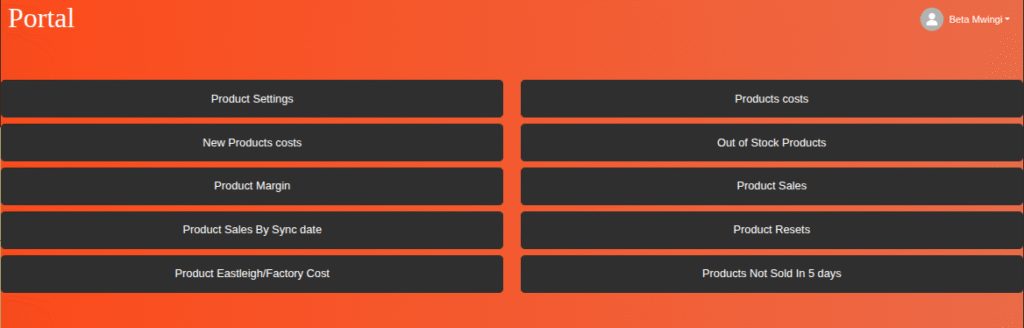
This functionality is accessible under:
- Product Settings
- Out-of-Stock Products section in the Mwingi Dashboard/Portal.
Product Settings
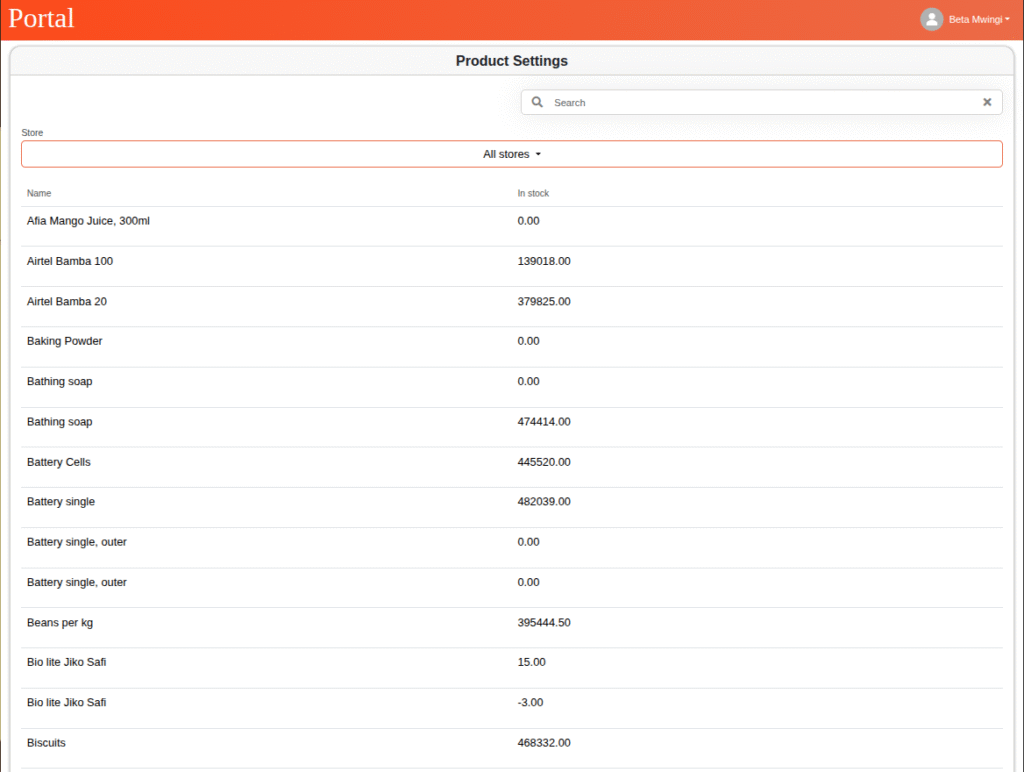
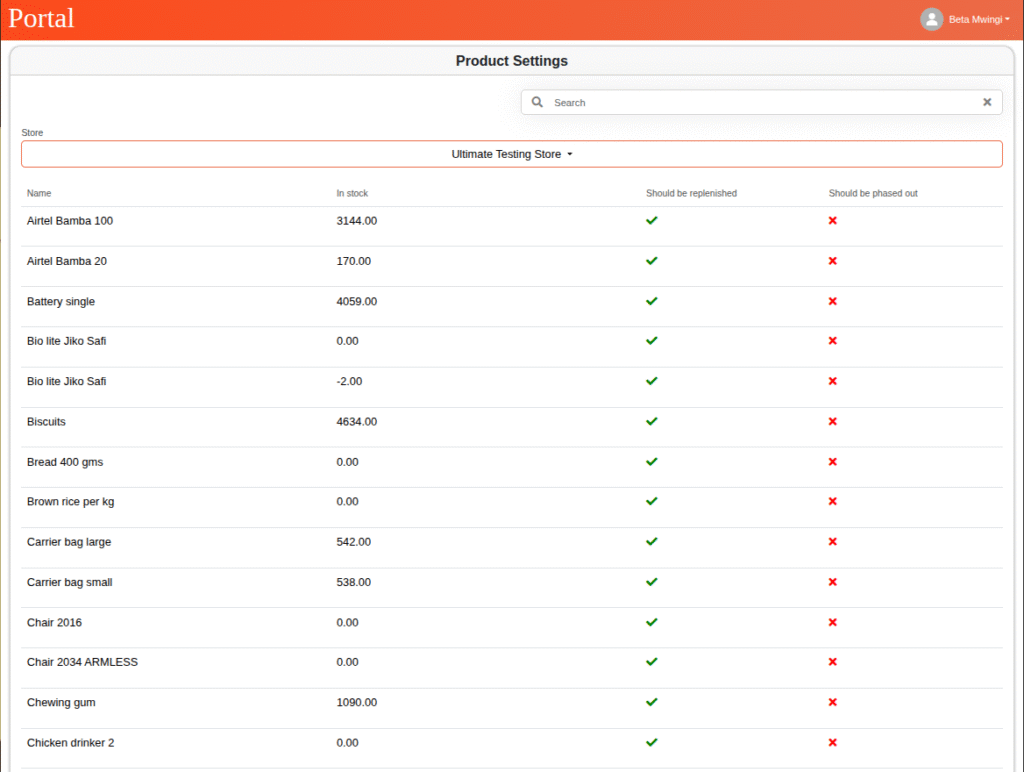
The Product Settings page provides an overview of products by store, displayed in a tabular format showing product names and stock levels.
Features:
- A store dropdown filter allows users to view products specific to a store.
- Status indicators for:
- Should be Replenished
- ❌ Red “x” icon → Not to be replenished
- ✅ Green check icon → Should be replenished
- Should be Phased Out
- ❌ Red “x” icon → Not to be phased out
- ✅ Green check icon → Should be phased out
- Should be Replenished
Note: Status indicators will only be available when the user has filtered one store in the store drop down filter
Editing Product Status
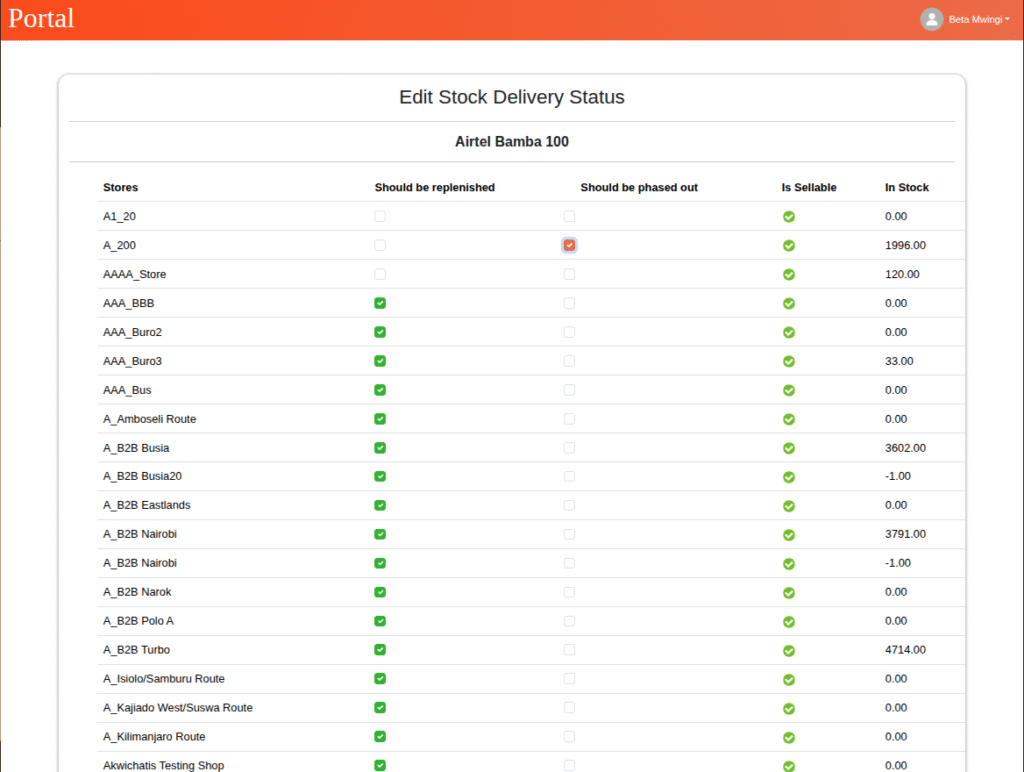
An authorized user can edit a product’s stock delivery status by selecting a product from the table. This opens the Edit Stock Delivery Status view, which displays:
- Product name (title).
- Store name(s) where status can be modified.
- Should be Replenished checkbox.
- Should be Phased Out checkbox.
- Is Sellable status (✅ = sellable, ❌ = not sellable).
- Current in-stock figures for each store.
Rules:
- A product cannot be marked as both Should be Replenished and Should be Phased Out simultaneously.
- Either one checkbox may be selected, or none at all.
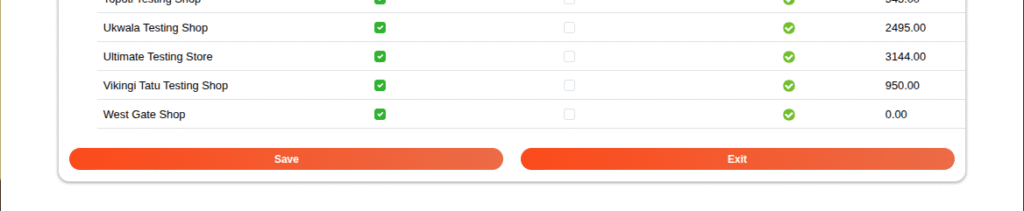
Saving Changes:
- Save → Applies the changes.
- Exit → Cancels changes and returns to the Product Settings table.
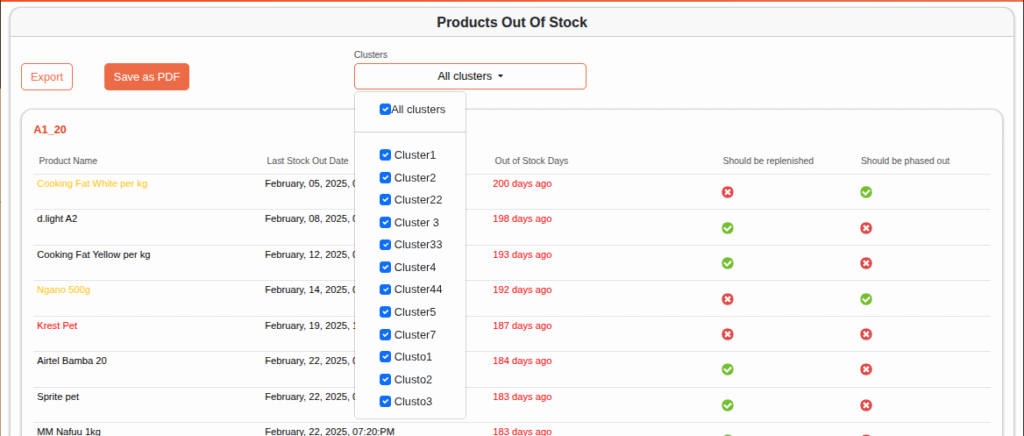
Products Out of Stock
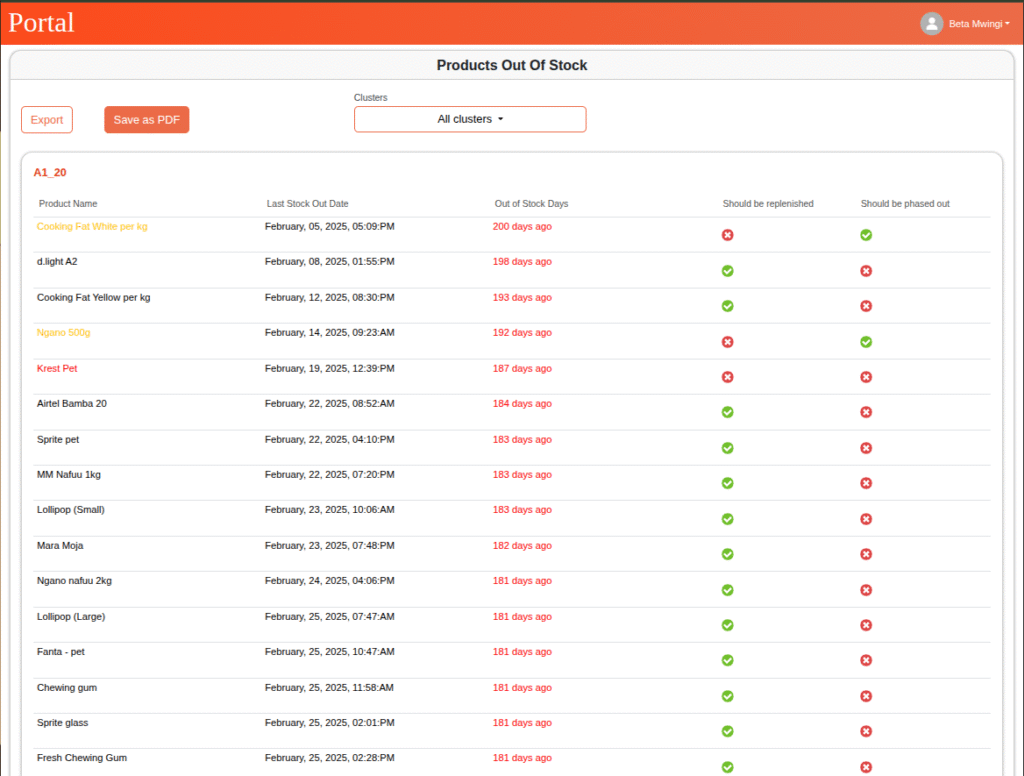
The Products Out of Stock page provides visibility of items that are no longer available in specific stores, grouped by clusters.
Features:
- Products are displayed per store in a tabular format, including:
- Store name.
- Product name.
- Last Stock-Out date.
- Number of days out of stock.
- Should be Replenished status (✅ / ❌).
- Should be Phased Out status (✅ / ❌).
Visual Indicators:
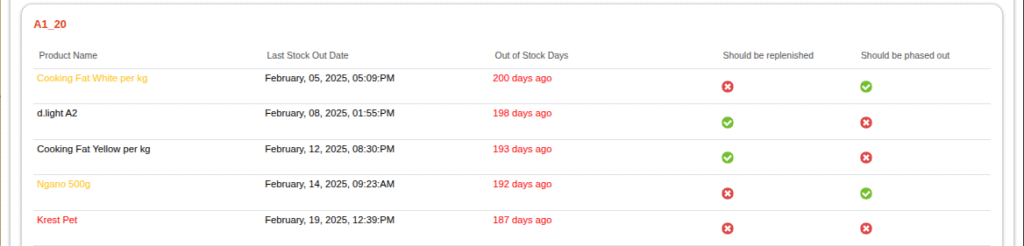
- If Should be Replenished = ❌, the product name is displayed in red.
- If Should be Phased Out = ✅, the product name is displayed in yellow, regardless of the replenishment status.
Filtering & Export:
- Users can filter products by cluster using the dropdown.
- The table can be exported or saved as PDF for reporting.