
Location feature
App Installation
NOTE: During the login process, the user is promted to grant the app permission to access their location. If the permission is not granted at that time, it can still be enabled later through the app settings.
If location permission is not granted, the app will display a message “Location permission is required”. Please ensure you grant the necessary permission.
Without location access, customer and receipt data will not include location information


Sale Process
During the sale process, wholesaler must attch a customer to the receipt. If they proceed without attaching a customer, the system will prompt them to do so.
To attach a customer, tap the customer icon located above the ticket.


STEP 1: Tap the customer icon to open the customer list.
If you don’t immediately see the customer you’re looking for, use the search icon to quickly find them in the list using either their names or phone number.
Once selected, you’ll be able to view the customer’s details — including their current location.
NOTE: If the customer doesn’t exist in the list, tap the orange plus (+) button to create a new customer.


STEP 2: Verify that the village name, cluster, and location are provided in the customer details.
If the customer does not have any location data, tapping “Save” will prompt a dialog asking if you’d like to save your current location as the customer’s location. Tap “YES” to proceed and update the customer’s location.
If any of these fields are missing, tap “Edit Profile” to open the customer edit form. Enter the village name and select the appropriate cluster.

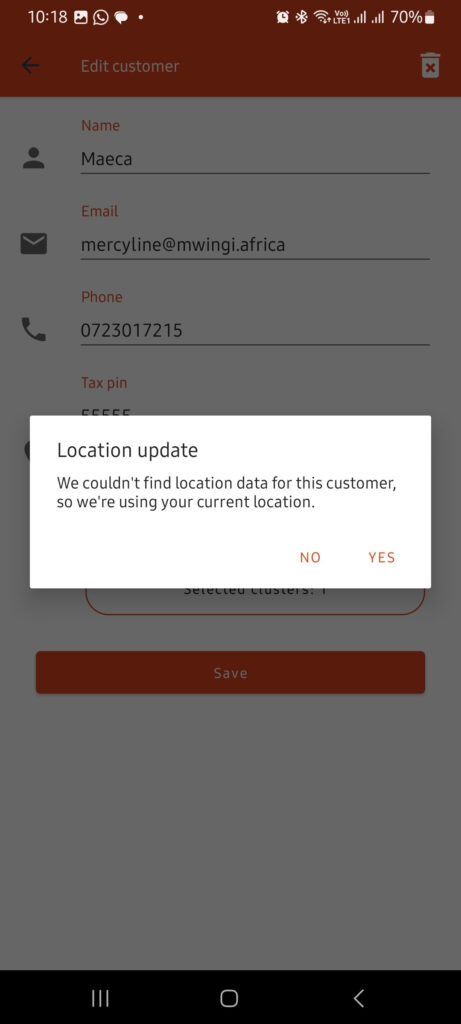
STEP 3: Once the cluster, village name, and location are updated and provided, you can proceed to add the customer to the receipt by tapping “Add to receipt” above the customer details. This will add the customer to the receipt, as indicated by the icon change shown on the second page.

NOTE: After adding the customer to the receipt, the app will allow you to proceed to the next step in the sales process, which is selecting the mode of payment.
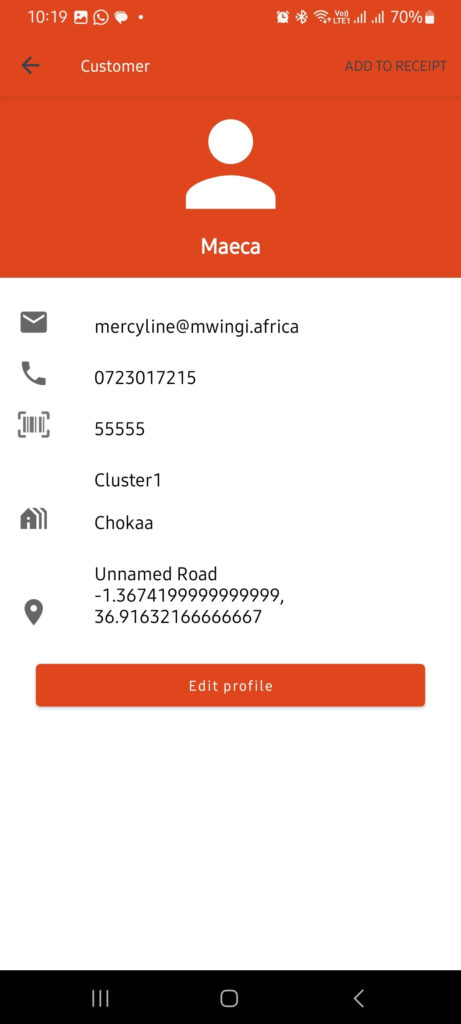

NOTE: If the user has not granted the app permission to access the current location, the location will display as “Permission not granted.” The app will prompt you to update the location before you can add the customer to the receipt.
To resolve this, go to your device’s App Settings, locate the app, and enable location permission. This will allow the app to access and update the location correctly.

