
Repackaging
Overview
The Repackaging module allows users to convert inventory items between bulk and smaller units, or vice versa. This functionality supports accurate stock tracking, efficient retail and wholesale operations, and maintains transparency in how inventory is distributed across packaging sizes.
This module is accessible via the Repackaging menu and is divided into two key sections:
- Product Map – Defines how a product can be split or combined.
- Repackaging – Used to perform and record actual repackaging actions.
These tools are accessible via the Repackaging menu.

Product Map
Overview
The Product Map defines standardized rules for how a bulk product can be broken into smaller units or combined back into bulk. For instance, a 50kg sack of sugar can have a product map specifying:
- 50 × 1kg packs
- 25 × 2kg packs
- Or reverse mappings to repackage back into bulk
This structure ensures consistency and simplifies the repackaging process for users.
Product Map Table View
The table displays all defined product maps with the following details:
- Product Name
- Category
- Price
- Cost
- Margin
- Stock Available

Viewing and Editing a Product Map
To modify a product map:
- Click or tap on a specific product in the table.
- The Product Map Form opens, displaying:
- Bundle Items – Units the product can be converted into
- Bundle Name
- Quantity Fields
- Auto-Repackage Checkbox
- Delete Icon to remove a bundle
- Bundle Items – Units the product can be converted into

Users can:
- Search for items to add using the Search Item field.
- Save changes by clicking Save or exit the view using Exit.

Repackaging
Overview
The Repackaging section is where actual inventory conversion takes place. Each transaction is recorded for traceability and stock accuracy.
Repackaging Table View
The table summarizes all repackaging transactions, including:
- Repackaging Name (Format: DSXXXX)
- Date Created
- Status – Draft or Completed
- Store – Location of the repackaging
- Quantity Repackaged
- Auto Repackaged – Displayed as:
- (✓) with source info if auto
- (x) if done manually

Filters
Users can:
- Select a Store from the dropdown
- Search records using the Search Bar

Viewing Repackaging Details
Click a record to open its Repackaging Detail View, which includes:
- Repackaging Name
- Date Created
- Created By
- Store Name
- List of Repackaged Items
Action Buttons:
- Options Dropdown:
- If Draft:
- Save as PDF
- Edit Repackaging
- If Completed:
- Save as PDF only
- If Draft:

Action Buttons
At the top of the detail view:
- Options Dropdown:
- If Draft:
- Save as PDF
- Edit Repackaging
- If Completed:
- Save as PDF only
- If Draft:

Creating a New Repackaging
To initiate a new transaction:
- Click the floating “+” button to open the Repackaging Form.


Form Steps
- Select Store – Required before adding any item.
- Search Item – Find the source product.
- Note: Search is disabled until a store is selected.
- If the product isn’t found, a “Product not found” message appears.
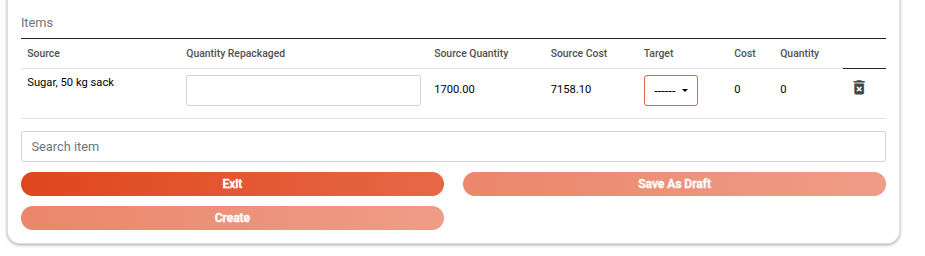
Once an item is added, it appears in the Items Table with:
- Source Item Name
- Quantity Input – Amount to repackage
- Available Quantity
- Cost
- Target Product Map Dropdown – E.g., 1kg or 2kg packs
- Target Quantity
- Delete Icon

Important:
- Save as Draft, Create, and Exit buttons appear below the table.
- Buttons are disabled until:
- A store is selected
- A repackaging quantity is provided
- A target product map is chosen
Editing a Draft Repackaging
Only draft transactions can be modified.
- Click a draft record to view its details.
- From the Options Dropdown, select Edit Repackaging.
This opens the Edit Repackaging Form, where users can:
- Adjust quantities
- Change target mappings
- Add or remove items

Form Actions:
- Exit – Close without saving
- Save – Save current changes
- Complete – Finalize and lock the record
Note: Completed repackaging records cannot be edited.