
Mwingi POS App – Receipt Review and Refund Process
In certain cases, a customer may need to return an item for genuine reasons. To ensure proper tracking and accountability, refunds must be processed through the Mwingi POS App by referencing the original sales receipt.
Accessing Receipts
Receipts are automatically generated upon the successful completion of each sale. To view past transactions:
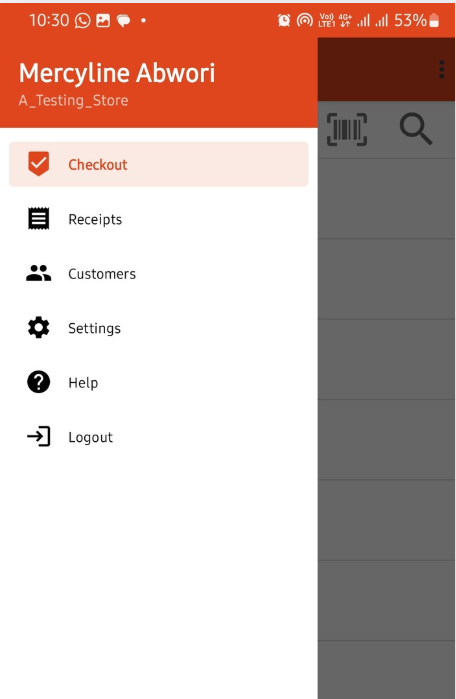
- Tap the menu bar.
- Select “Receipts” from the sidebar.
- A list of previously recorded receipts will appear.
- Tap on the relevant receipt to open and review its details.

Refund Process
Refunds are only initiated from the specific receipt that contains the item(s) to be returned.
Step 1: Initiate Refund
- Open the receipt linked to the item the customer wishes to return.
- Tap the “REFUND” button at the bottom of the receipt page.
- A new view will appear, showing all items in the receipt with checkboxes next to them.


Step 2: Select Product & Adjust Quantity
- Tap on the item that is to be refunded.
- On the next screen, adjust the quantity being returned by the customer.
- Use the “+” or “–” buttons or input the correct quantity manually.
- Tap “Save” to confirm your selection.
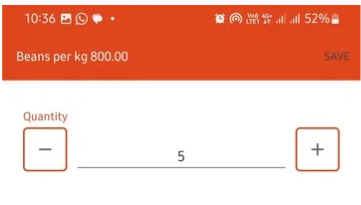
NOTE : Ensure that the quantity selected for refund accurately reflects the item(s) being returned.
Step 3: Complete the Refund
- After selecting the item(s) and confirming the quantity, tap the “REFUND” button again to process the return.
Important:
- If you are not authorized to perform refunds, an error message will appear instructing you to seek approval from a Field Retail Officer (FRO) or Manager.
- If successful, a confirmation message will be displayed and a refund receipt will be generated.

