POS Devices
Overview
The POS Devices module manages records of all authorized devices permitted to access the POS application. Each registered device serves as a unique identifier to control and restrict store-level access, ensuring system integrity and accountability.
Device access is governed by store-specific limits. For instance, if a store is configured to allow only one device, only a single authorized user can be logged into the POS App at any given time. By default, each store is limited to one active device, unless otherwise configured.
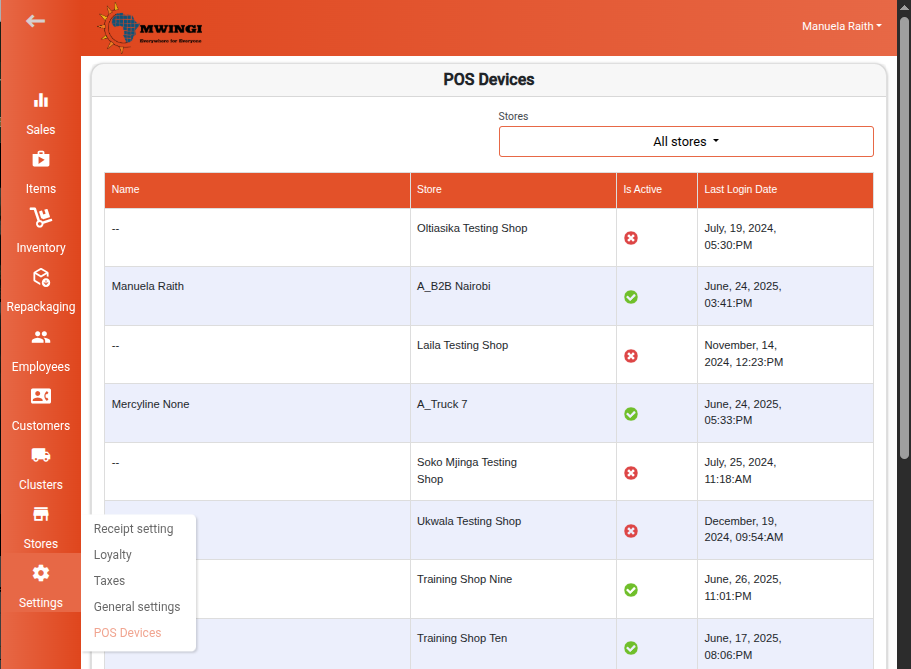
This module is accessible to authorized users via the Settings menu.
POS Devices Table View
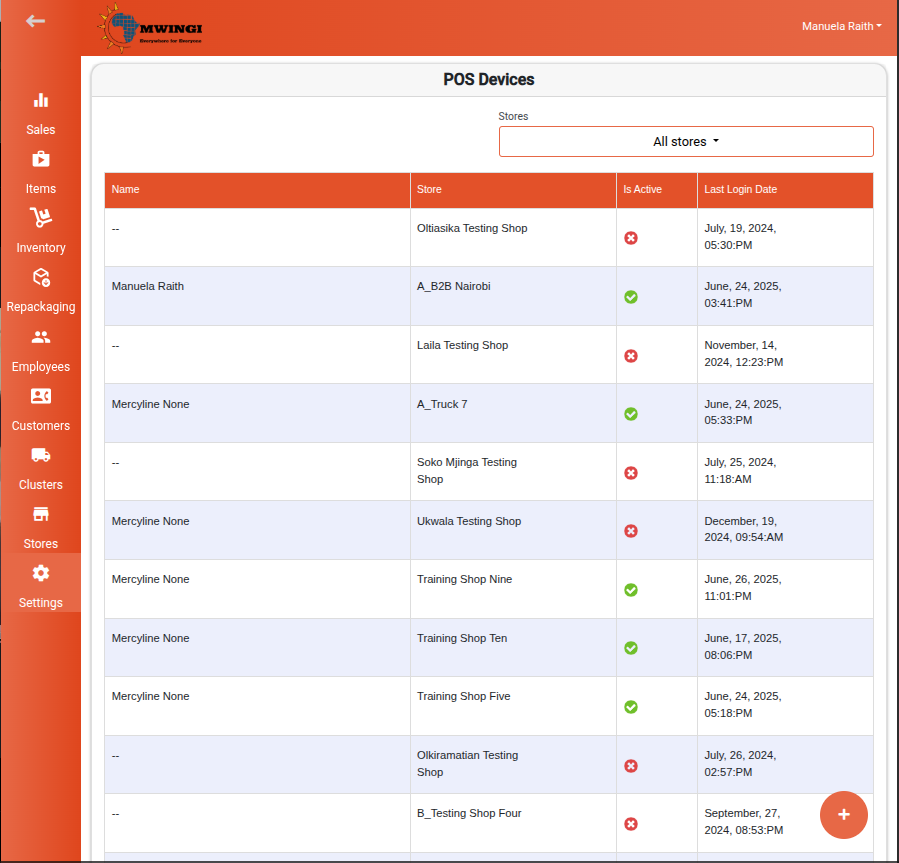
The module provides a table displaying all registered POS Devices with the following details:
- Device Name – The name assigned to the POS Device.
- Store Name – The store to which the device is linked.
- Active Status – Indicates the device’s login status:
- ✅ Check icon – Device is currently logged in
- ✖️ X icon – Device is inactive
- Last Login Date and Time – Timestamp of the device’s most recent login.
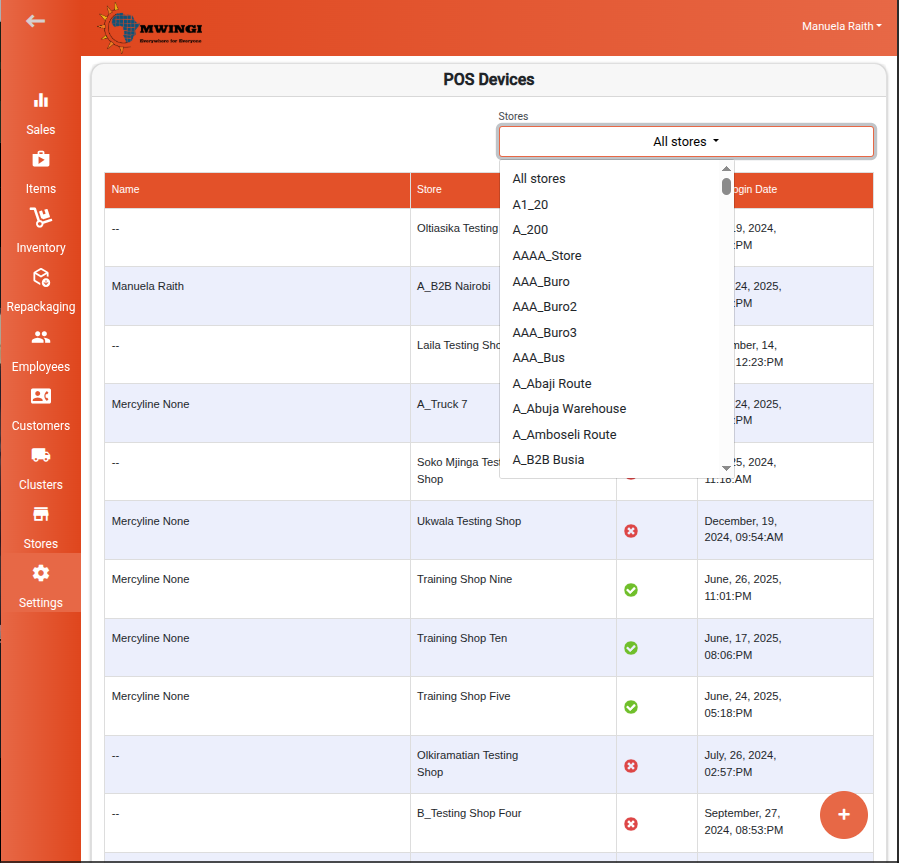
A Store Filter located above the table allows users to quickly search and retrieve devices associated with a specific store.
Registering a New POS Device
To add a new POS Device:
- Click or tap the “+” circle button at the bottom of the table.
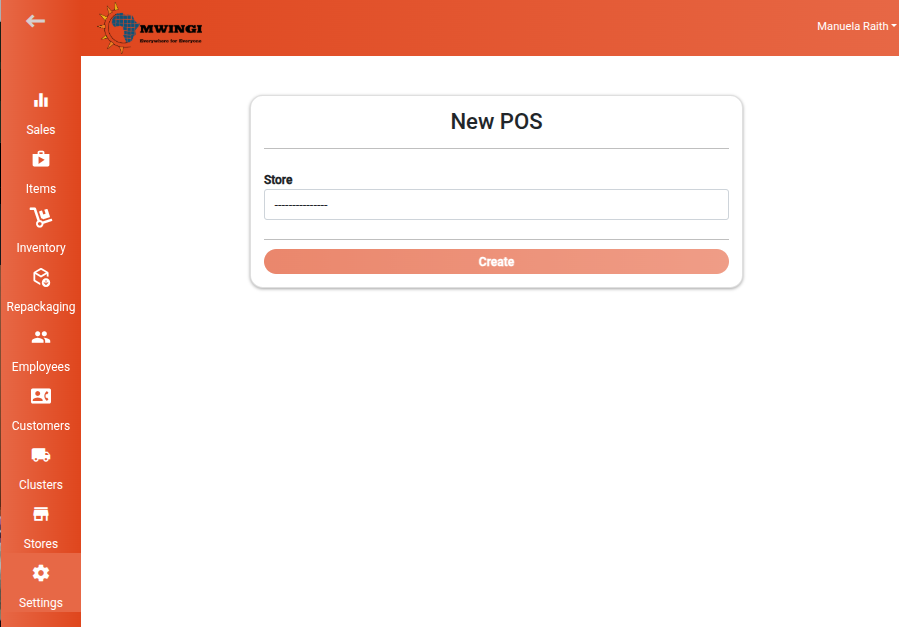
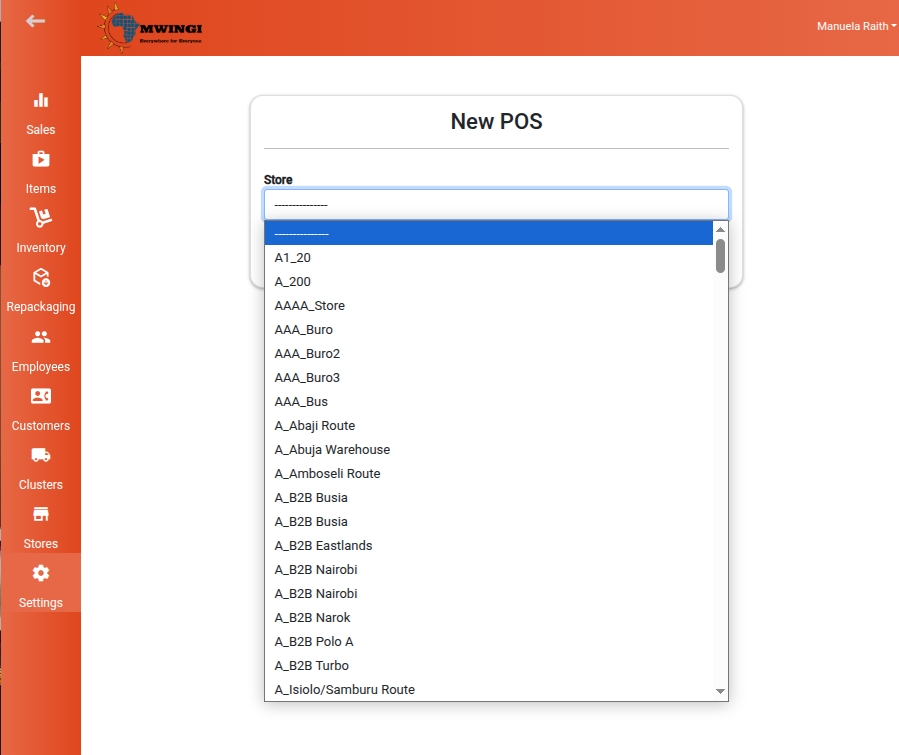
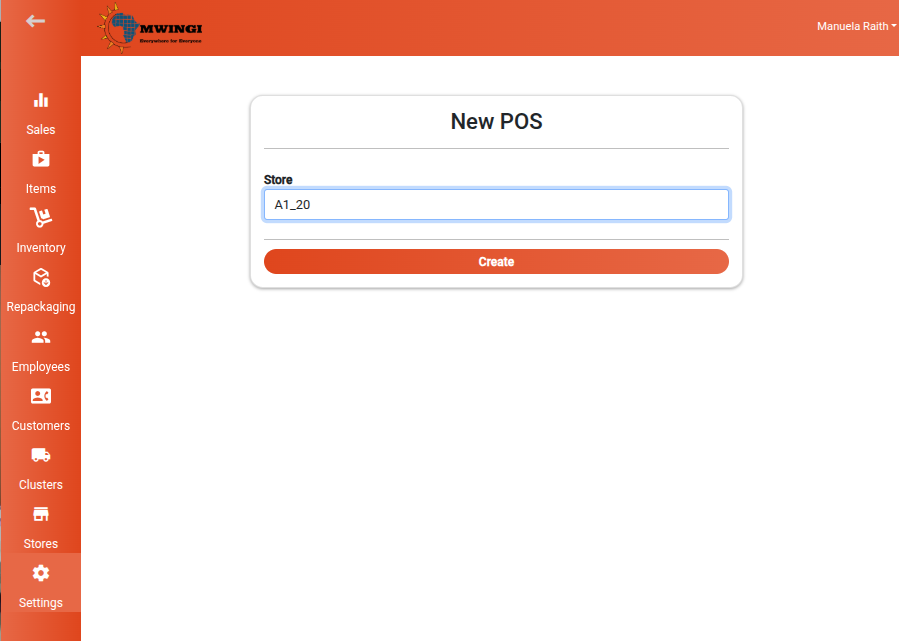
- The Create POS Device Form will appear.
- Select the Store to which the device will be authorized.
- Click or tap Create to complete registration.

Editing or Deleting a POS Device
To modify or remove an existing POS Device:
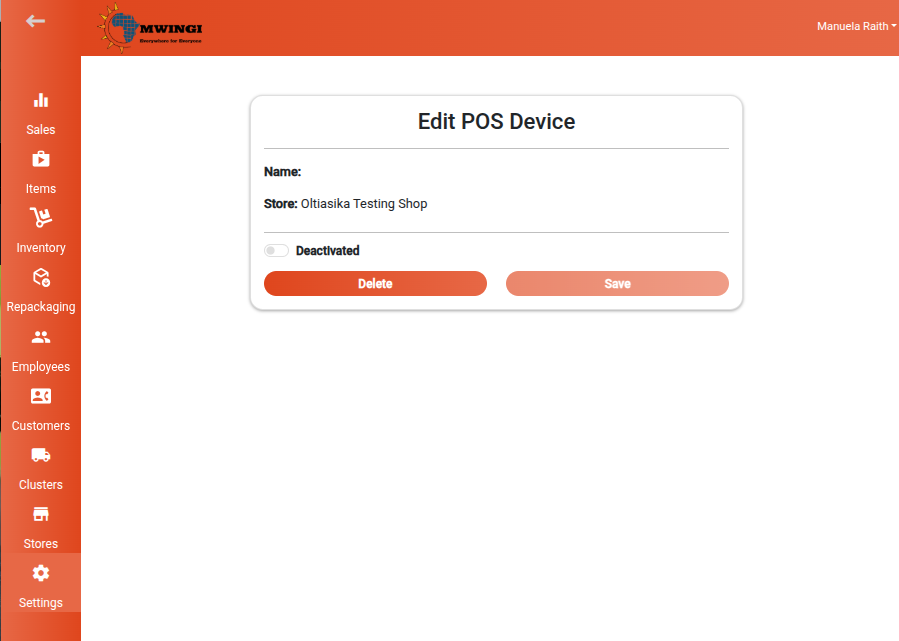
- Tap or click the desired device in the table to open the Edit POS Device Form.
- In the form, you can:
- Activate or Deactivate – Use the toggle switch to change the device status.
- Delete – Permanently remove the POS Device from the system.
- Save – Apply any updates made to the device record.