Stores
Overview
The Stores module manages records for all stores within the system. These records are crucial for handling sales operations, inventory tracking, and store-specific configurations across the Mwingi POS Back Office.
Access to this module is available through the Stores menu and is restricted to authorized users only.
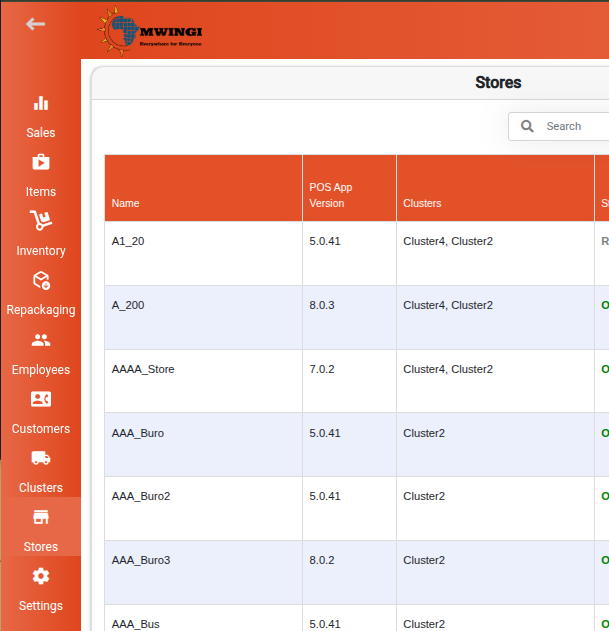
Stores Table View
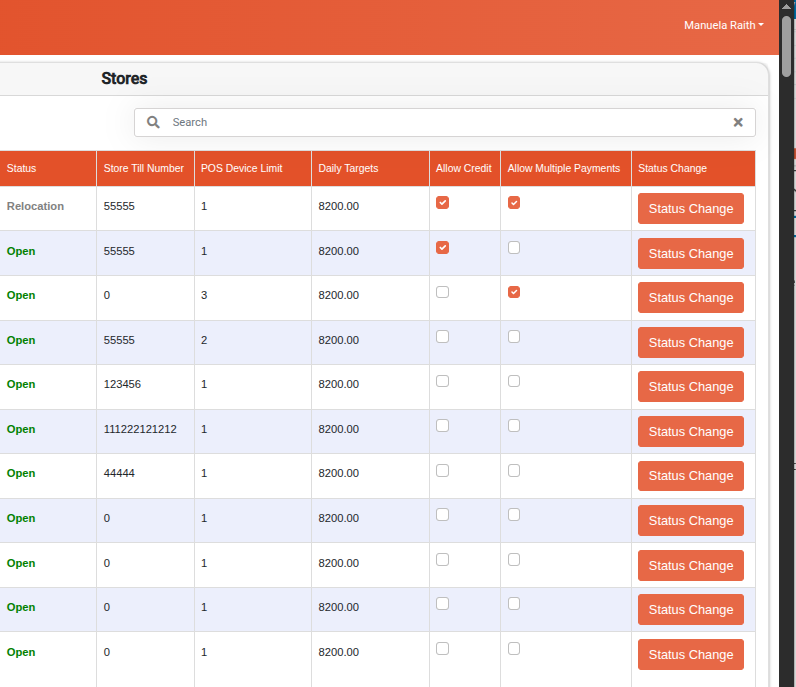
The system presents a detailed table displaying all existing stores along with the following key information:
- Name – Store name
- POS App Version – Current version of the POS application in use
- Clusters – Clusters the store is associated with
- Status – Operational state (Open / Closed / Relocation)
- Store Till Number – Configured till number for payments
- POS Device Limit – Maximum number of allowed POS devices
- Daily Targets – Set daily sales target
- Allow Credit – Indicates if credit sales are permitted
- Allow Multiple Payments – Indicates if split payments are permitted
- Status Change – Buttons to update the store’s status
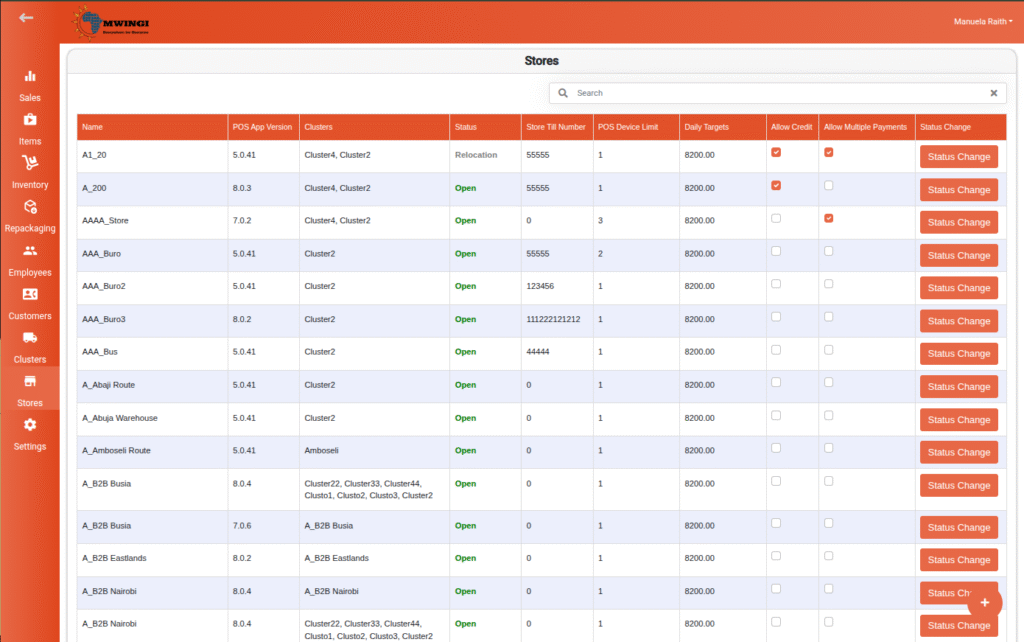
A search filter is provided above the table to quickly locate a specific store.
A search filter is available above the table for quickly locating specific store records.
Creating a New Store
To create a new store:
- Click the floating “+” button at the bottom of the table view.
- The Create Store Form will open.
Fields to Complete:
- Name – Store name
- Address – Store location address
- Till Number – Payment till number
- Daily Target – Daily sales target (default: 8,000)
- POS Device Limit – Max POS devices allowed (default: 1)
- Allow Credit – Enable credit sales via checkbox
- Allow Multiple Payments – Enable split payments (e.g., MPESA Till + Cash)
- Select Store to Replicate Stock – Choose an existing store to copy stock data from
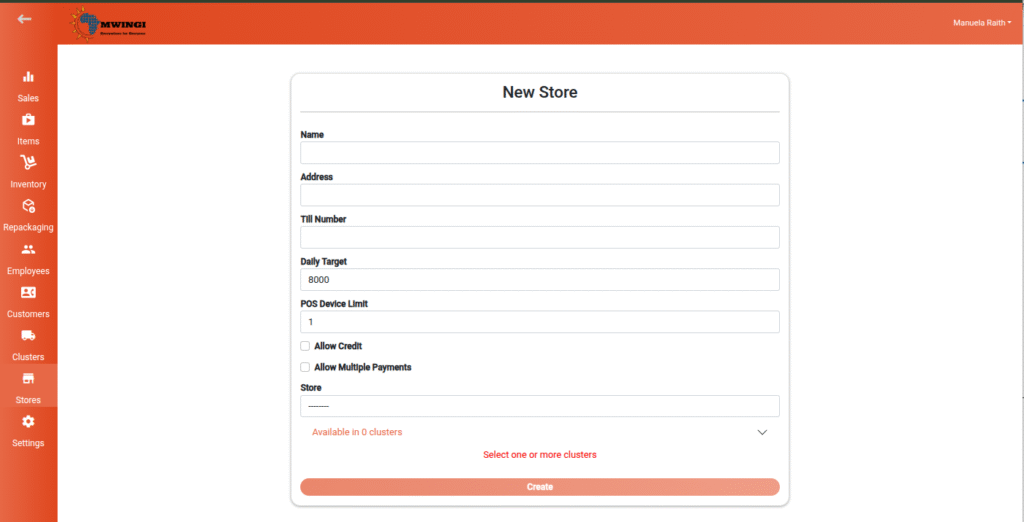
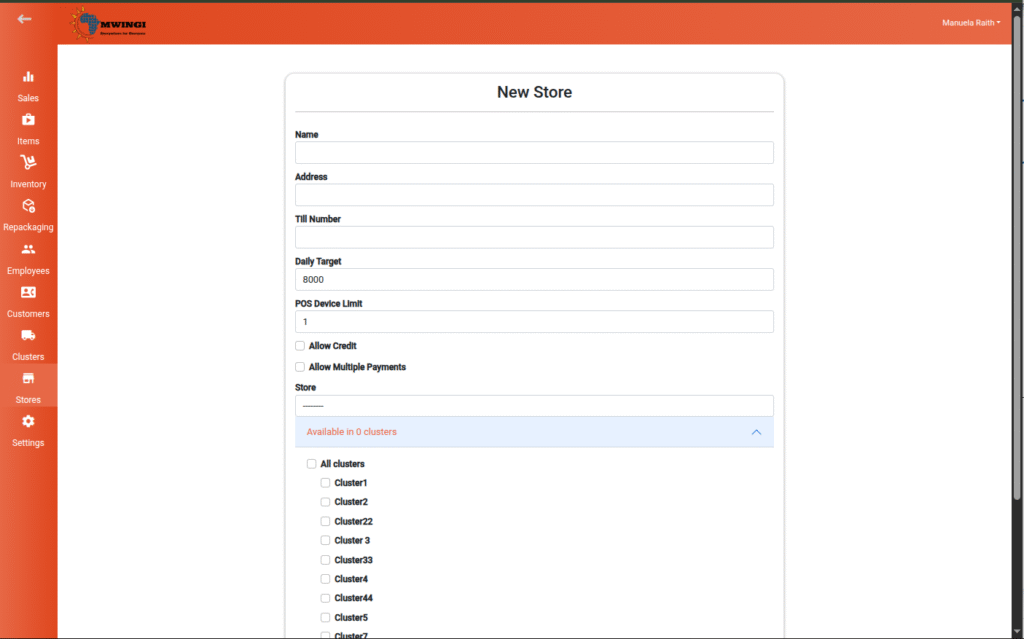
- Clusters – Select one or more clusters to associate with the store (mandatory)
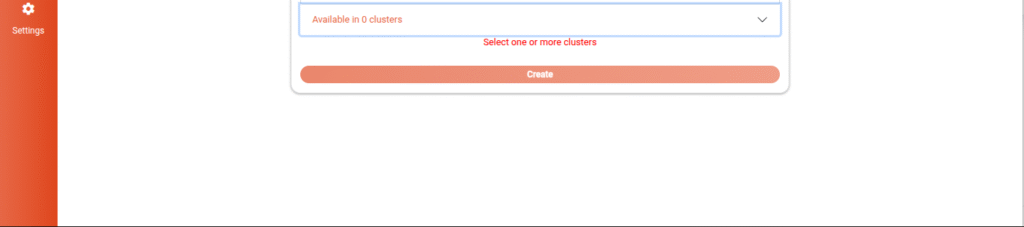
Once all required fields are completed, click Create to save the new store.

Note: At least one cluster must be selected to proceed.
Editing or Deleting a Store
To modify or remove a store:
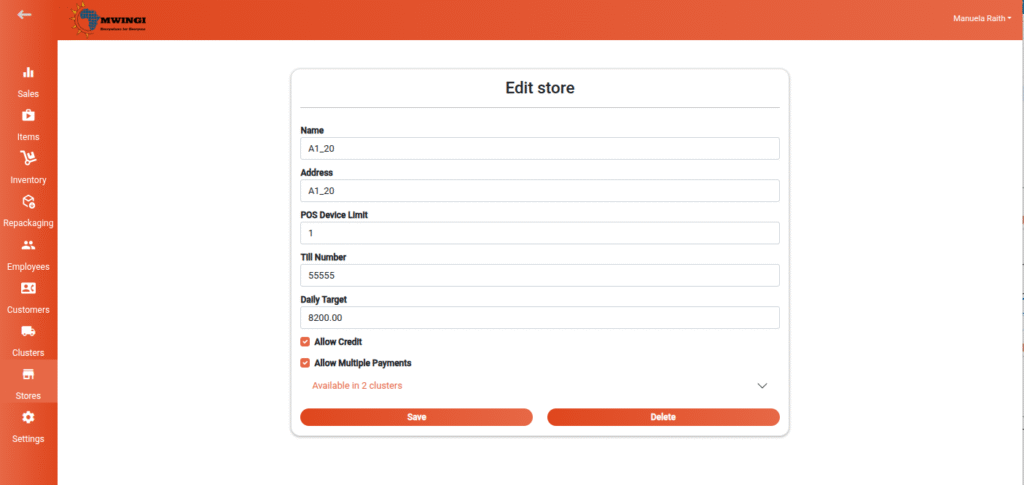
- Click the desired store from the table to open the Edit Store Form.
- The form layout is similar to the creation form but includes the following actions:
- Save – Apply updates to the store record
- Delete – Permanently remove the store
Status Change
Store records include an operational Status to help track their current activity. Available status types:
- Open – Store is active and operating
- Closed – Store is inactive
- Relocation
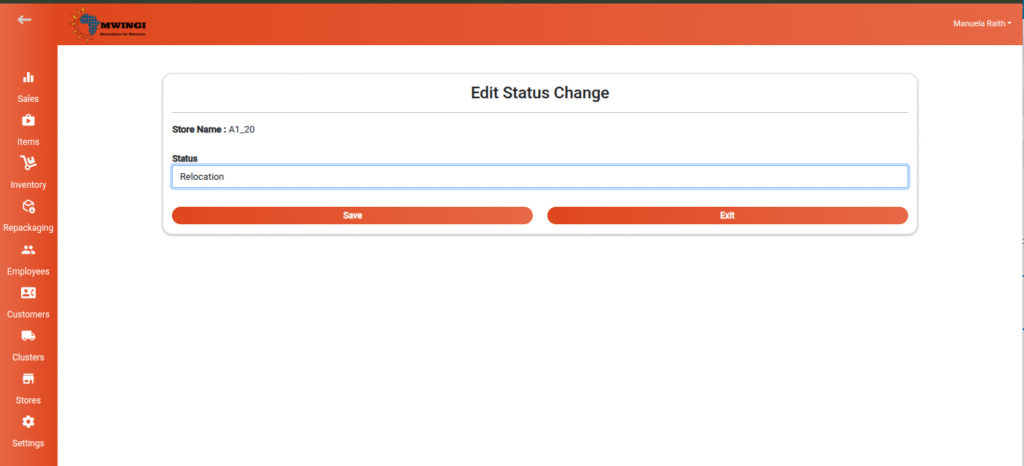
To update a store’s status:
- In the table, click the Status Change button for the relevant store.
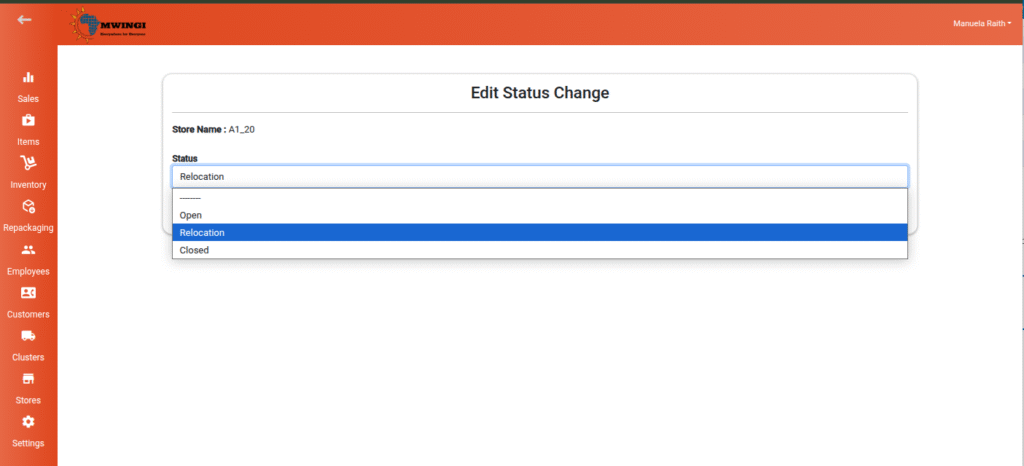
- The Edit Status Form will appear.
Fields and Actions:
- Store – Displays the selected store’s name
- Status Dropdown – Choose a new status (Open, Closed, Relocation)
After selection:
- Click Save to confirm the status change
- Click Exit to cancel and return to the table view