
Roles
Overview
The Roles module empowers Super Admins and Admin Managers to manage user access by defining role-based permissions. Each role specifies the actions and features users can access within the Mwingi POS Back Office, ensuring appropriate system access aligned with user responsibilities.
This module is located under the Employees menu.
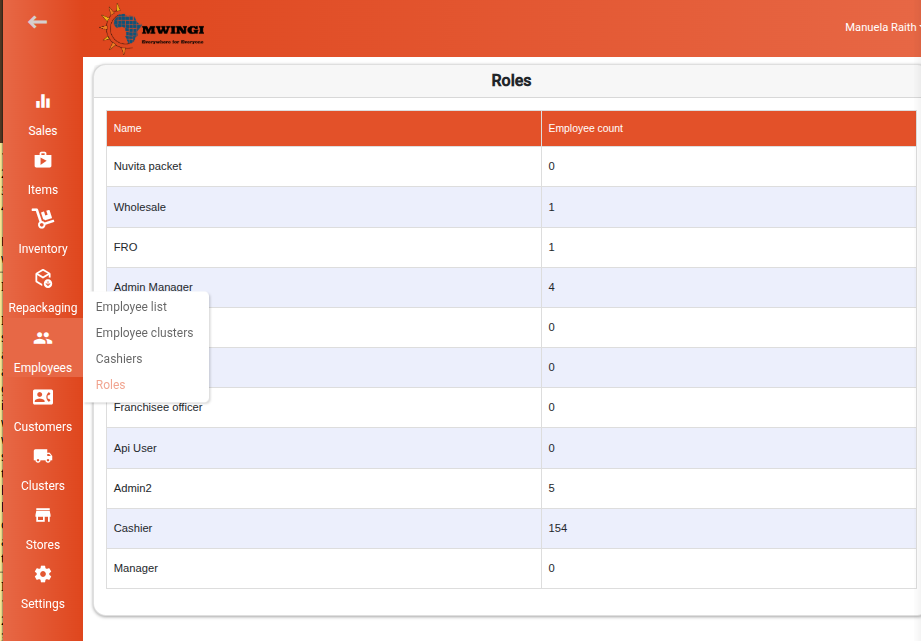
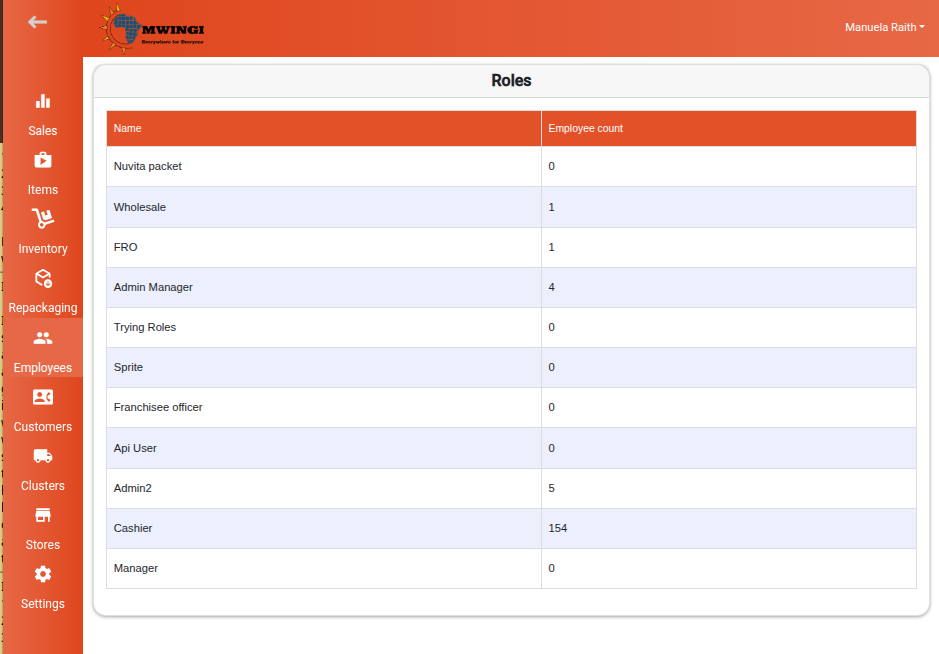
Roles Table View
A structured table displays all existing roles. Each row includes:
- Role Name – The name of the role
- Employee Count – The number of employees assigned to the role
Viewing and Editing a Role
To view or modify a role’s configuration:
- Click or tap the role in the table.
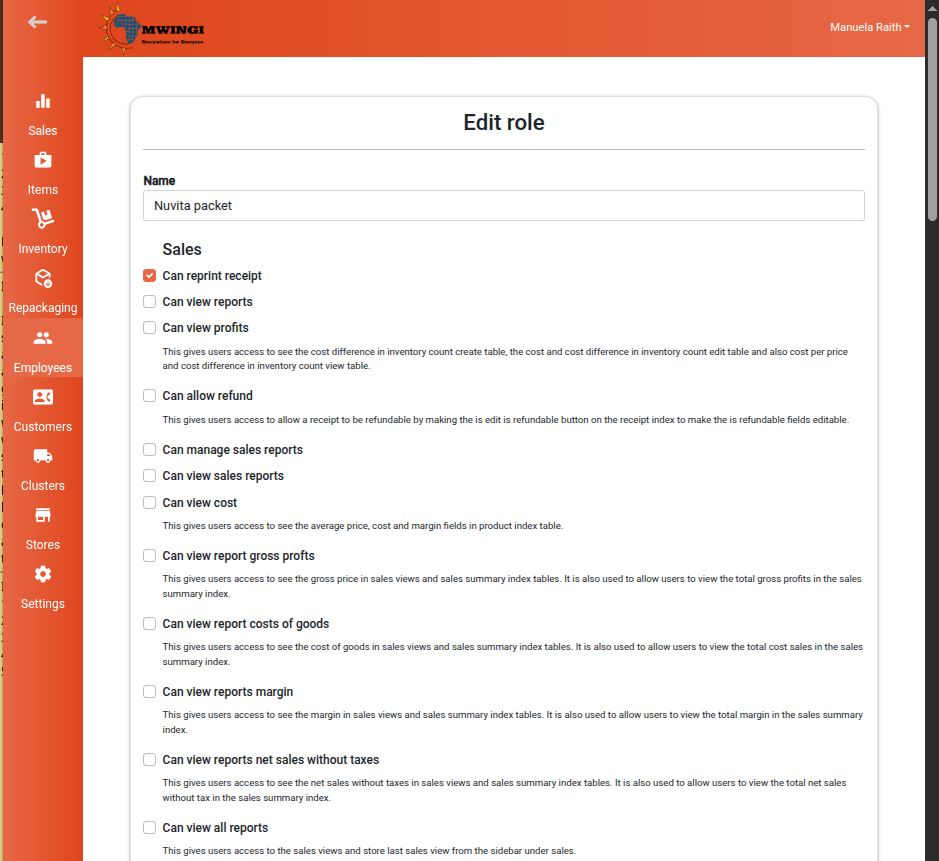
- The Edit Role Form opens, showing:
- Role Name – Editable text field
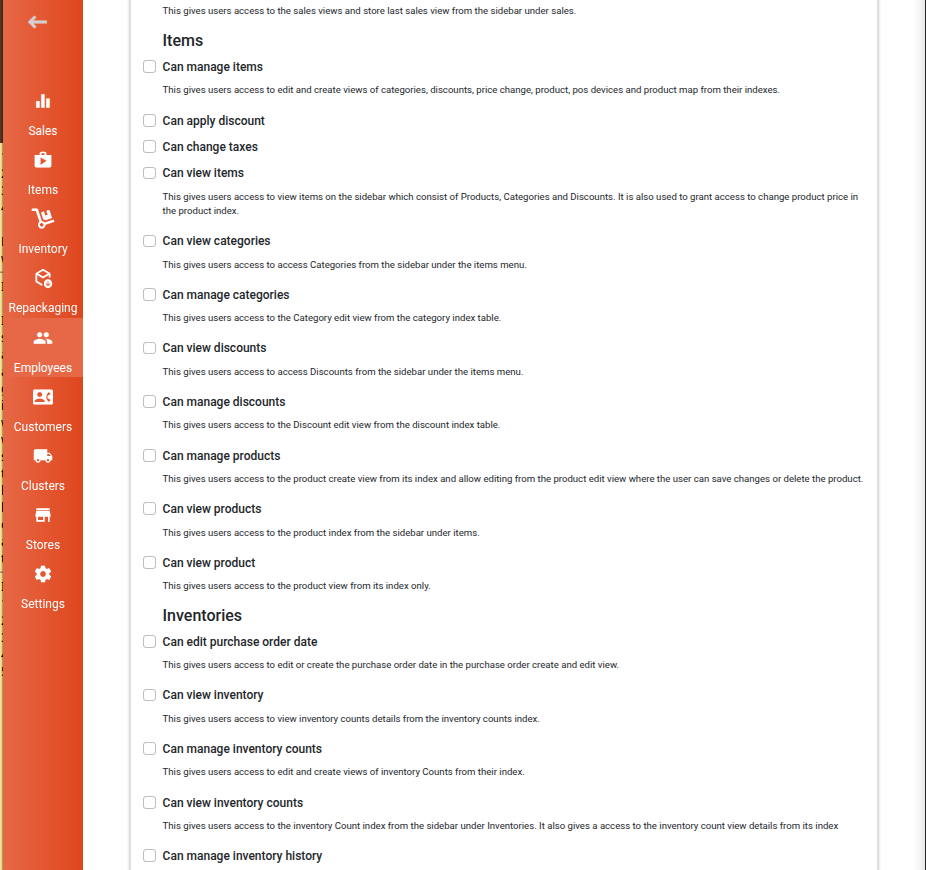
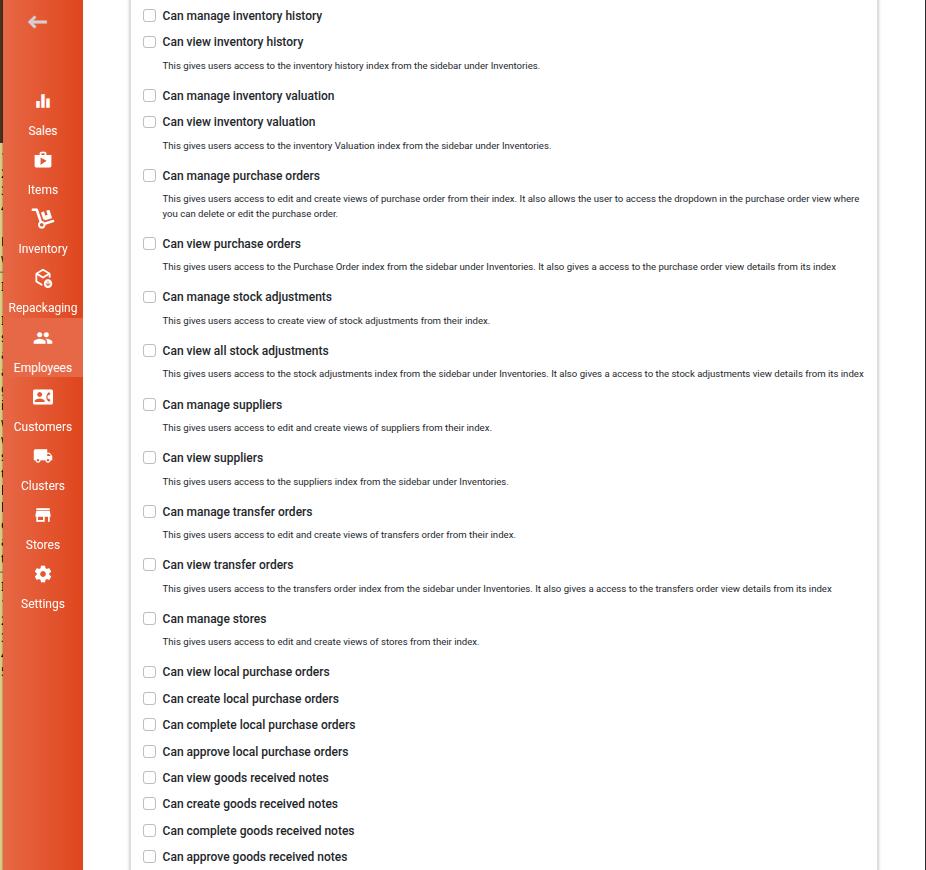
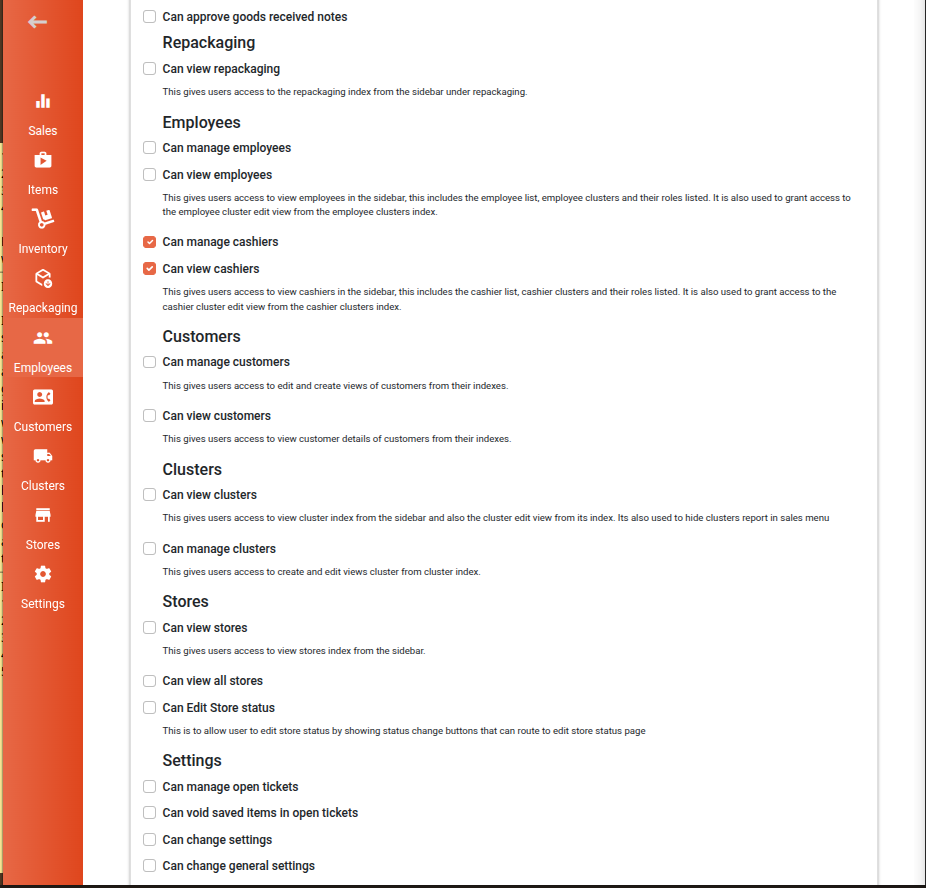
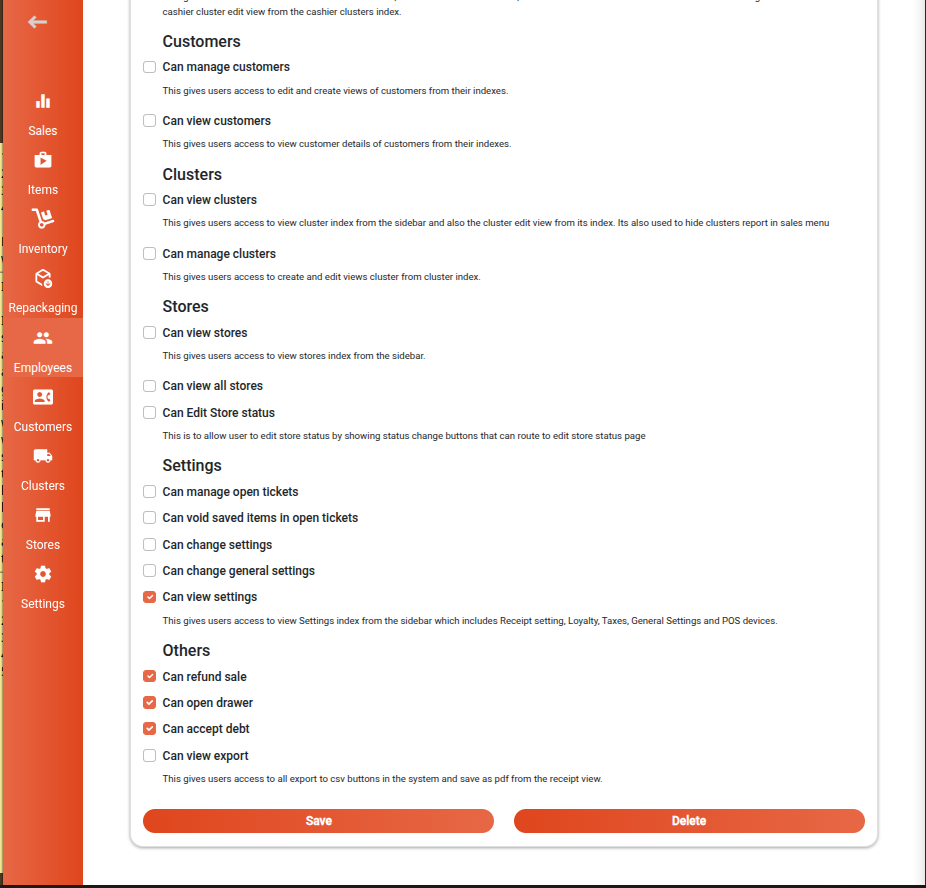
- Permissions – A categorized list of checkboxes, organized into sections such as:
- Sales – Roles affecting the Sales menu
- Items – Item management permissions
- Inventories – Access to inventory-related features
- Repackaging – Permissions for repackaging operations
- Employees – Employee management roles
- Customers – Access to customer data and actions
- Clusters – Cluster-related permissions
- Stores – Store configuration access
- Settings – System configuration
- Others – Additional permissions
- Role Title – Name of the permission
- Description – Brief explanation of its functionality
Saving or Deleting a Role
After making changes:
- Click Save to apply updates.
- Click Delete to permanently remove the role from the system.
Creating a New Role
To define a new role:
- Tap or click the floating “+” button at the bottom of the page.
- The Create Role Form opens, which includes:
- Role Name – Field to enter the role’s name
- Permissions – Categorized checkbox list of all available permissions

Once all details are completed:
- Click Create to save the new role.