
Employee List
Overview
The Employee List module in the Mwingi POS Back Office allows authorized users to manage employee and user profiles. Users with appropriate permissions can create, update, or delete employee records as needed.
This feature is accessible via the Employees menu.
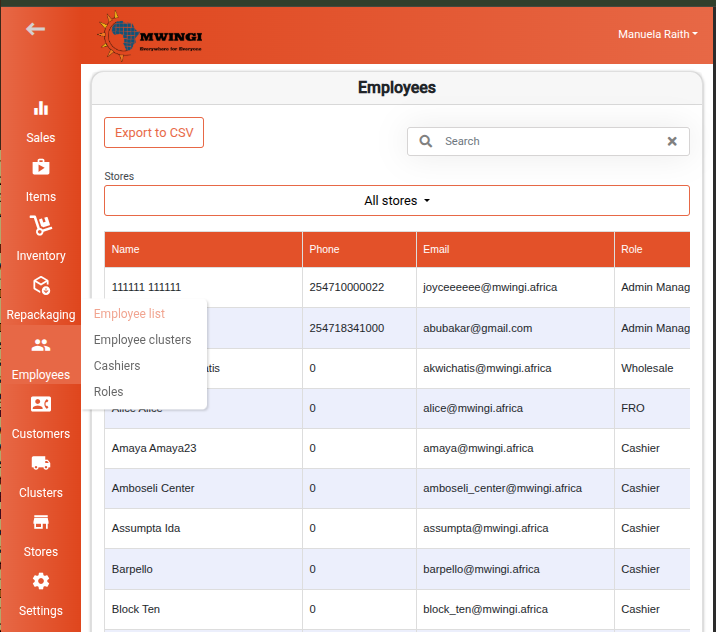
Employee Table View
The system displays a comprehensive table of all registered employees. Each row contains key details, including:
- Name – The employee’s full name
- Phone – Contact phone number
- Email – Email address
- Role – Assigned system role (e.g., Admin Manager, Wholesale, FRO, Cashier, or other configured roles)
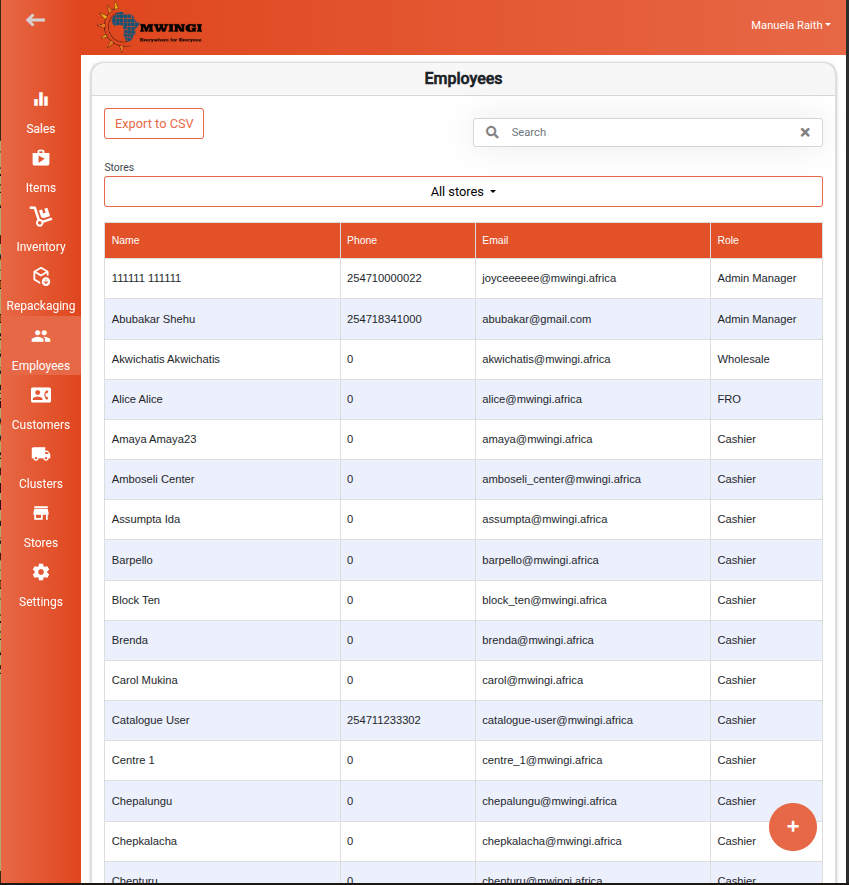
Search and Filtering
To quickly locate specific employee records, users can:
- Filter by Store – Use the store dropdown to view employees assigned to a specific store
- Search – Enter a name, email, or phone number in the search bar above the table
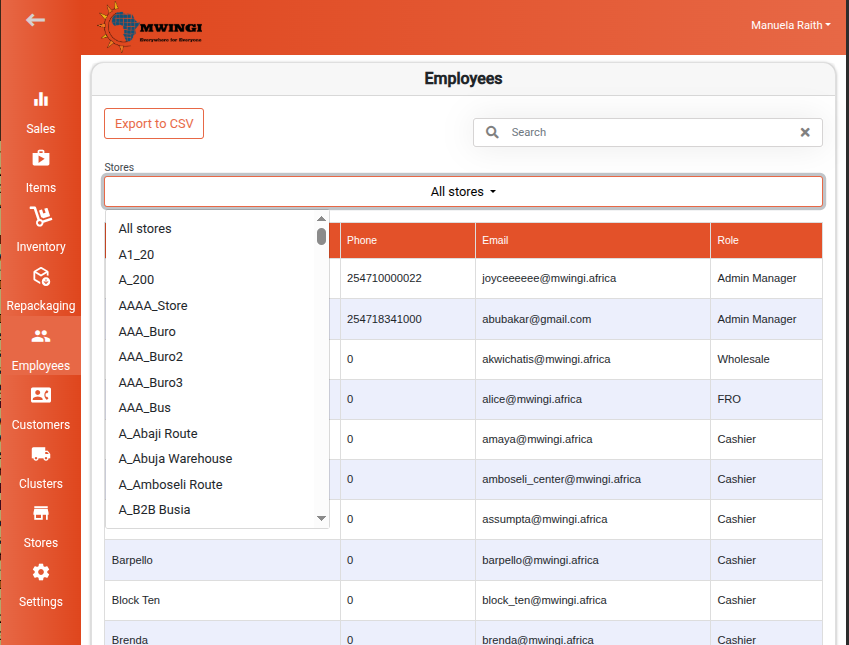
Export
Click the Export to CSV button to download the current employee records as a CSV file.
Creating a New Employee
To add a new employee:
- Click the floating “+” button at the bottom of the page.
- The New Employee Form will appear.
Required Fields:
- First Name
- Last Name
- Phone
- Role – Select from predefined roles
- Gender – Choose Male, Female, or Other
- Password – Set a password for the employee account
- Stores – Select one or more stores the employee can access
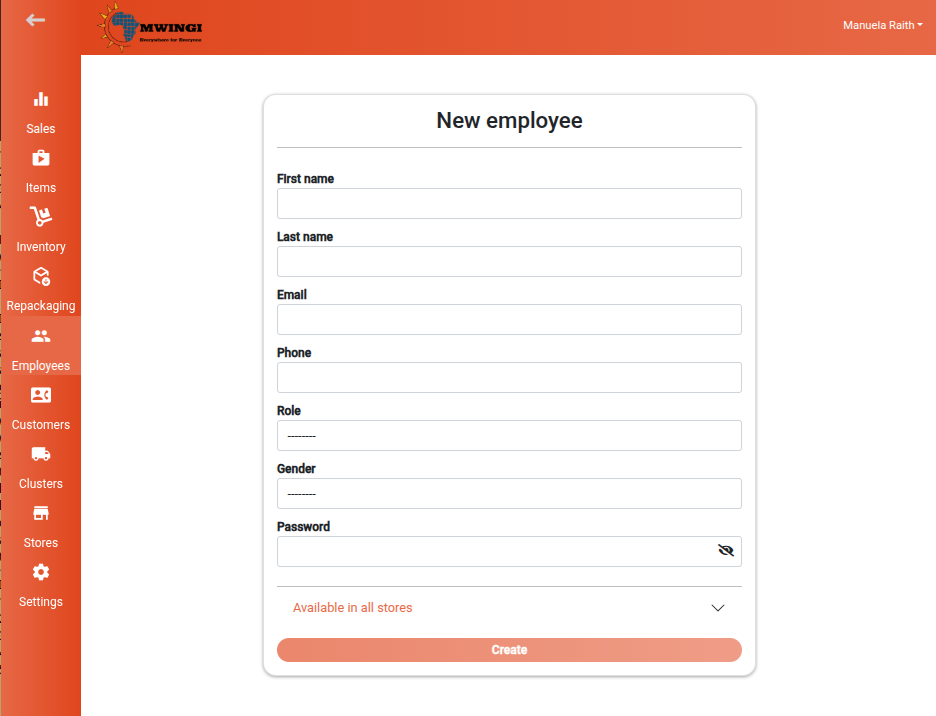
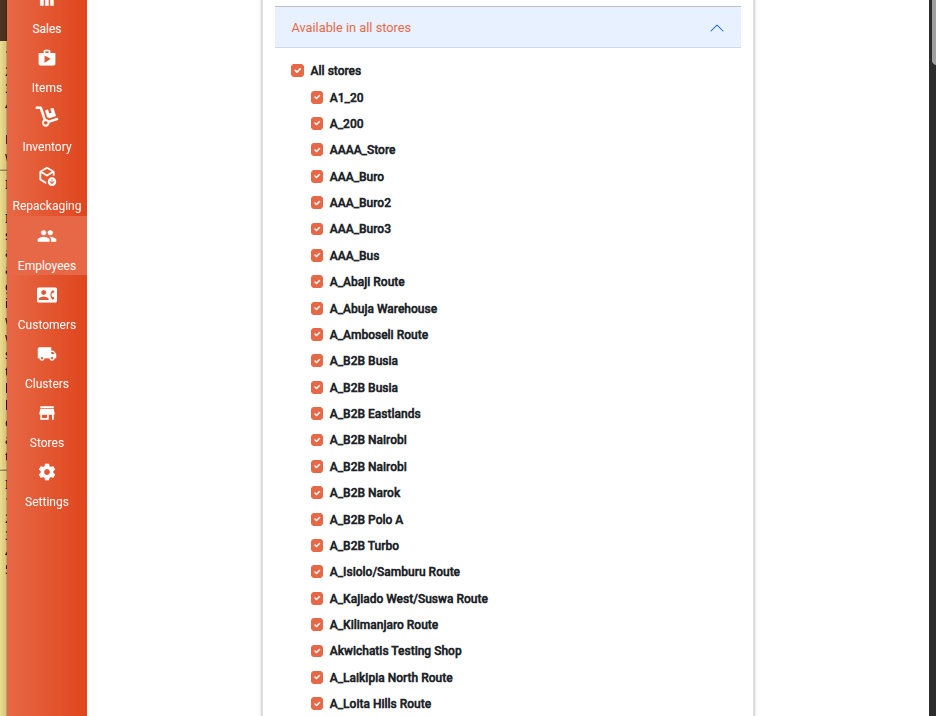
Click Create to save the new employee record.
Editing an Employee
To edit an existing employee:
- Click on the employee’s row in the table.
- The Edit Employee Form will open.
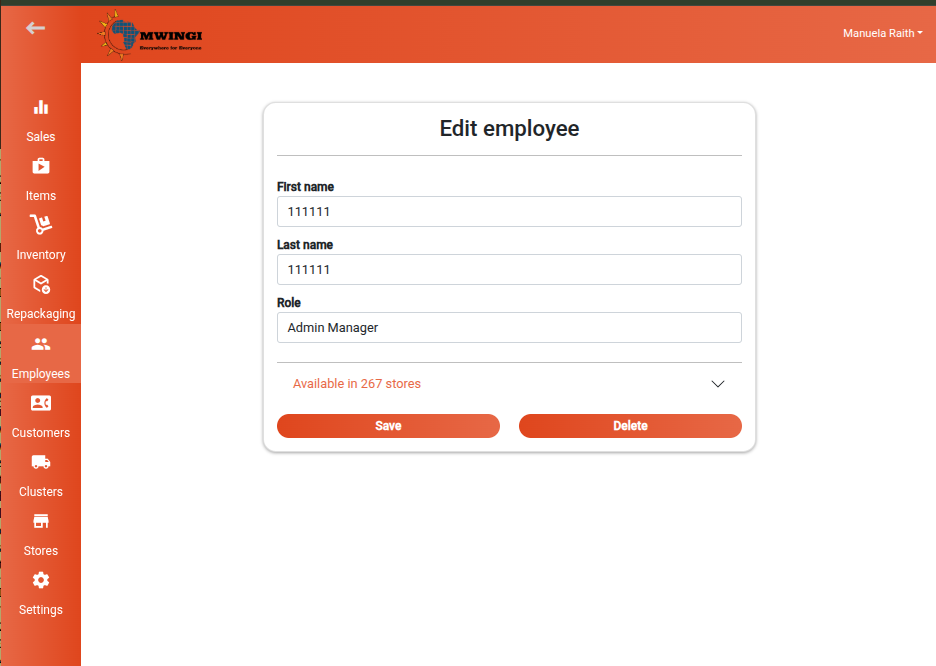
Authorized users can update:
- First Name
- Last Name
- Role
- Stores
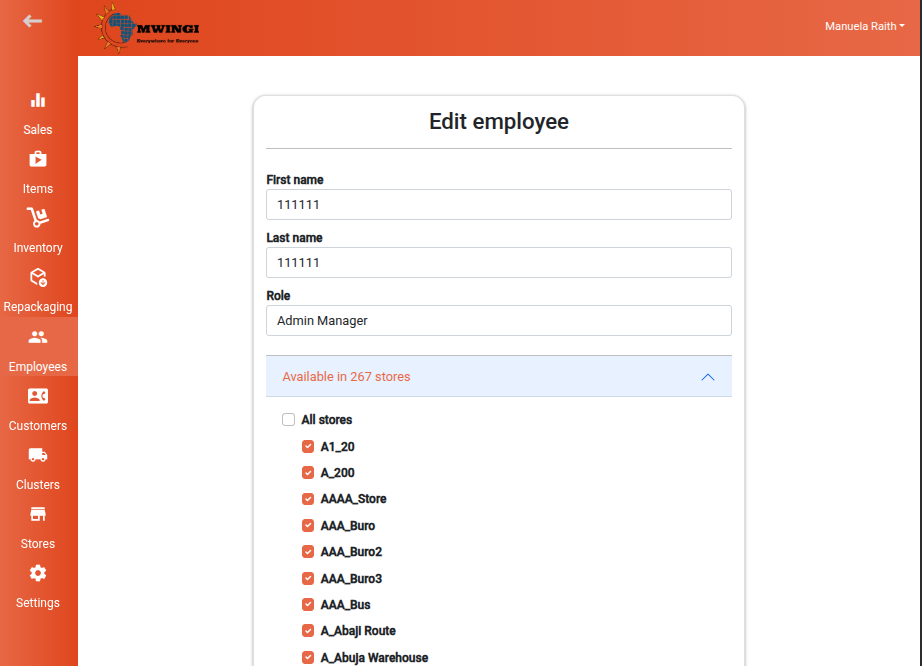
Click Save to apply the updates.
Deleting an Employee
To delete an employee:
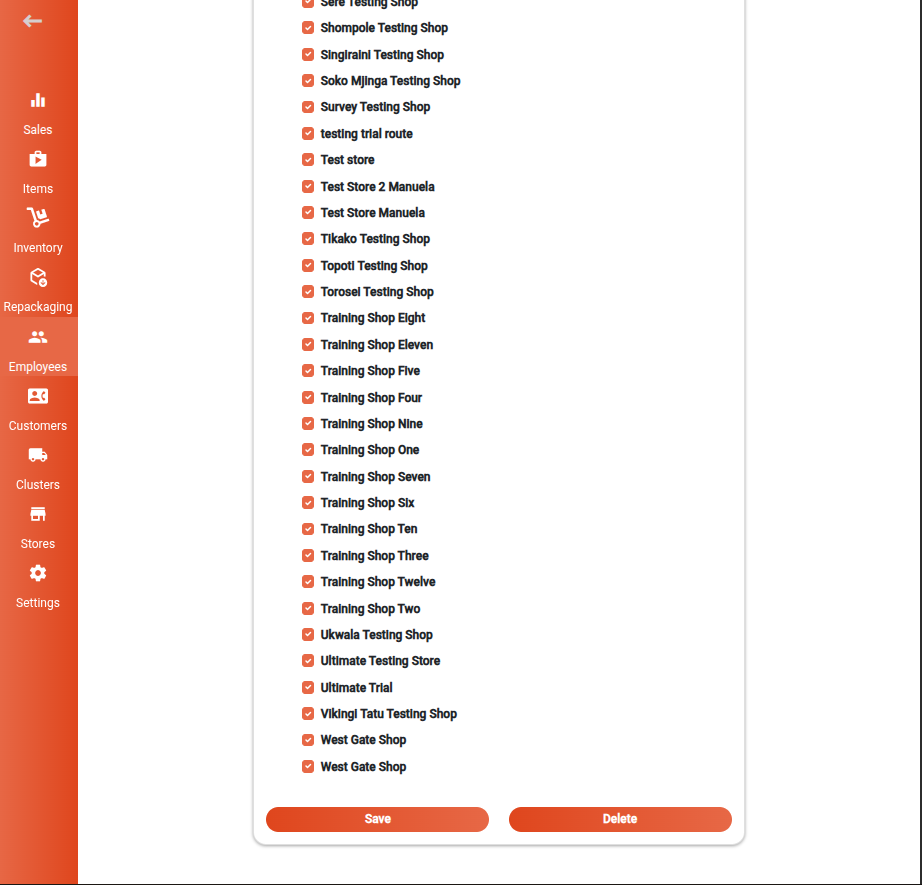
- Open the Edit Employee Form for the specific employee.
- Click Delete to permanently remove the employee record from the system.
